
Made by Remco Dolman with Scribe
Use Spotzi’s Visitor Profile tool to identify which postal codes visitors to any location live in.
You can then contact Spotzi to target audiences in these postal codes through online campaigns.
Step-by-step
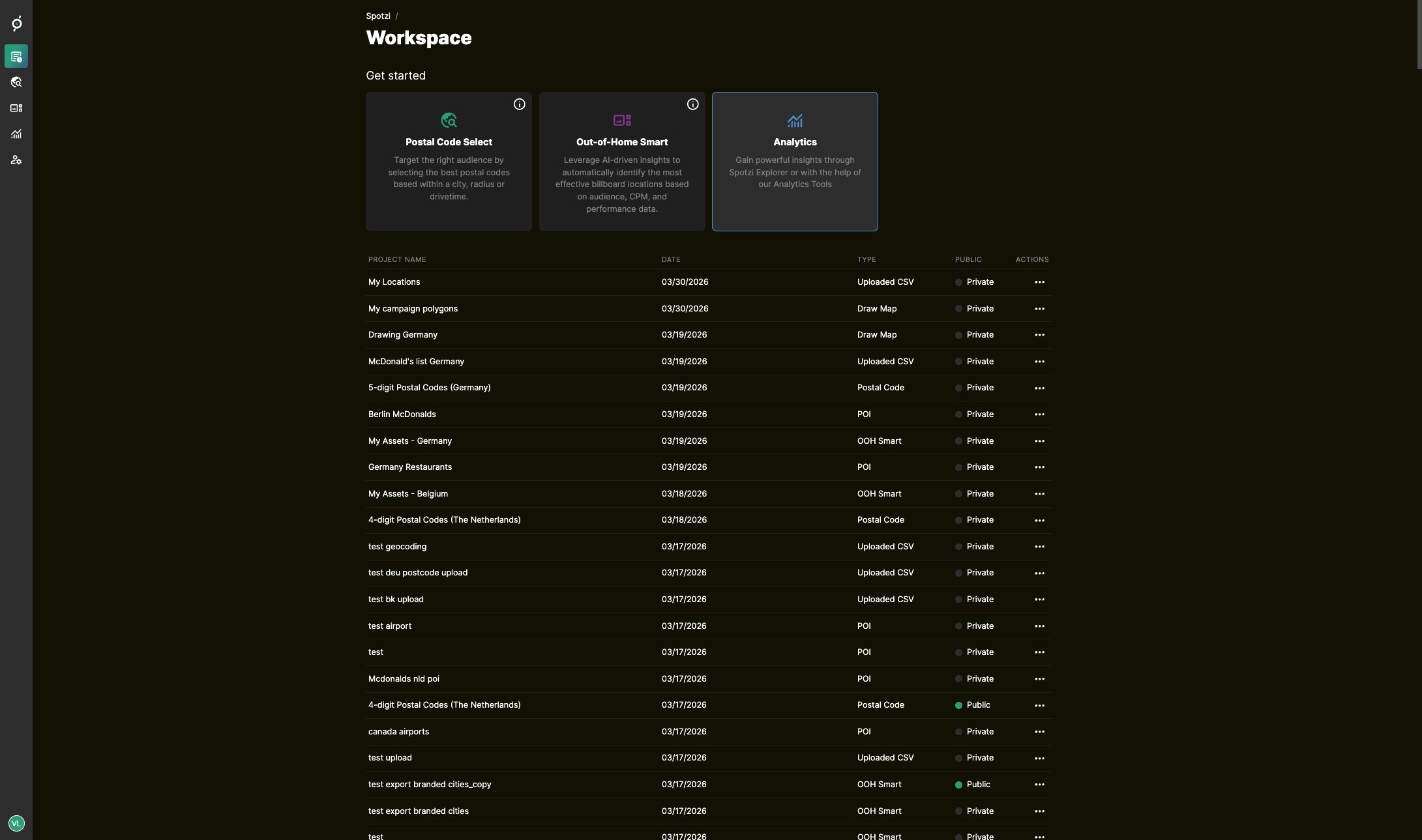
- Navigate to the "Analytics" tab in your workspace.
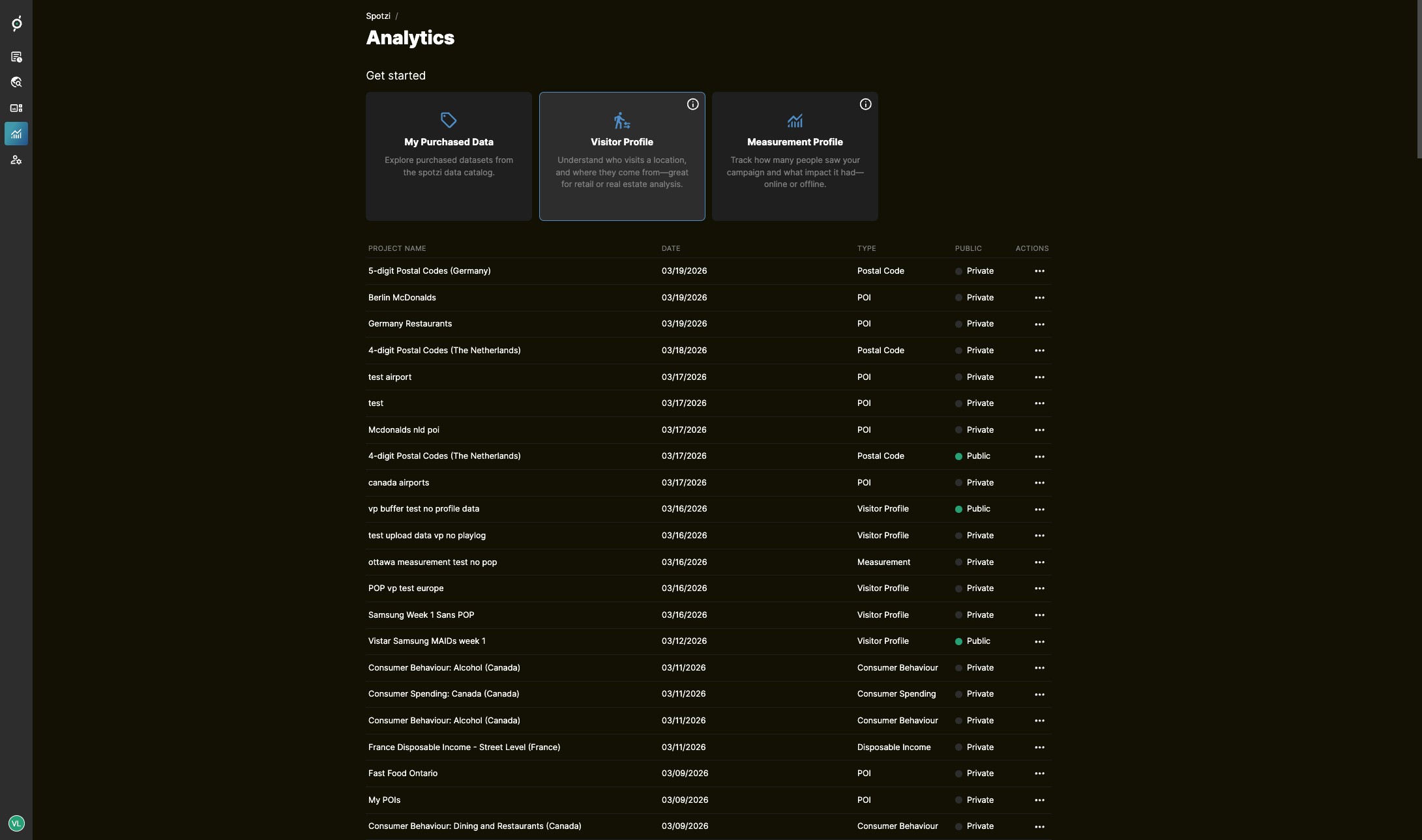
- Click the "Visitor Profile" button.
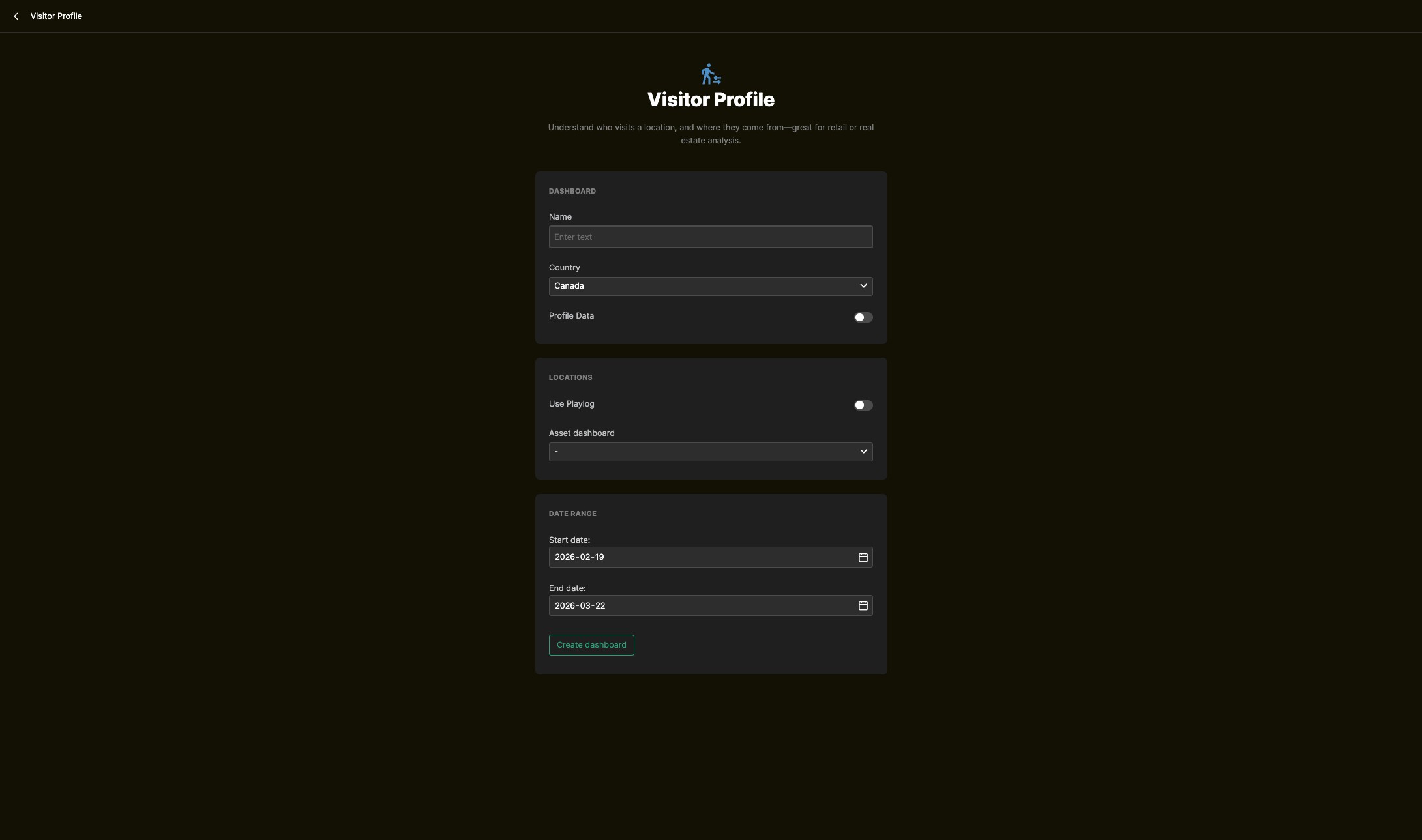
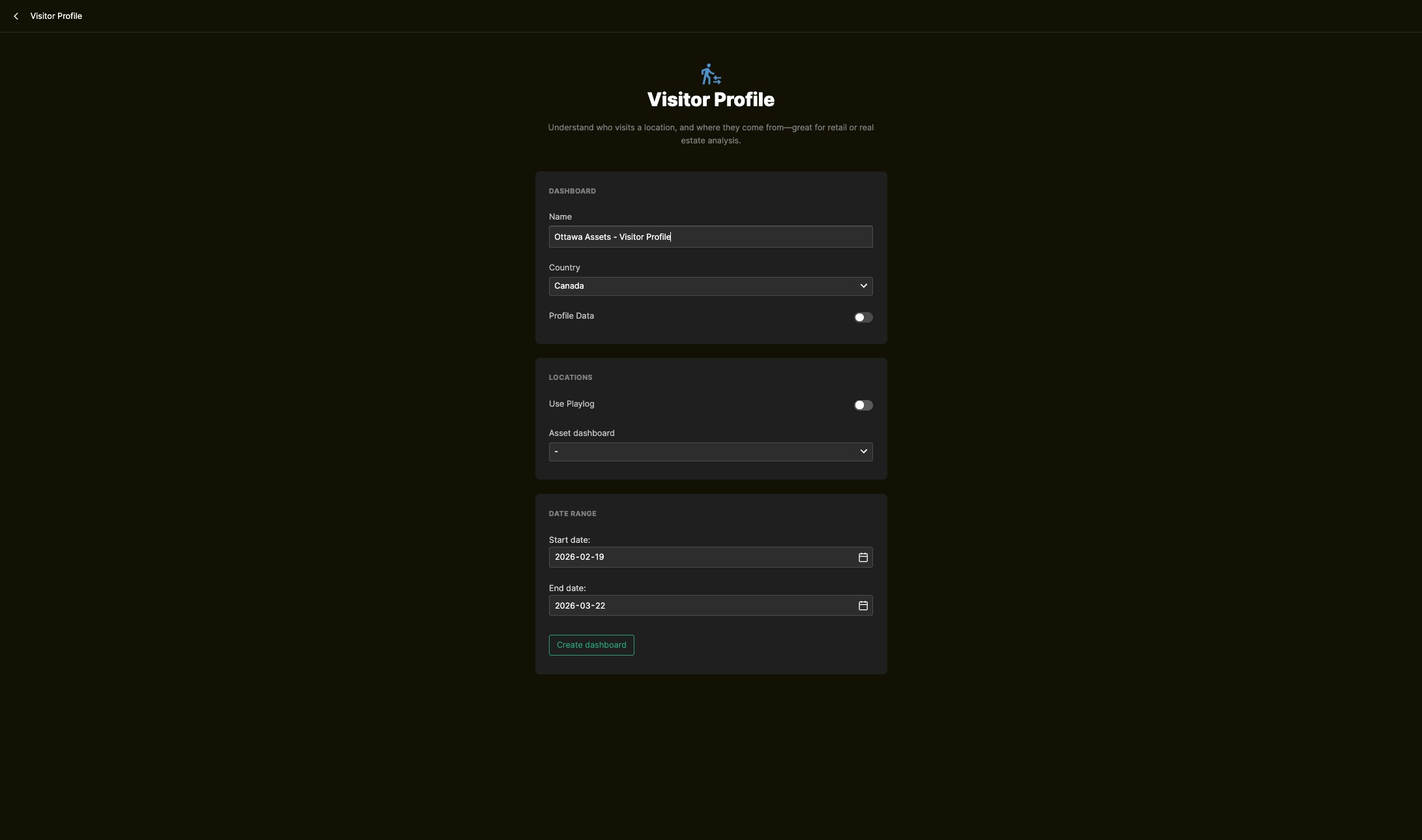
- Enter a name for your visitor profile.
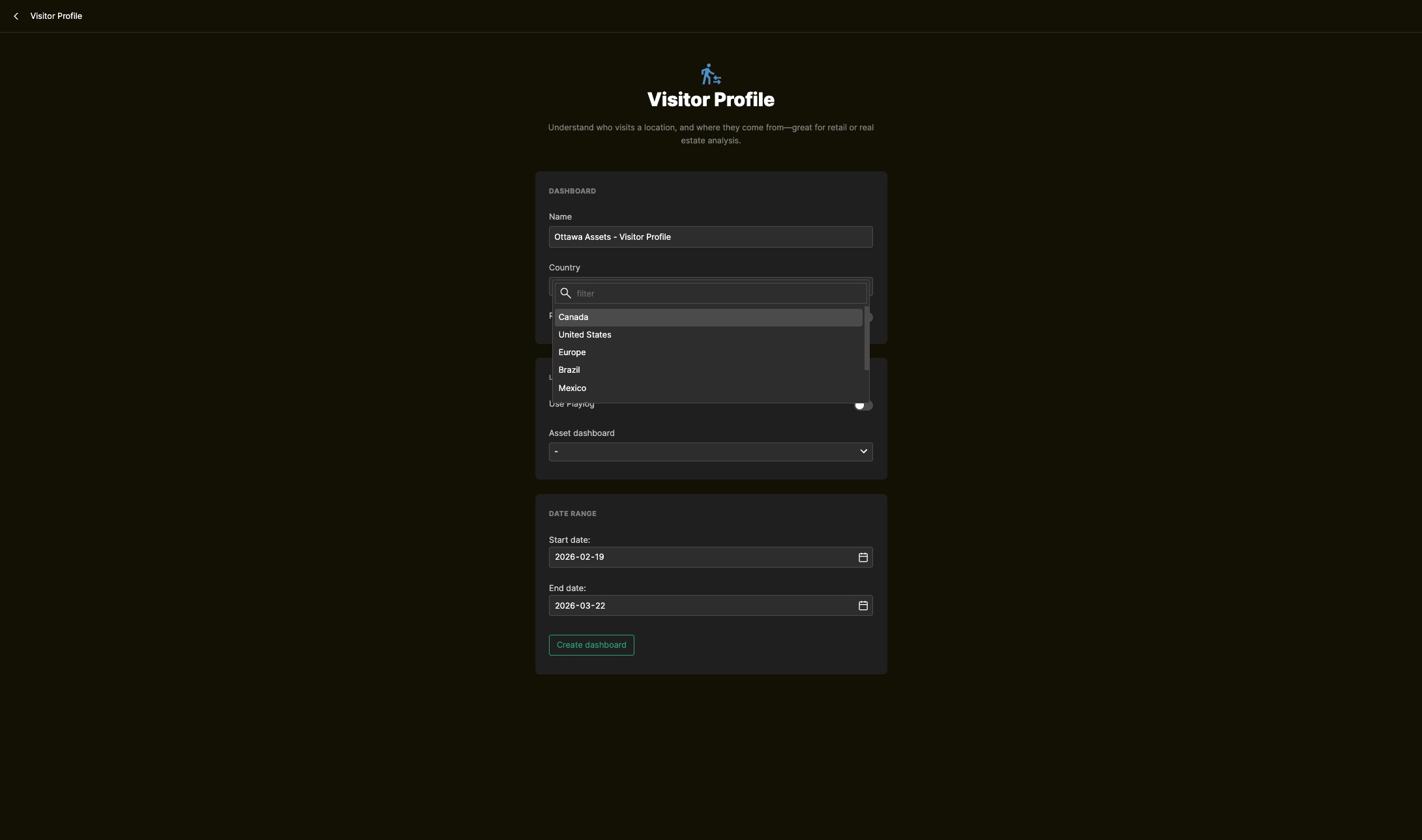
- Select a country/area from the dropdown. This should be the area where the locations you are targeting the visitors of are located in.
- Enable the "Profile Data" toggle to include audience demographic insights in your report.
This will create an audience profile of all of the people who were seen at your target locations during your specified timeframe.
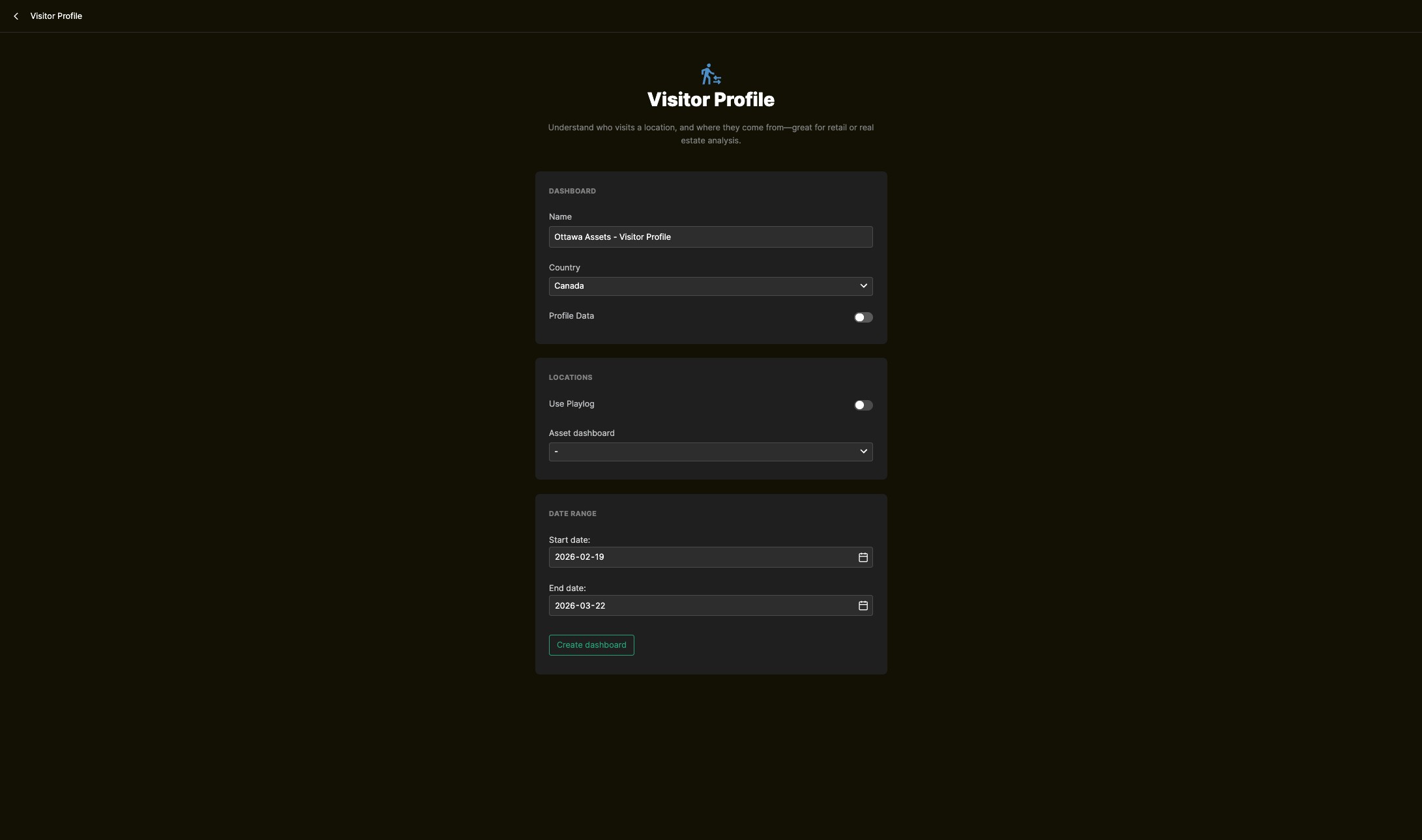
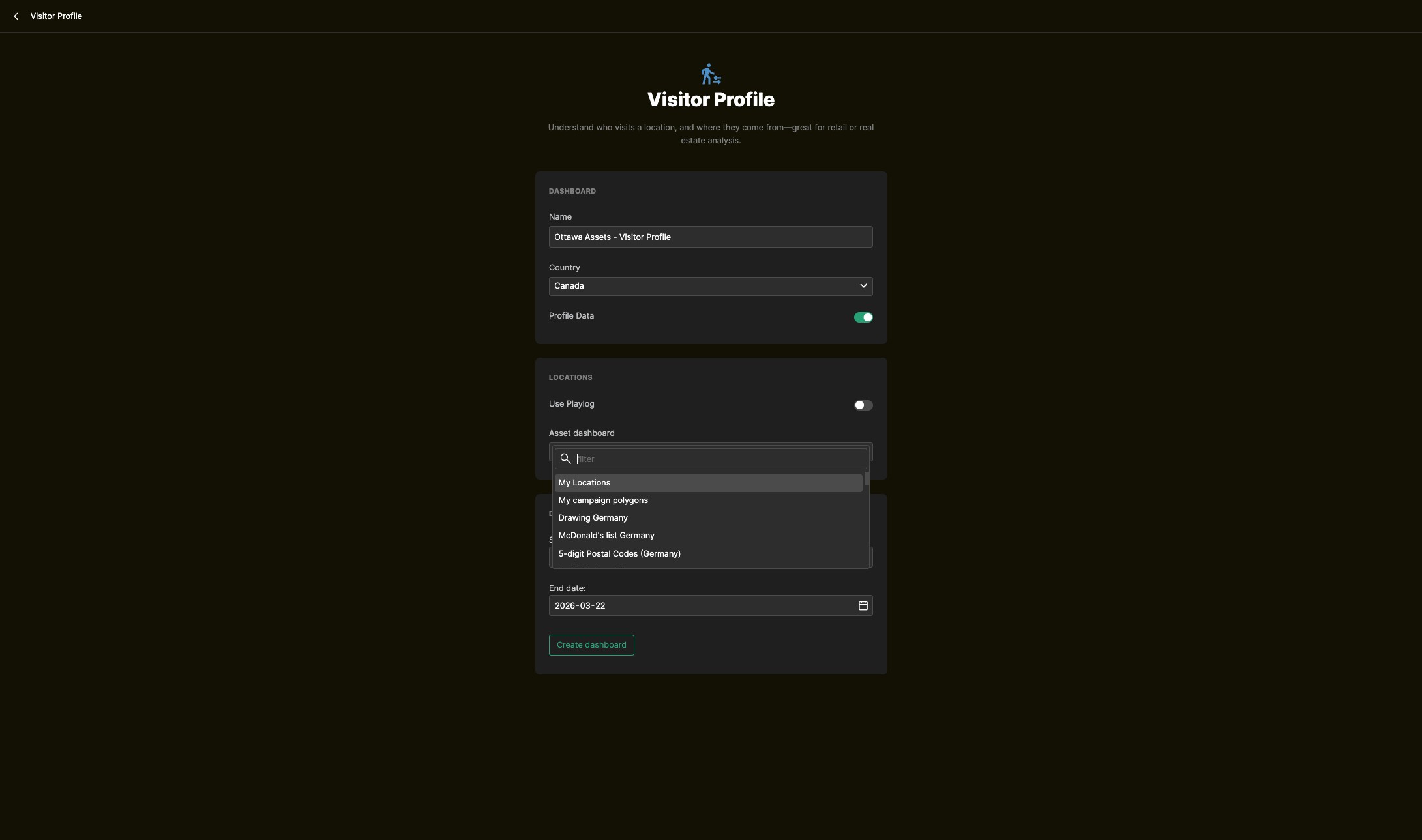
- Choose a dashboard that contains the locations you would like to analyze in your report. You may use any dashboard with a viable input, including your own assets or custom data. The filters applied to your dashboard will be taken into consideration.
Points used for a visitor profile will automatically be buffered by Spotzi. Any polygons used as input will remain unchanged.
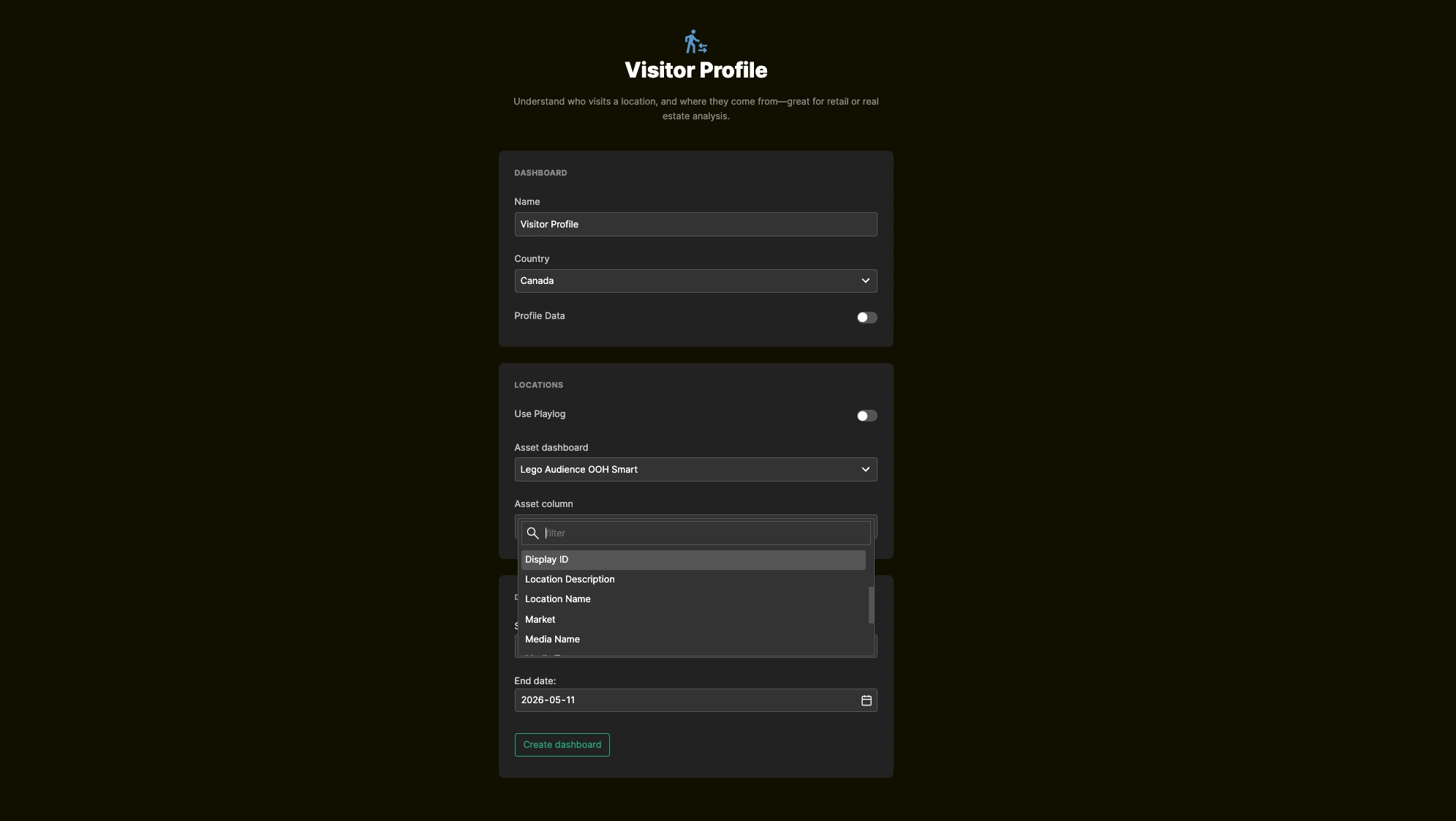
- Choose the column in your dataset that lists your assets' unique identifiers. This can be the name, ID, or address column for your dataset.
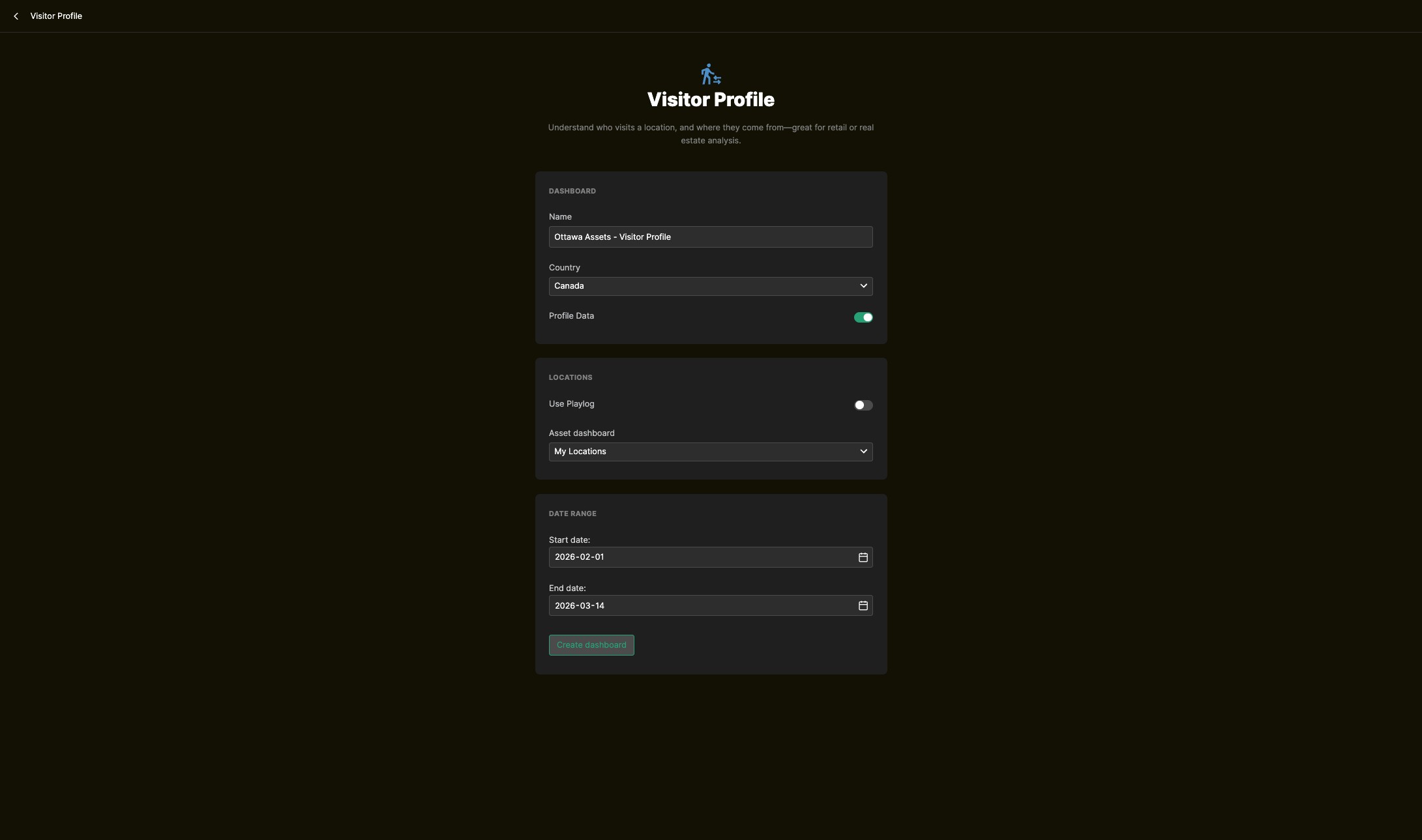
- Select the start and end dates for your report. This selection will determine the dates during which the audience data used in your visitor profile report is collected at your locations.
Please note: Mobile data may take approximately 7-10 days to process. You can only select a day in the date picker once all of the device data for that day has been finalized and made available.
- If you are analyzing the audiences exposed to a digital campaign, you have the option of substituting your asset and date range input with a playlog file.
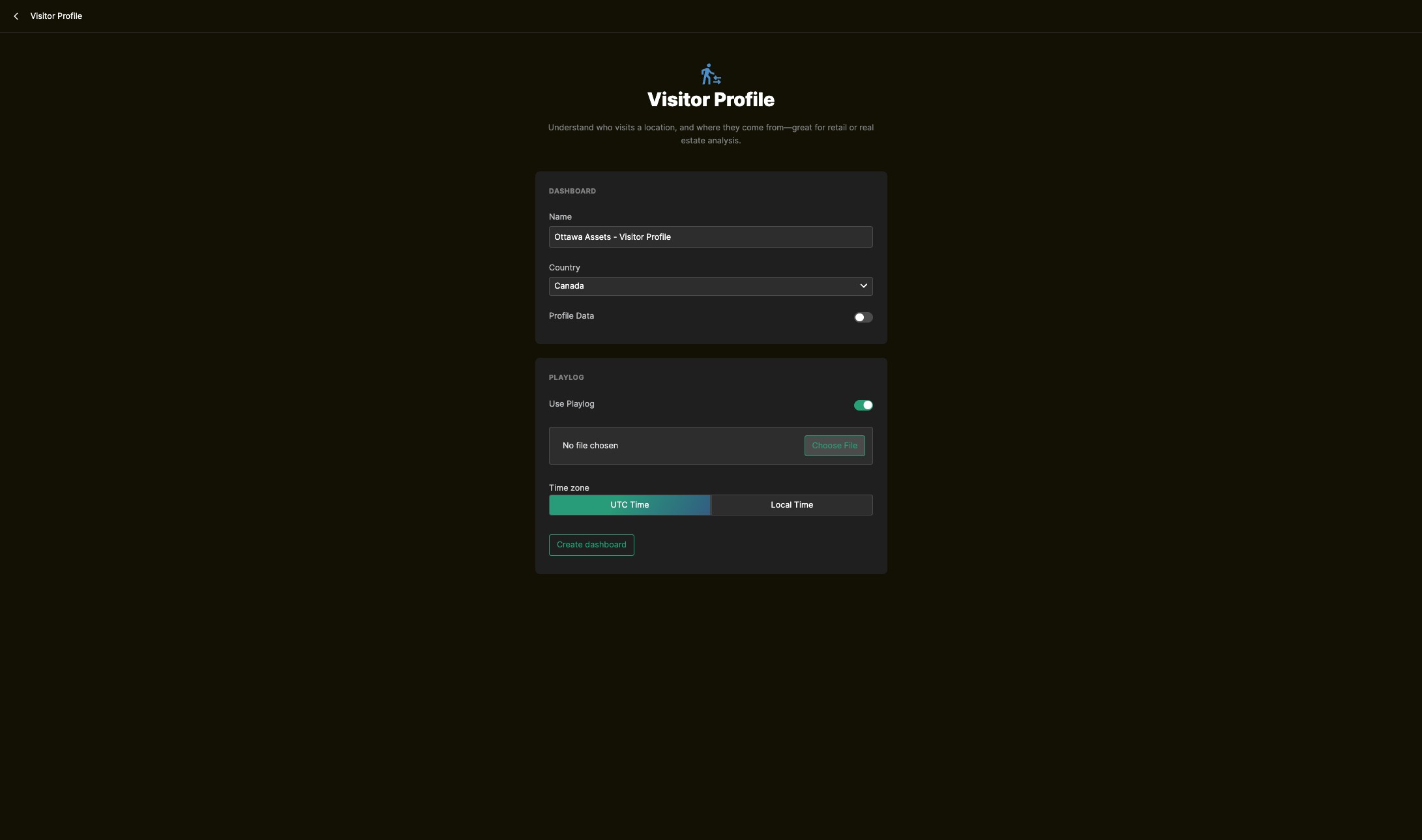
To do this, toggle the "Use Playlog" option on.
- Click "Choose File".
Please note: Your playlog file must be in CSV format in order to be viable as input. You may only use one playlog file per visitor profile.
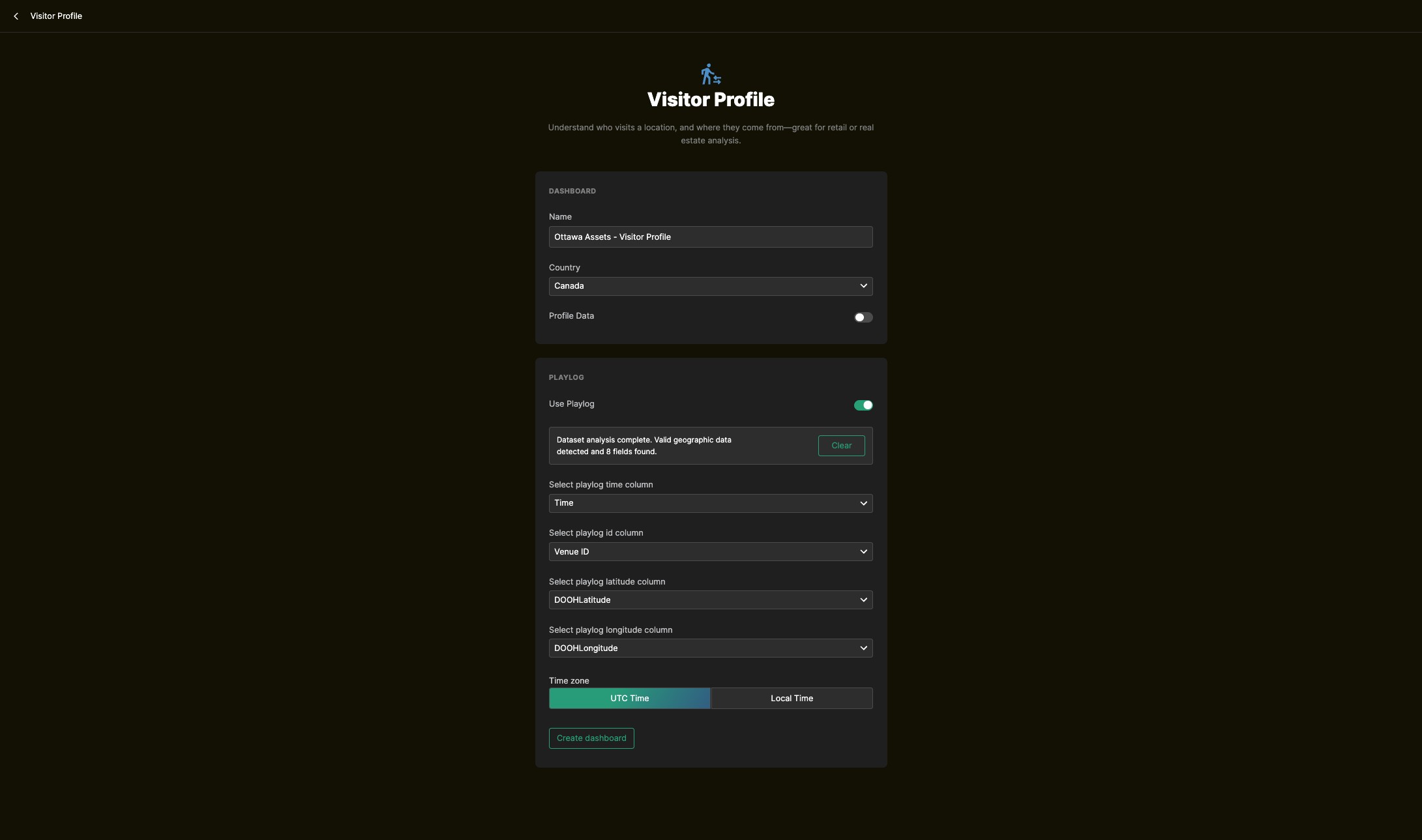
- Select the columns which contain your playlog's timestamps, unique asset IDs, and respective coordinates (latitude, longitude). These columns are mandatory in order for your playlog input to be valid.
Choose the timezones being used in the file. We recommend Unix timestamps for optimal results.
Click "Create Dashboard" when you're happy with your selection.
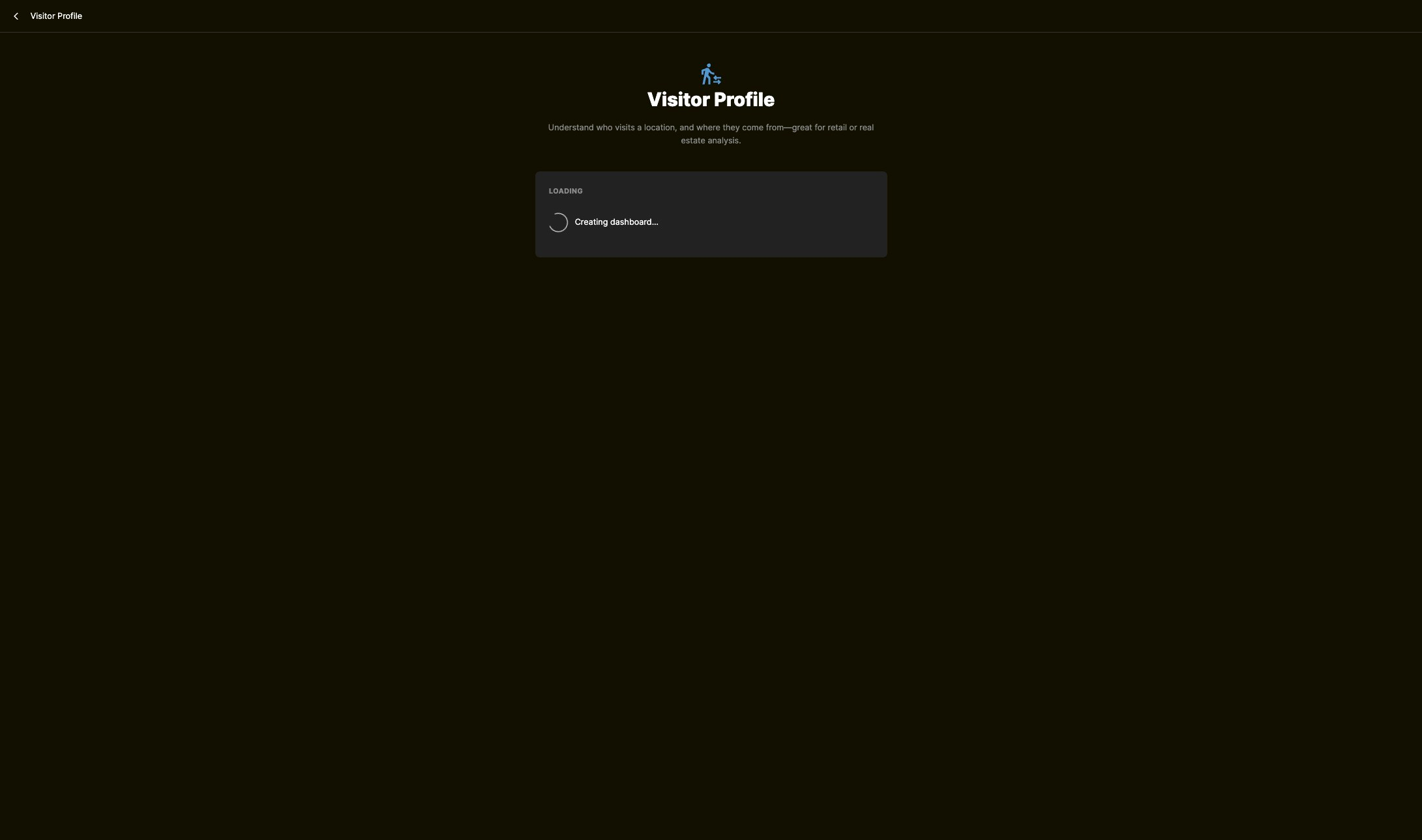
- Your report request will be confirmed, and the dashboard creation process will begin.
- You will find your pending report in your workspace. This report will turn white when it's ready for viewing.
Each report may take up to 24 hours to appear in your account.
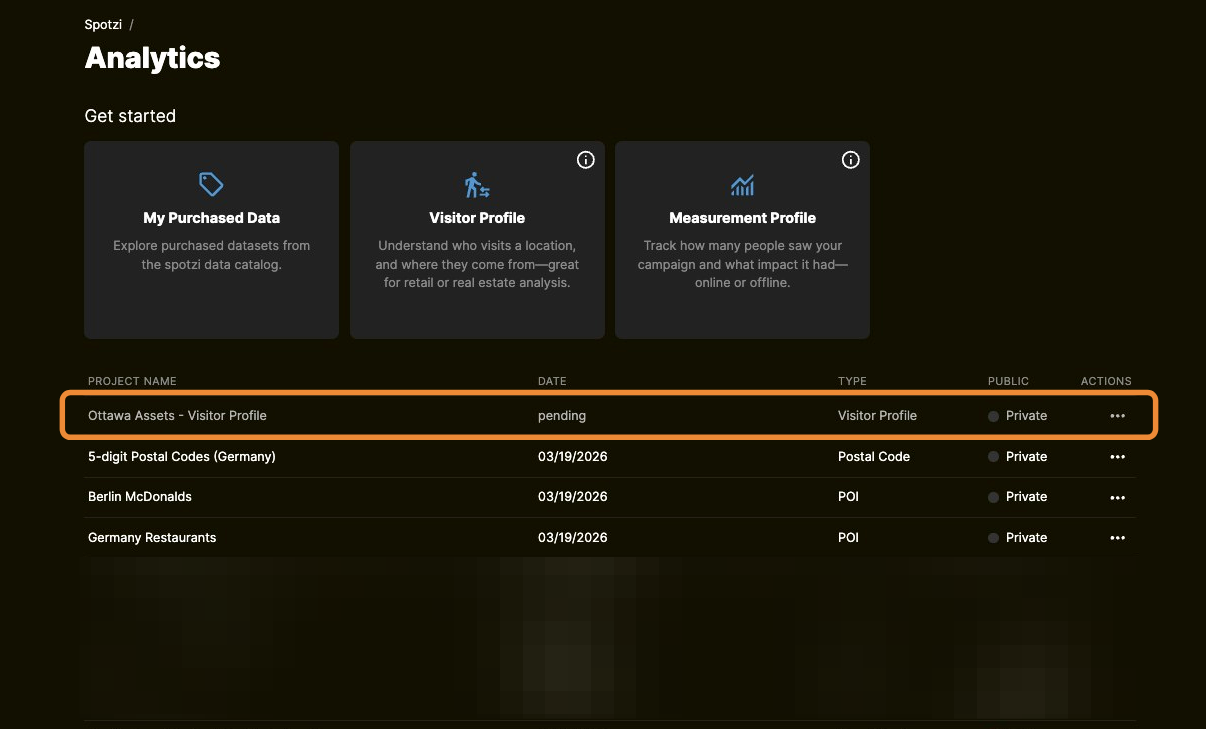
- You may open the dashboard as soon as it's available for viewing.
The report's map will display the home locations of all captured audiences.
The widget panel will display additional data pertaining to audience origins, visitation patterns, dwell times, and demographics.
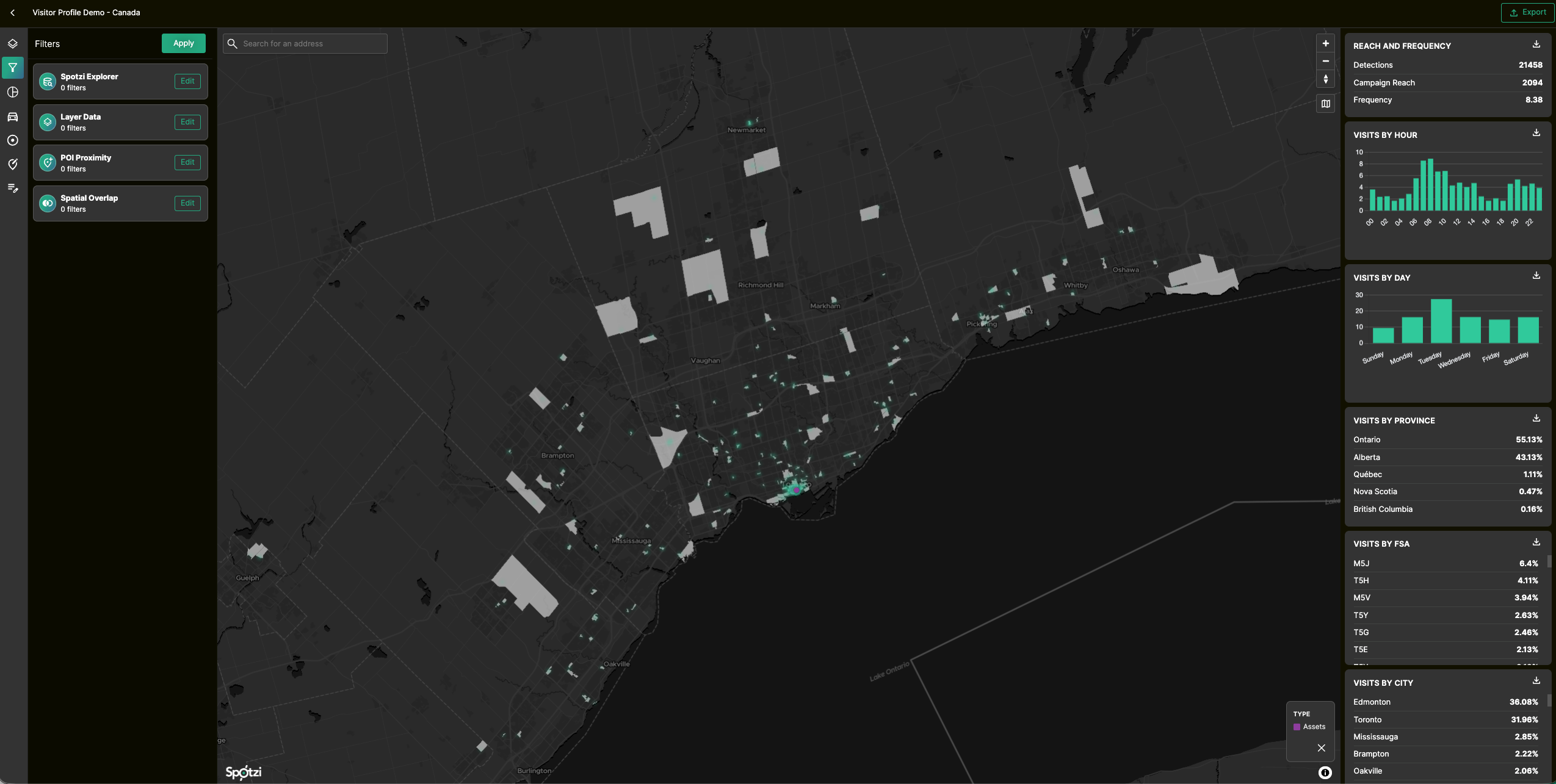
- Contact Spotzi to use the home postal codes generated in your visitor profile to run a targeted online campaign.