Made by Remco Dolman with Scribe
Spotzi's Campaign Report tool allows you to generate a professional PDF media kit based on your planned campaign.
This report combines your selected campaign assets, audience insights, campaign rationale, and custom mockups into a single document. You may then share this document directly with clients and colleagues.
Step-by-step
- Create a campaign plan using Spotzi's OOH Smart tool. Your campaign dashboard should contain the assets you want to include in your upcoming or proposed campaign.
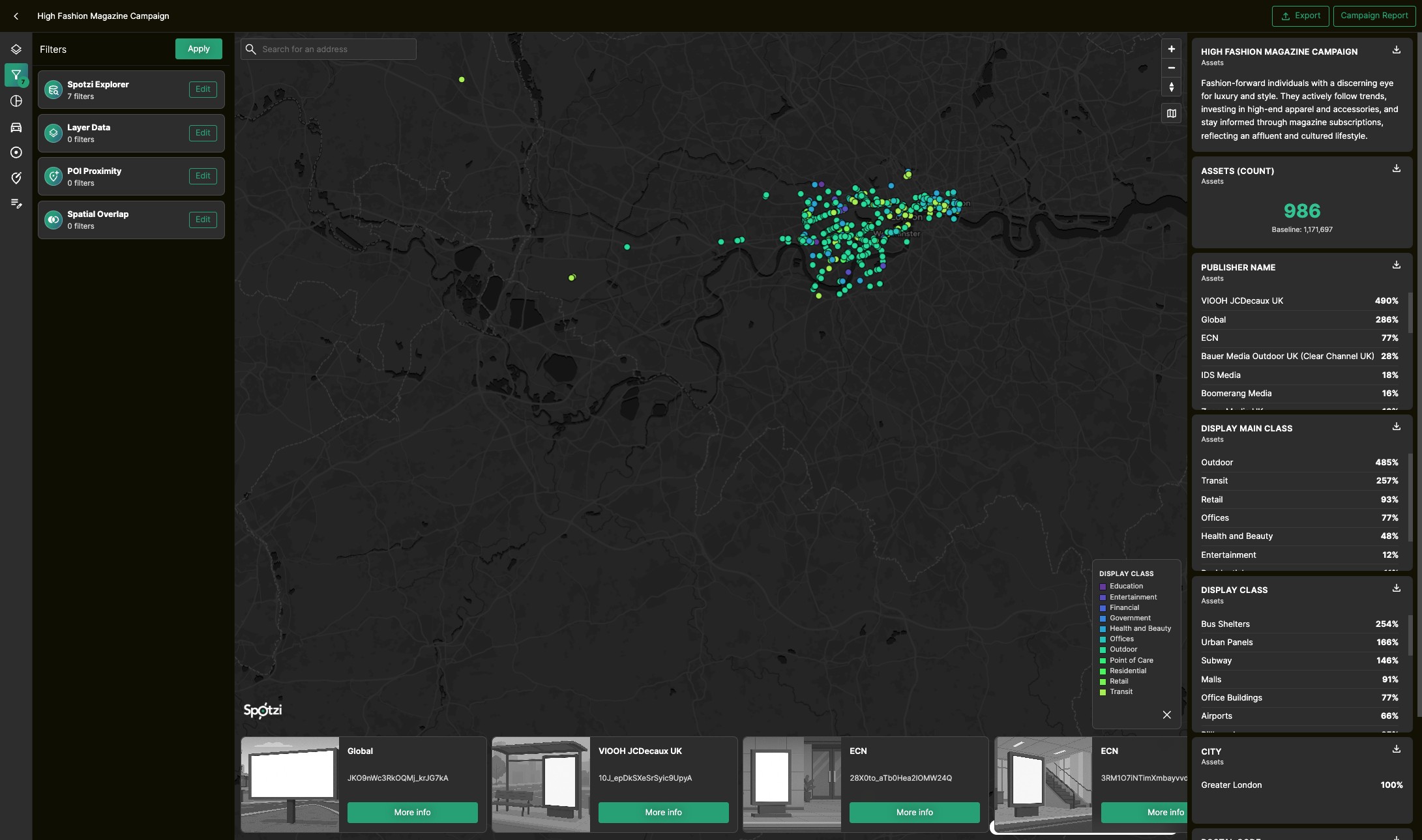
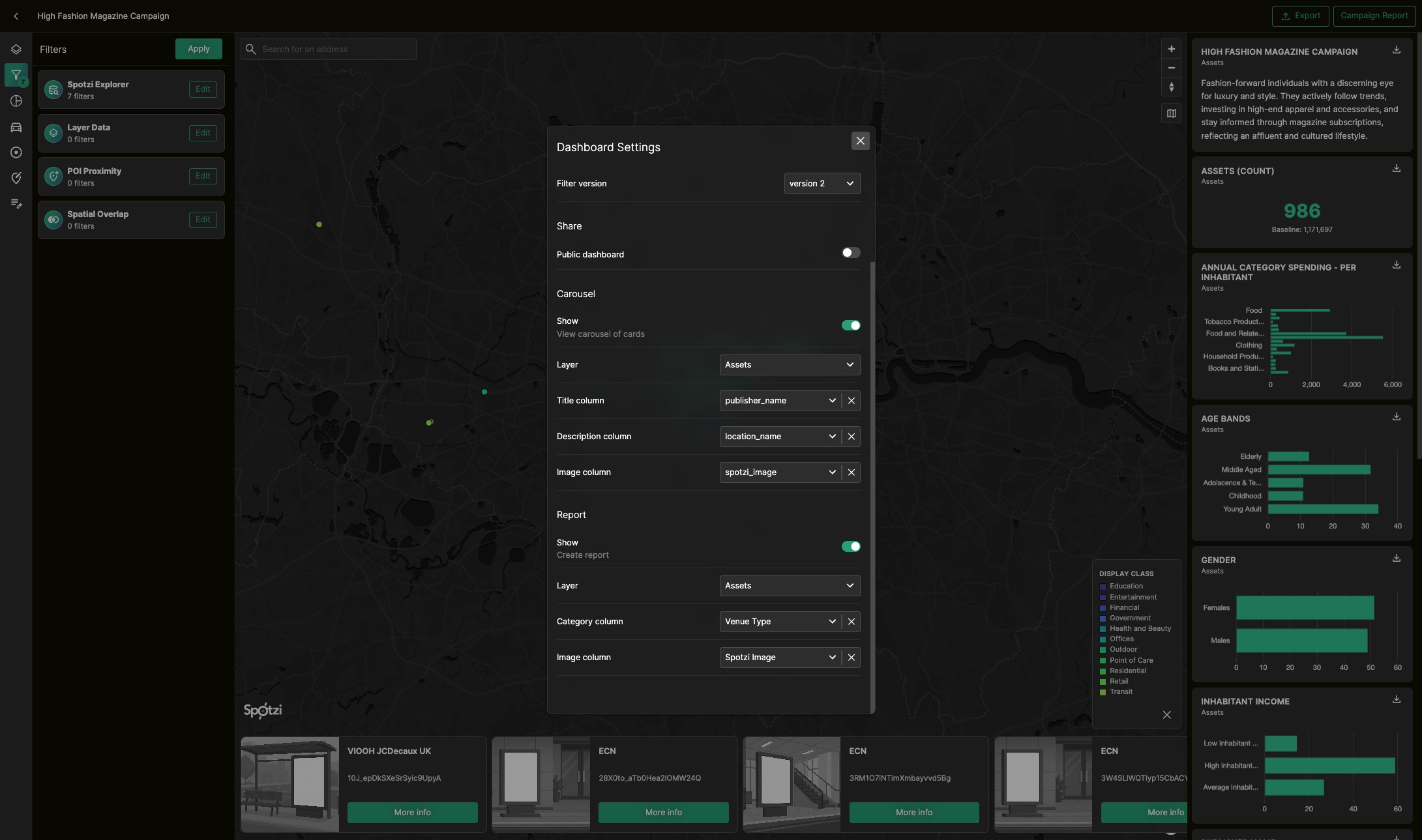
- Ensure that the "Campaign Report" tool is turned on in your dashboard.
Open your dashboard settings by clicking the dashboard name.
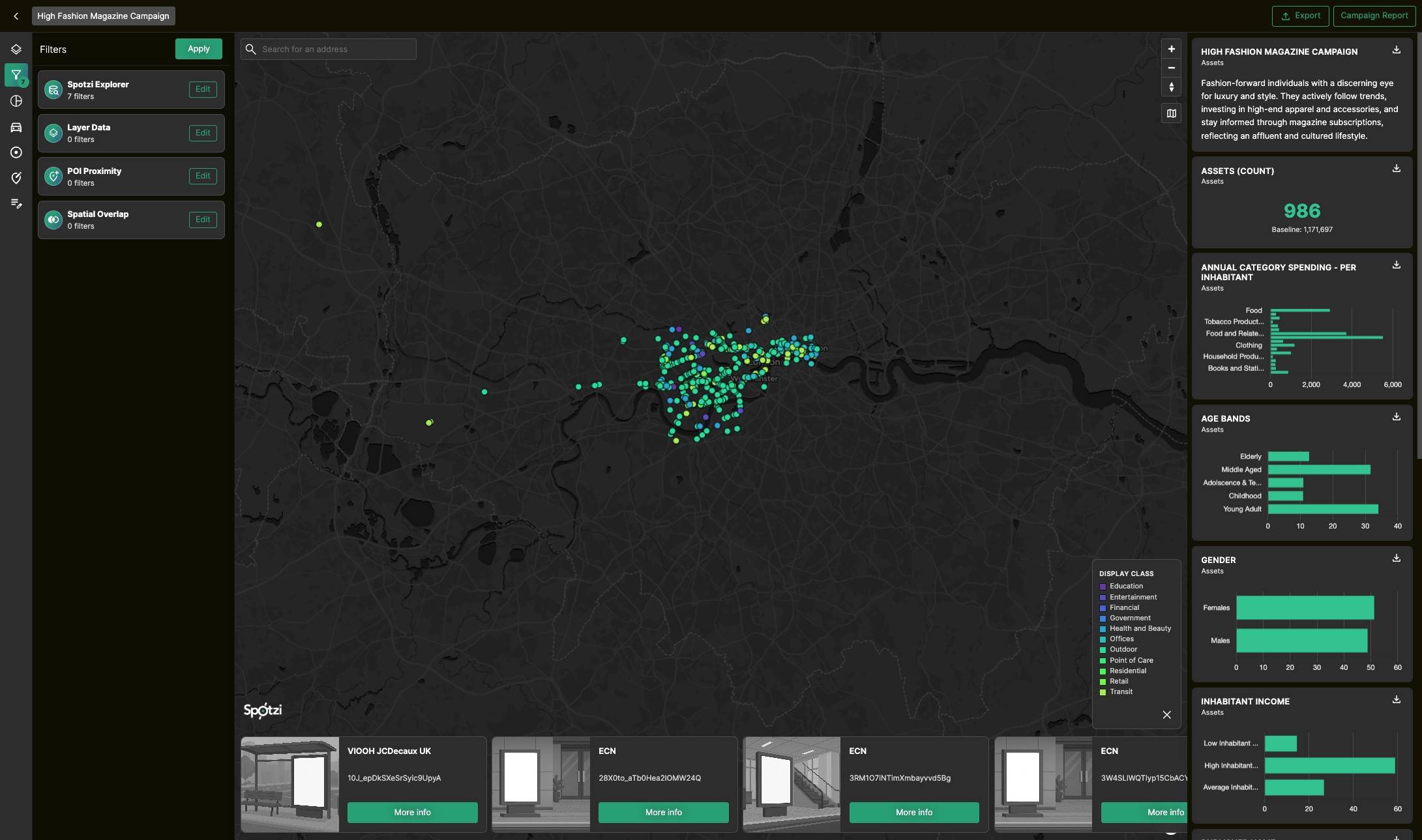
- Navigate to the "Report" section and enable "Show".
Select your asset layer, the image column that contains your asset photos, and a column that can be used to group your assets into relevant categories.
The Campaign Report uses one representative asset photo from each category when generating automatic mockups.
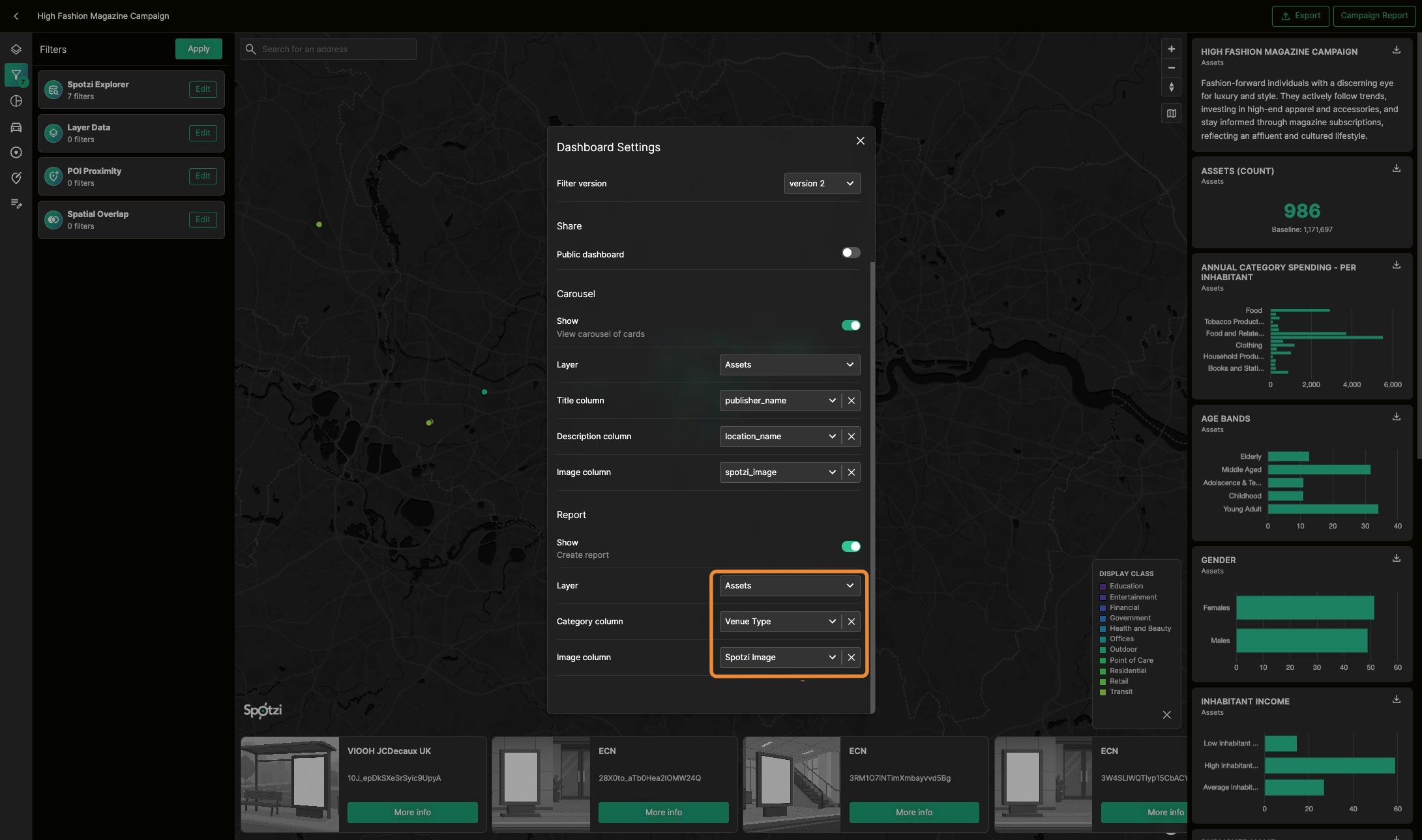
- Close the dashboard settings.
- Click a location on the map to bring up that location's tooltip.
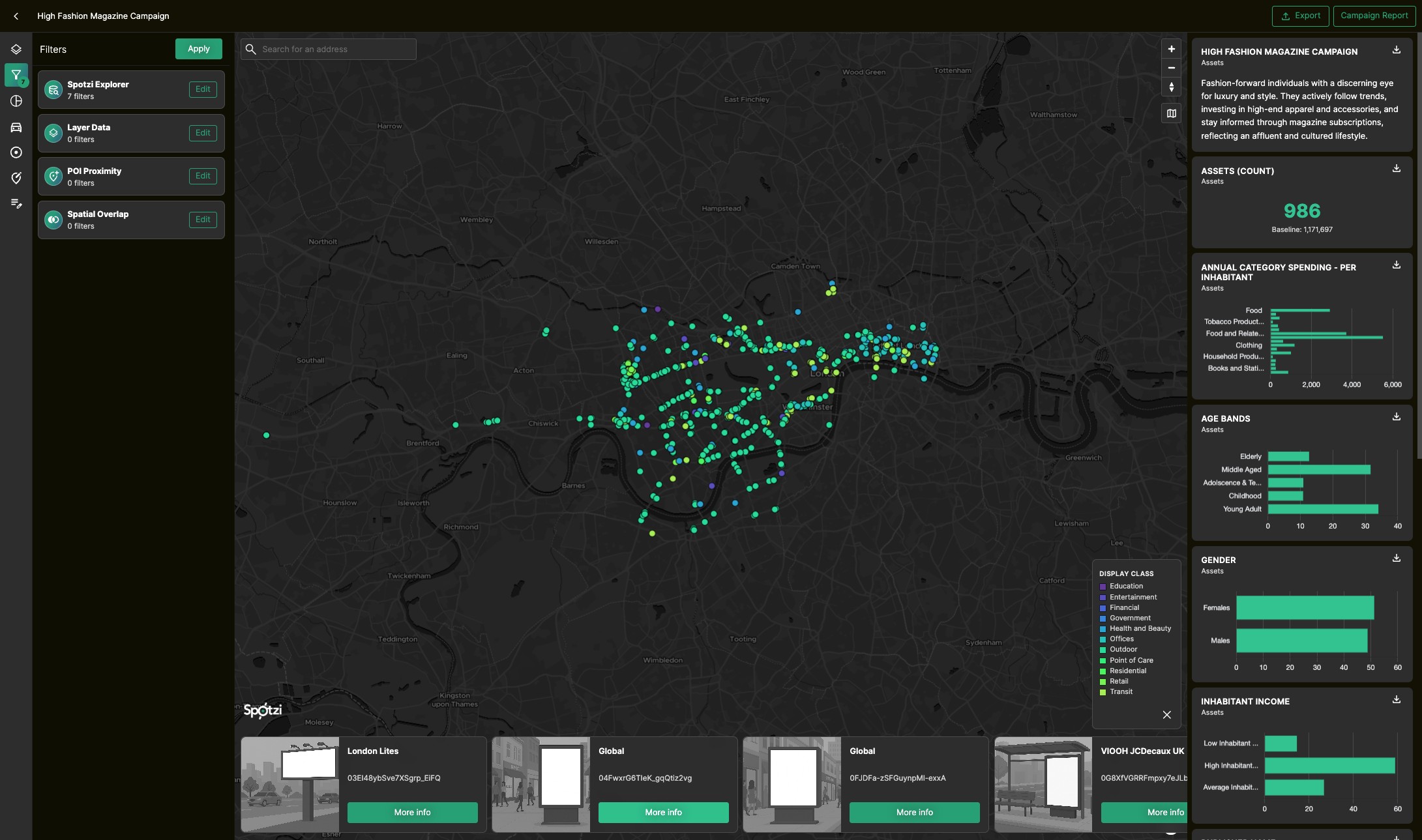
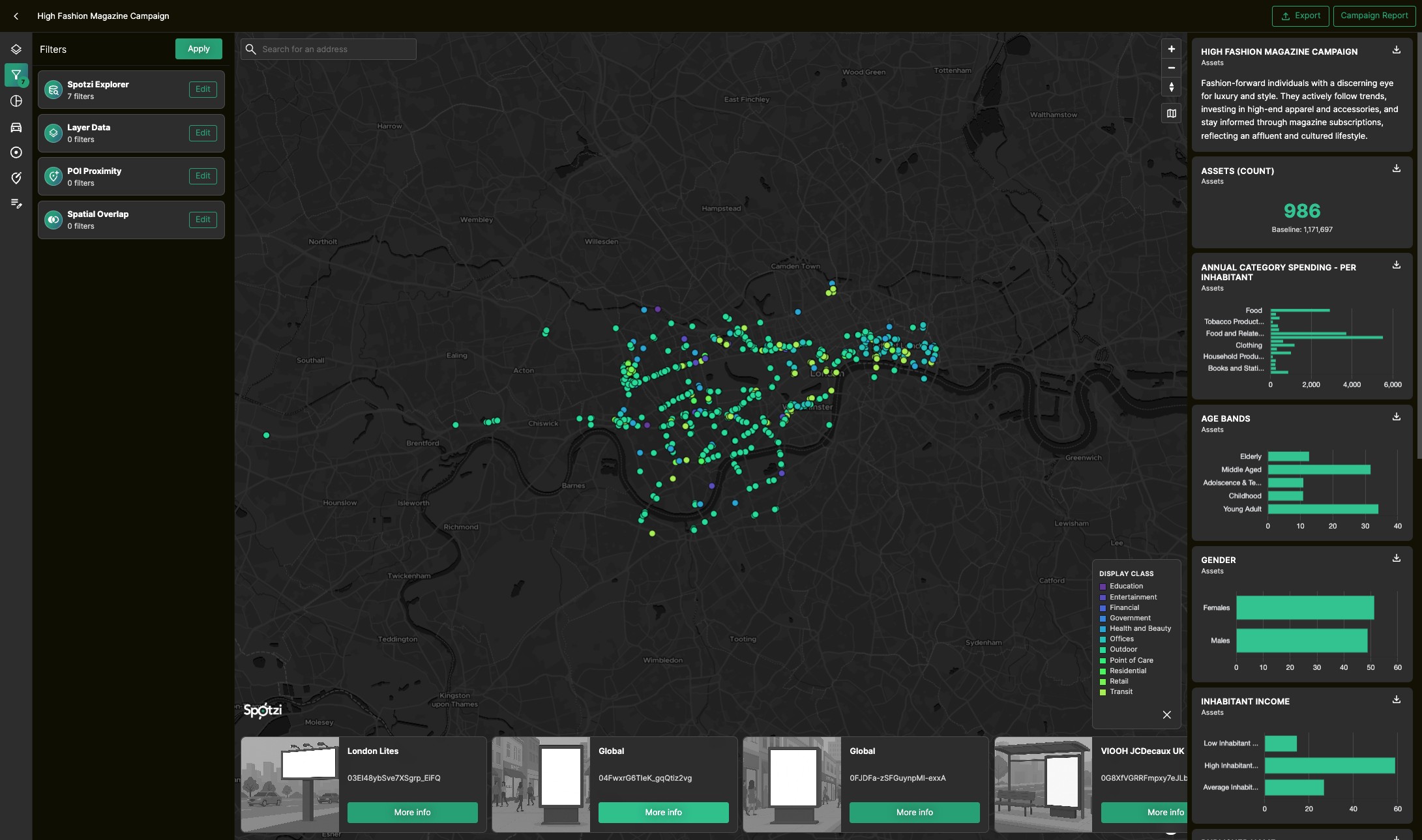
- If your dashboard includes an asset carousel, then clicking "More Info" under a selected asset will also bring up that asset's tooltip.
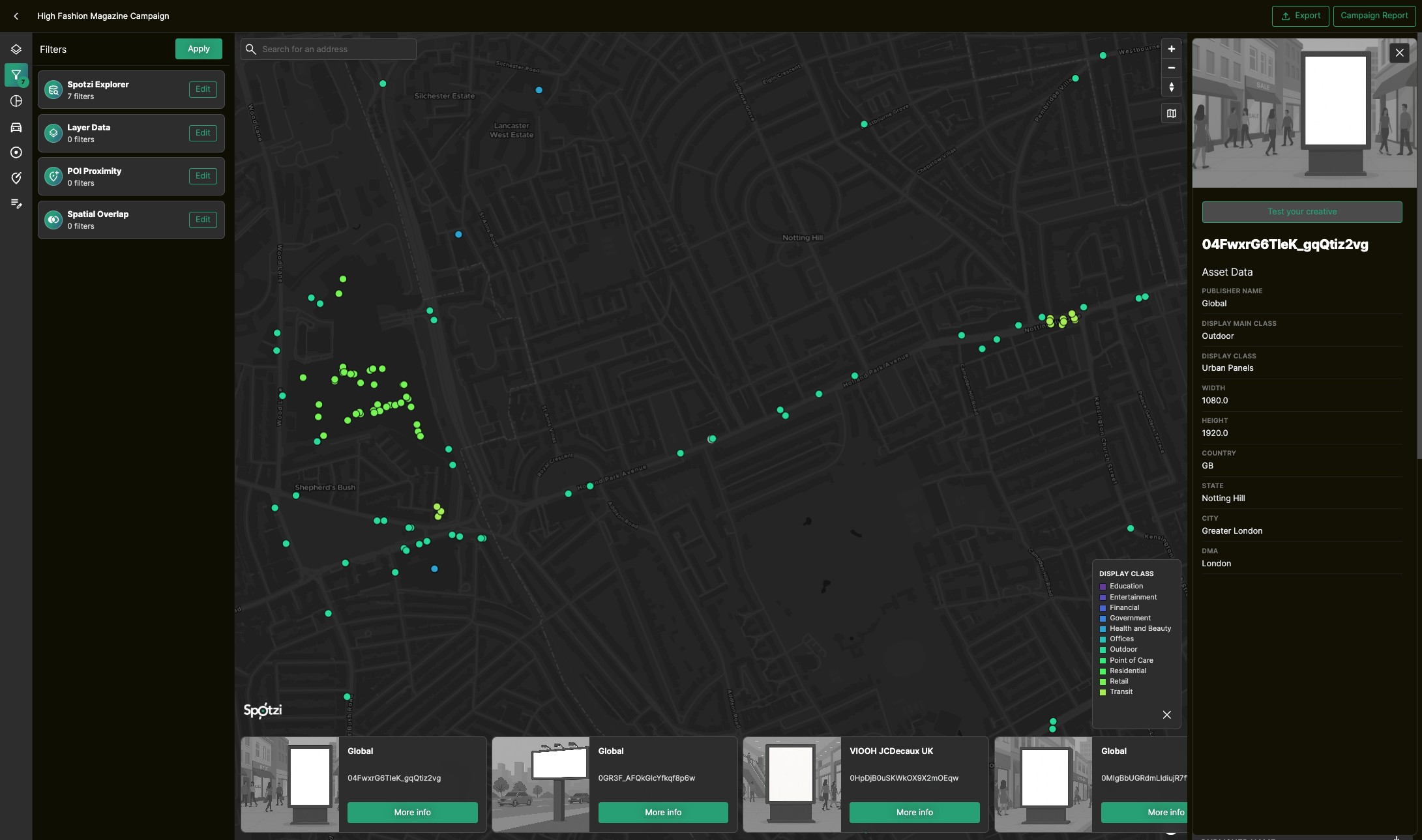
- An asset's tooltip allows you to access the creative testing tool for that particular asset.
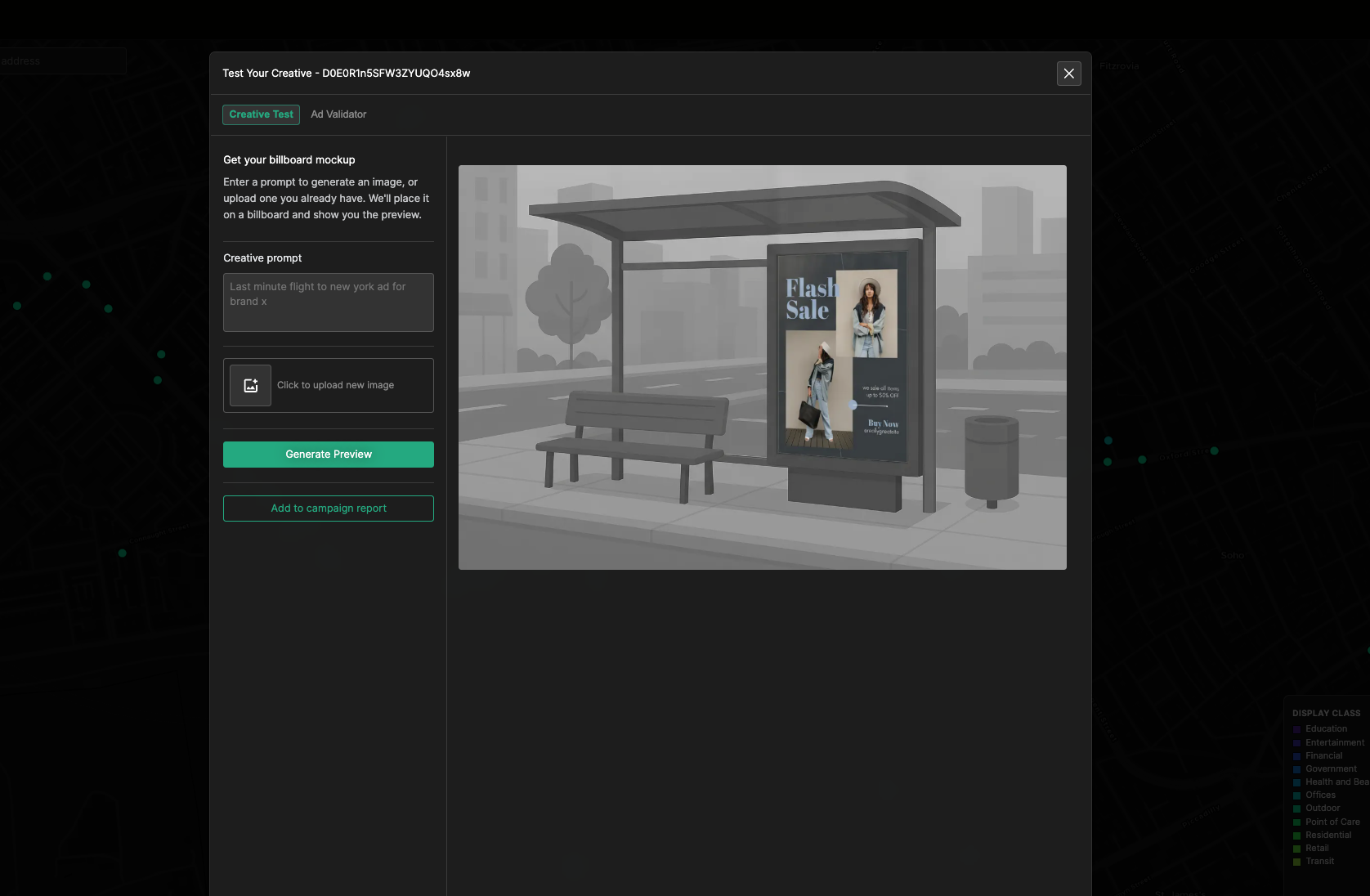
Click "Test your creative" to open the Creative Testing tool.
- Create a mockup by either:
- Uploading your own creative image, or
- Entering a prompt in the Creative Prompt field to generate new creative.
Click "Generate Preview".
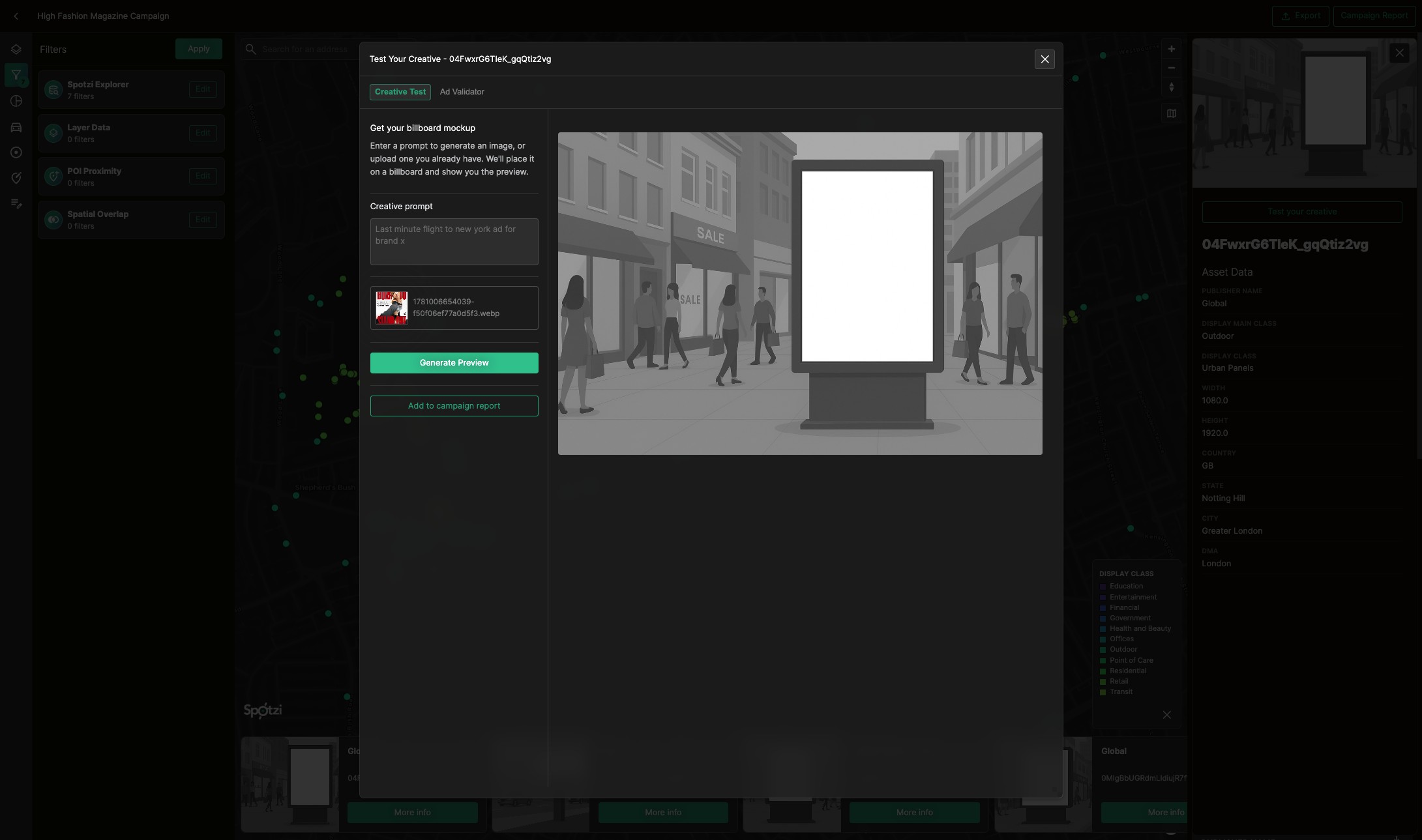
- A preview of your creative will be displayed on the selected asset image.
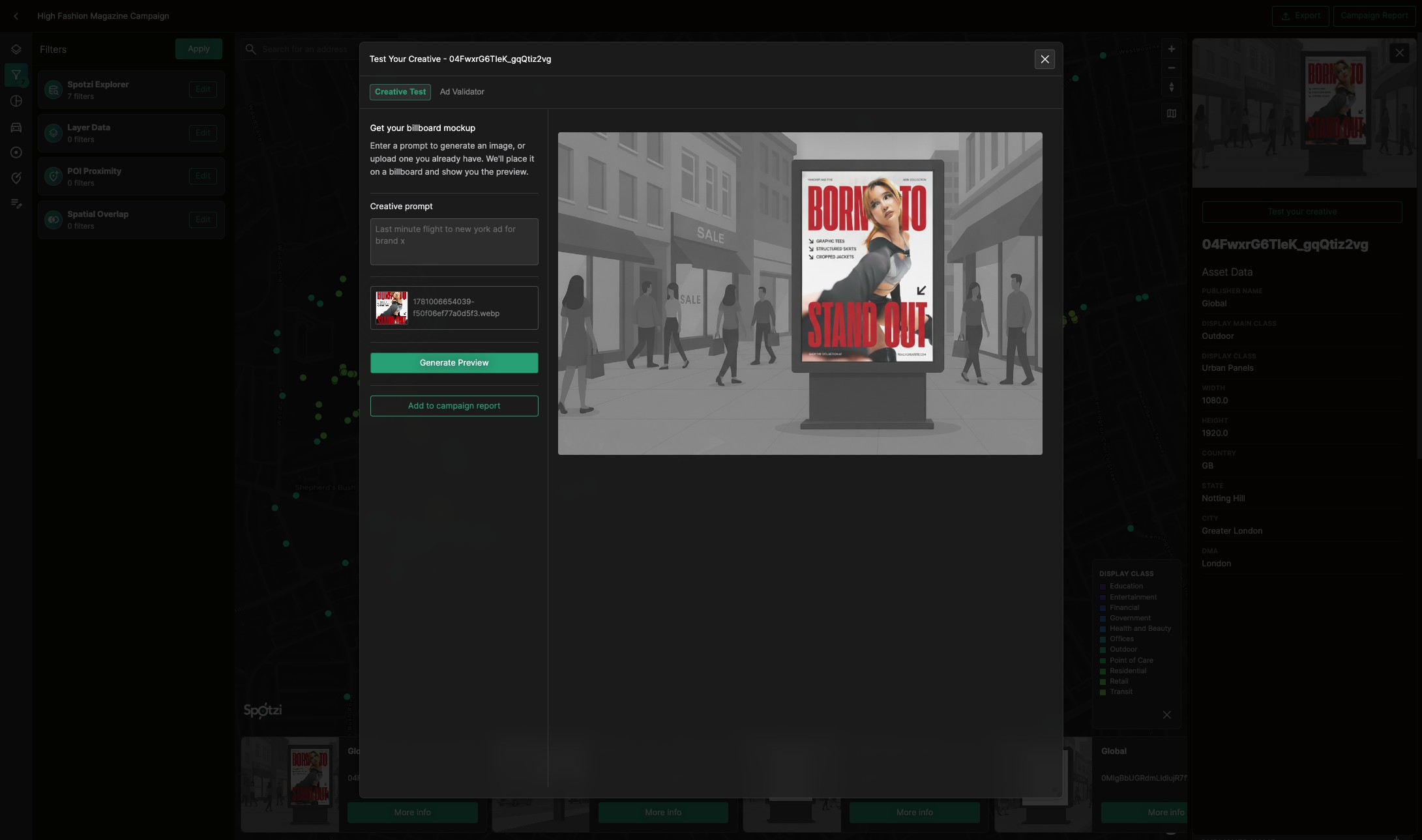
- Click "Add to campaign report" to save the mockup.
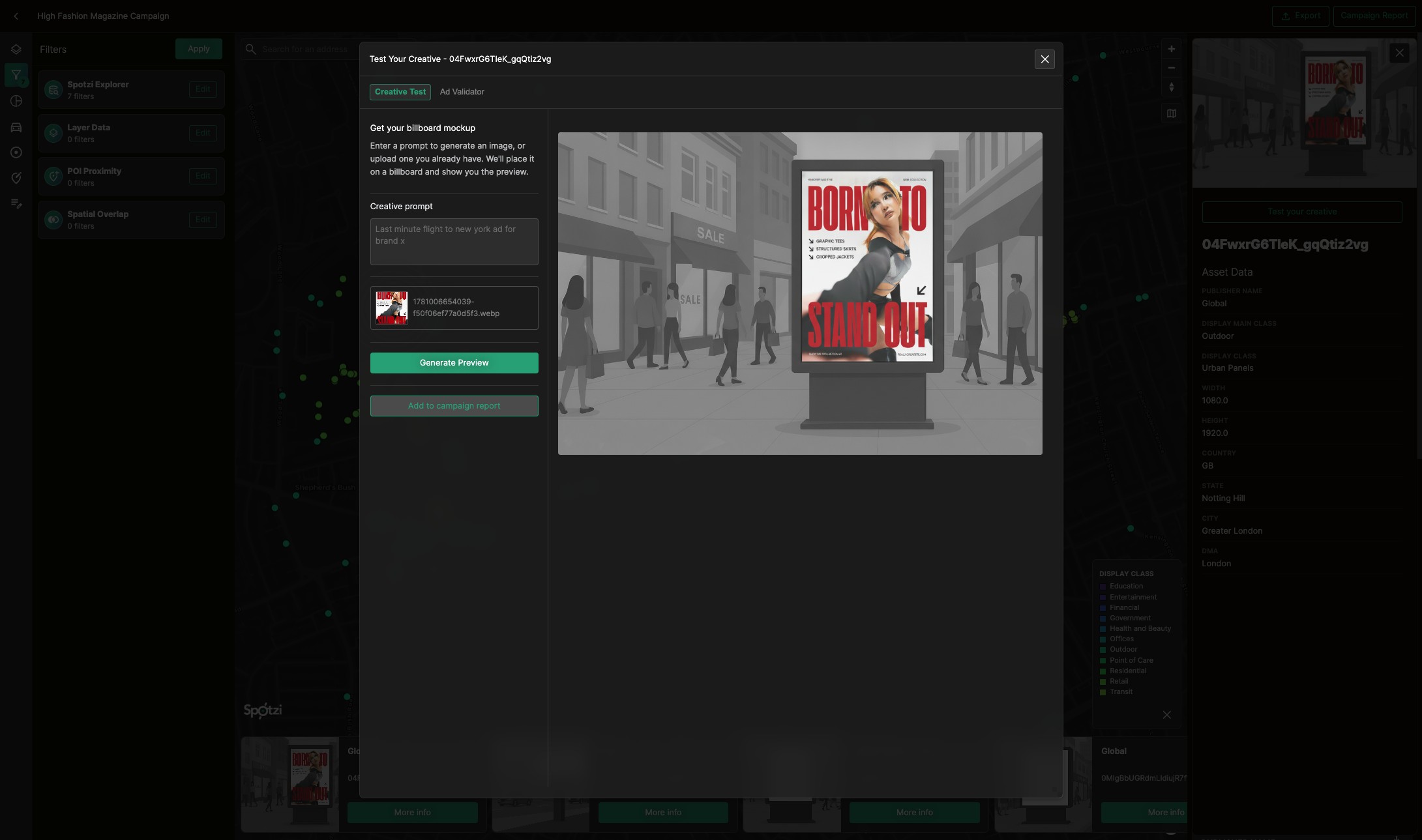
- Close the creative testing window.
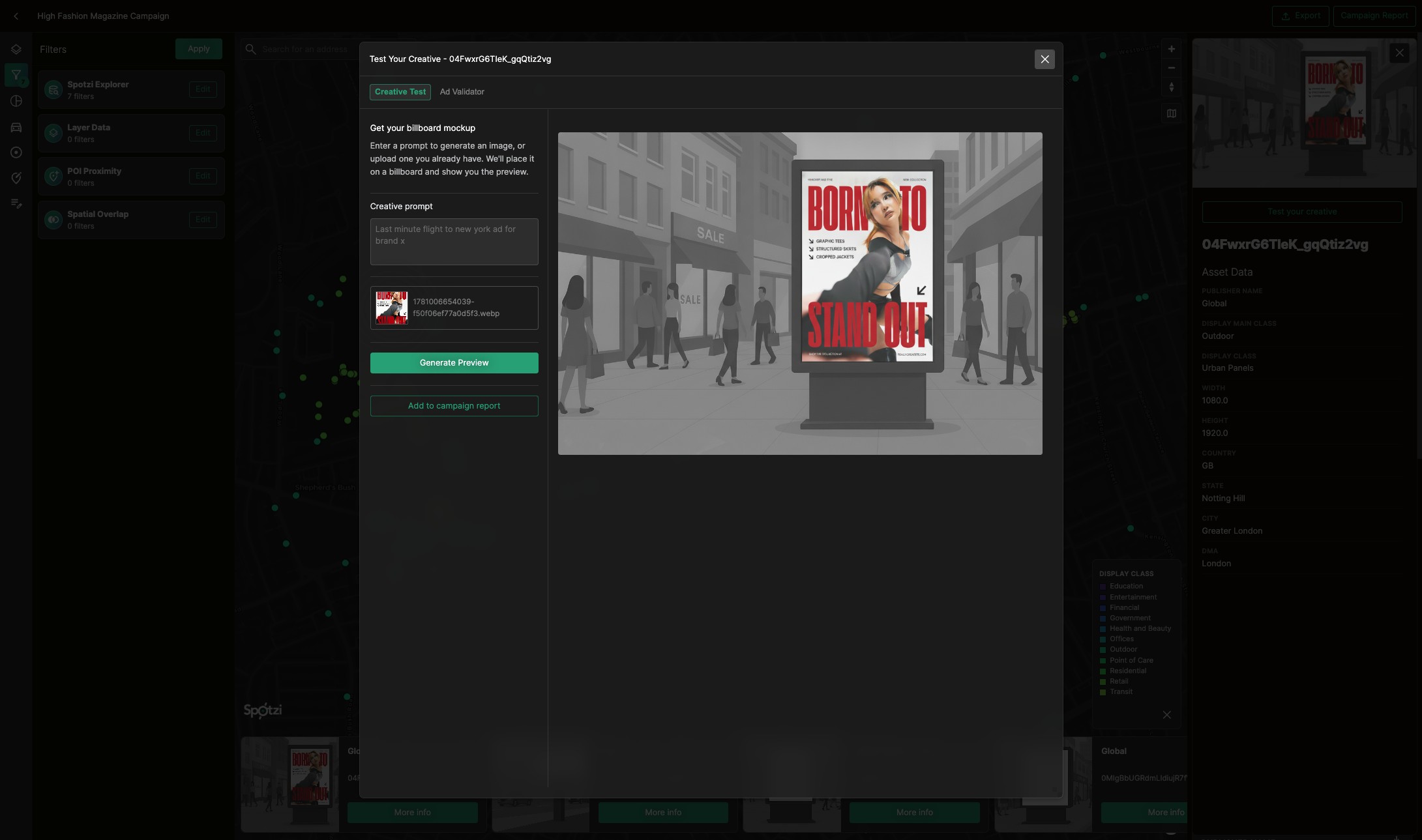
- The saved mockup will now be visible for that asset and available in your campaign report.
- Repeat this process for additional assets if you would like to create custom mockups with varying types of creative.
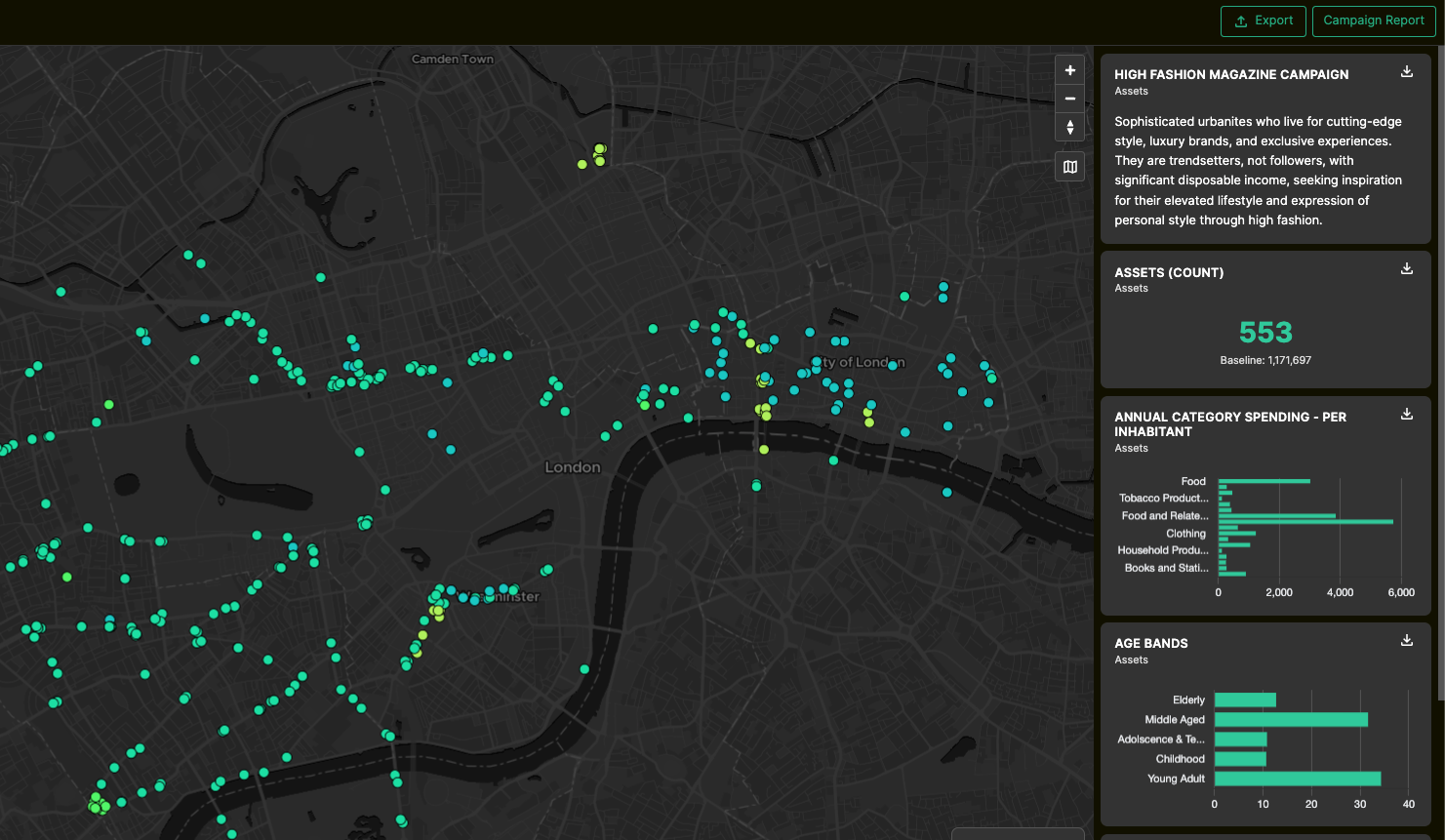
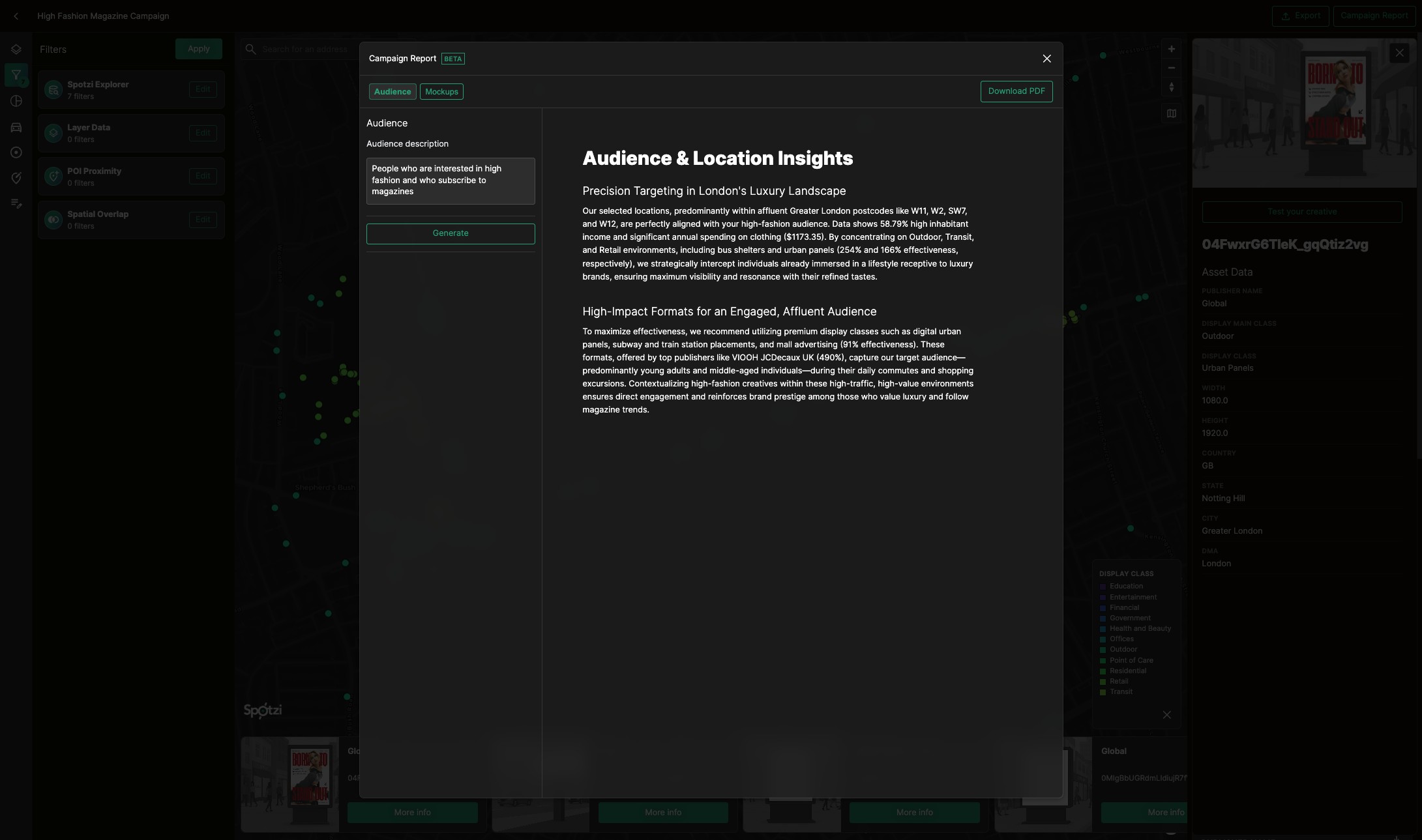
- Click "Campaign Report" to open the report editor.
- When the report opens, Spotzi automatically begins to generate an audience summary based on your original audience prompt.
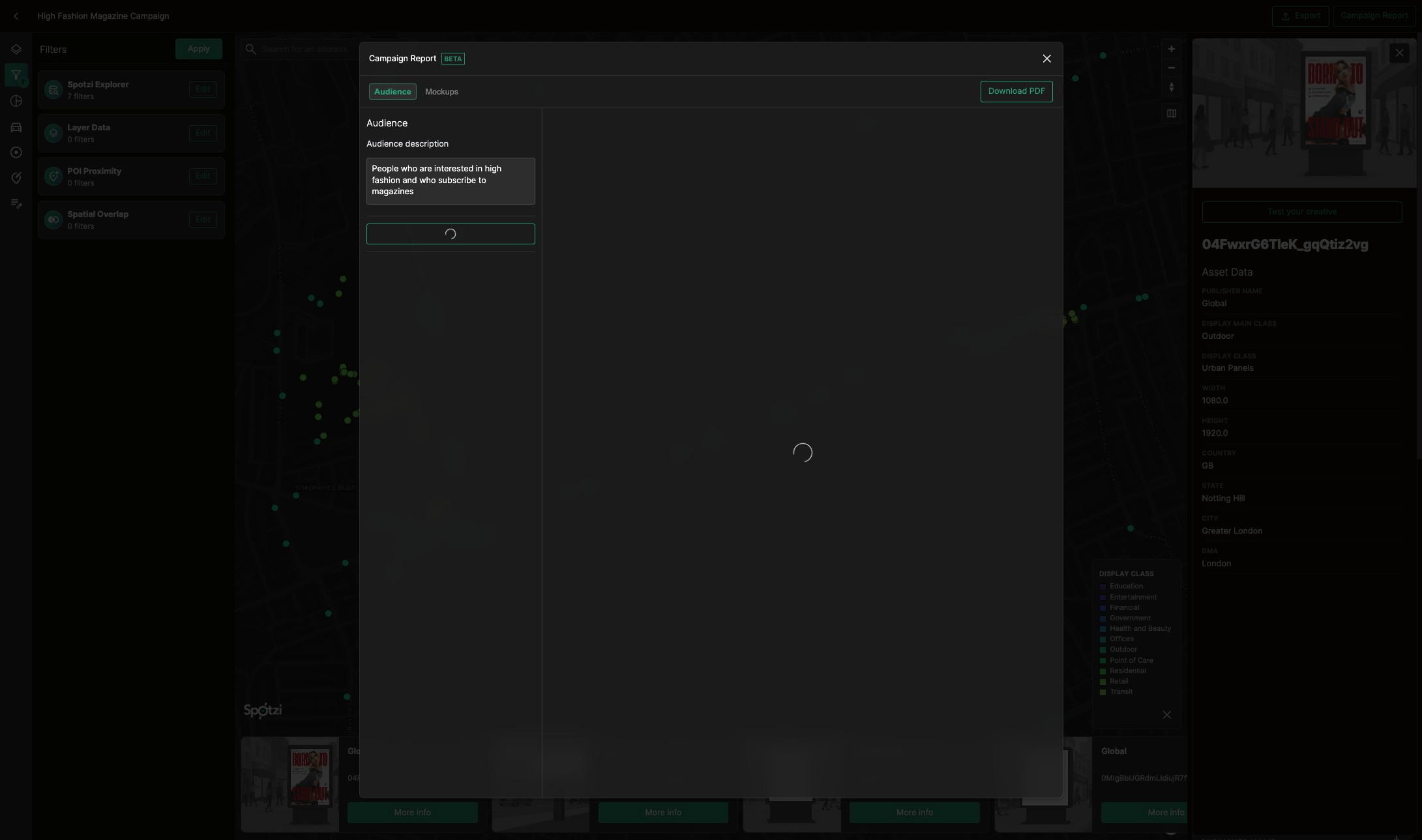
- The generated text explains which assets have been selected, and why those assets are well suited to reaching the intended audience.
This content helps communicate the value of your campaign plan to prospective clients and advertisers.
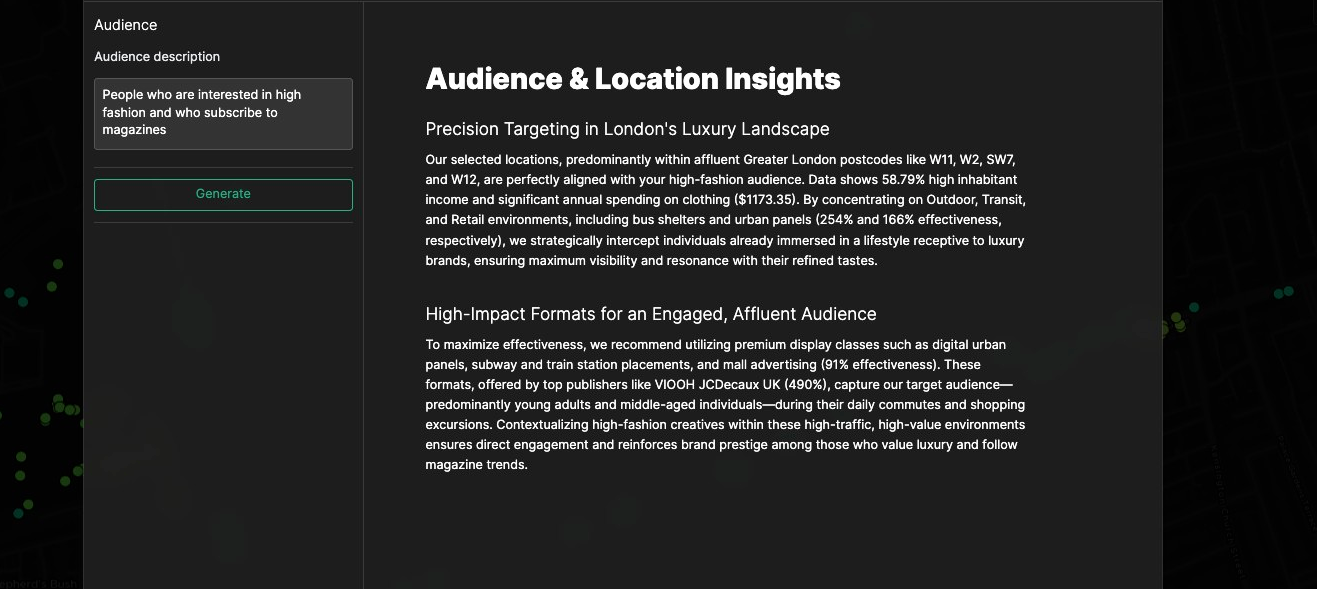
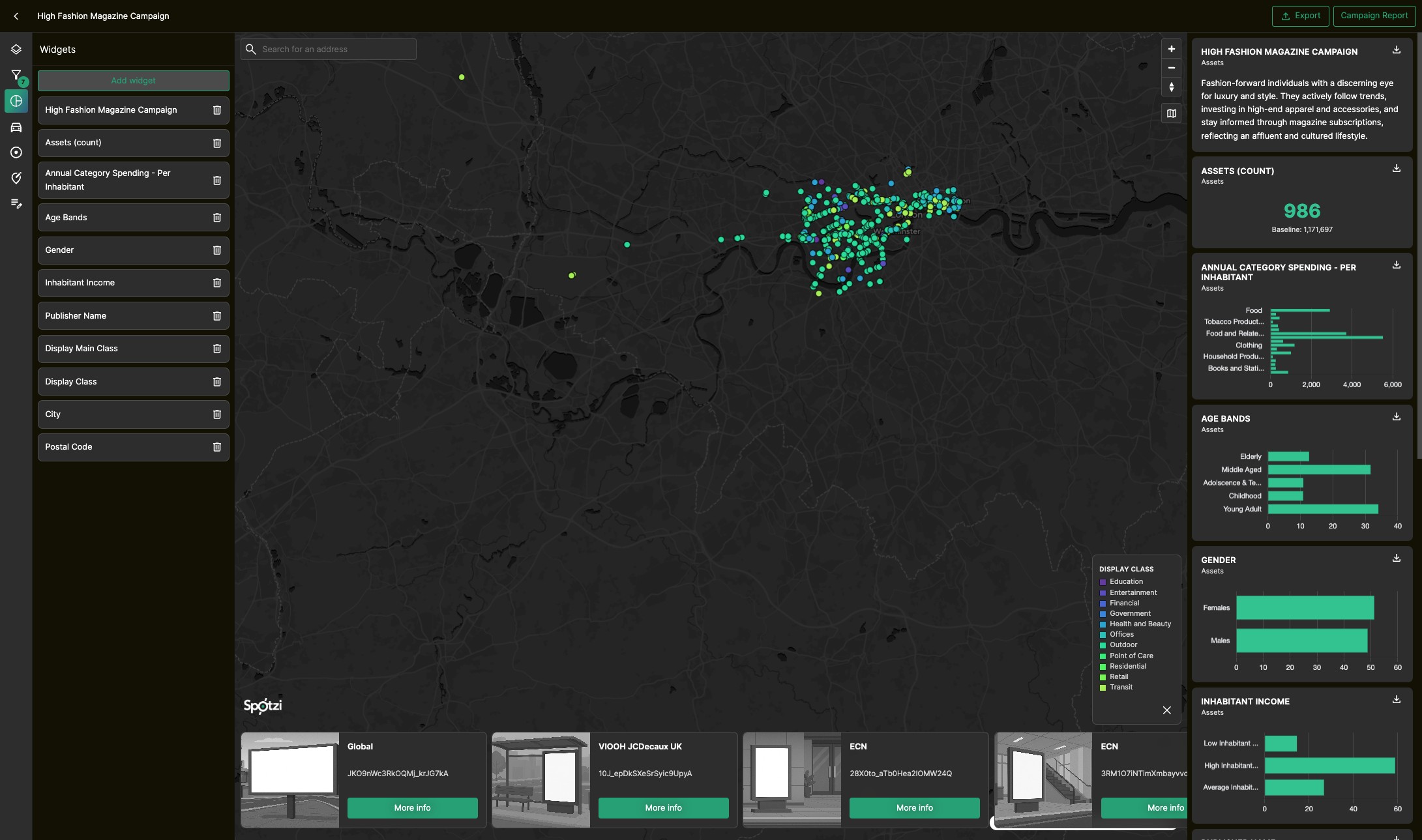
- The audience analysis is generated using the widget data available in your dashboard.
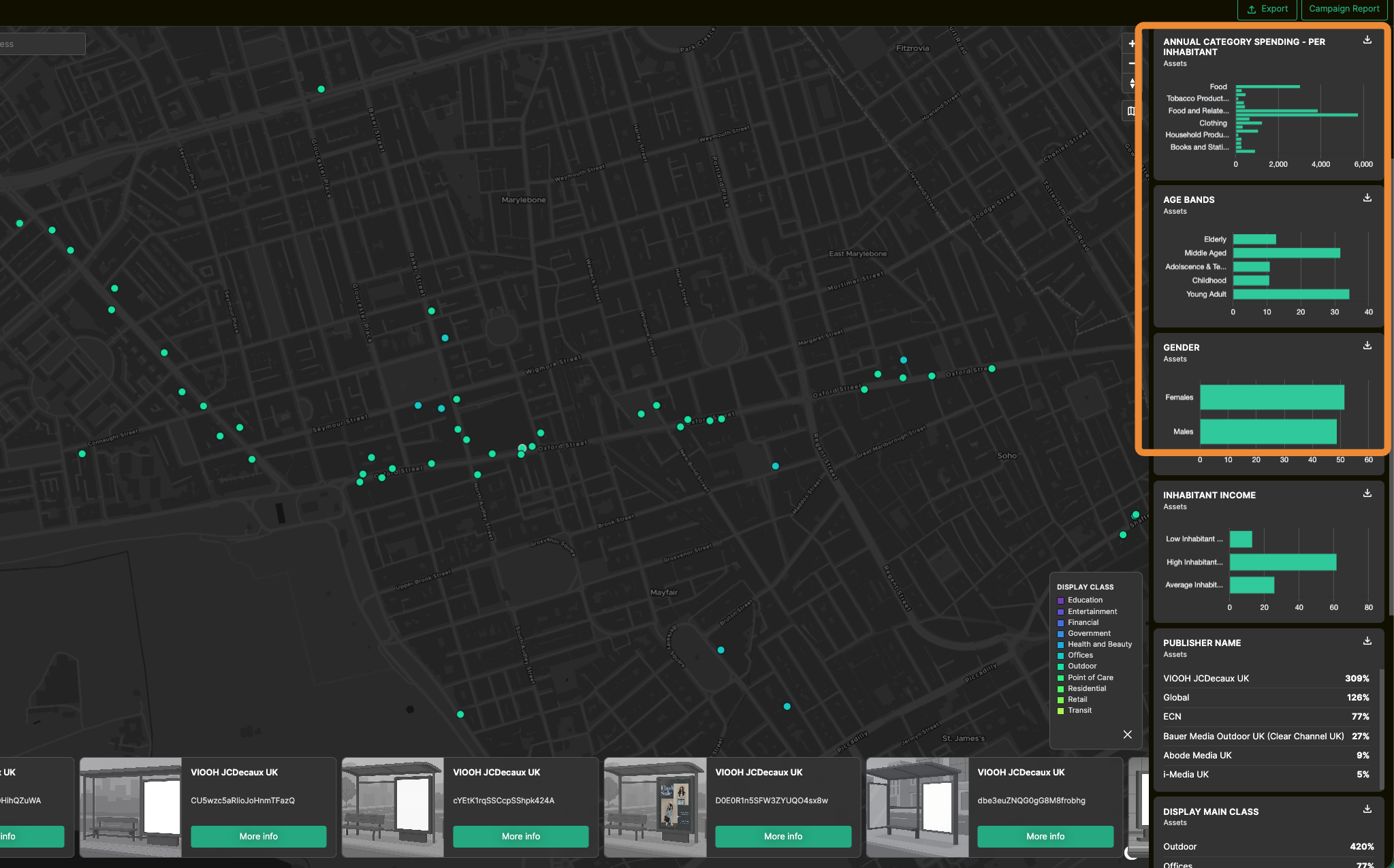
- Add, remove, or modify dashboard widgets to influence the data points highlighted in the report.
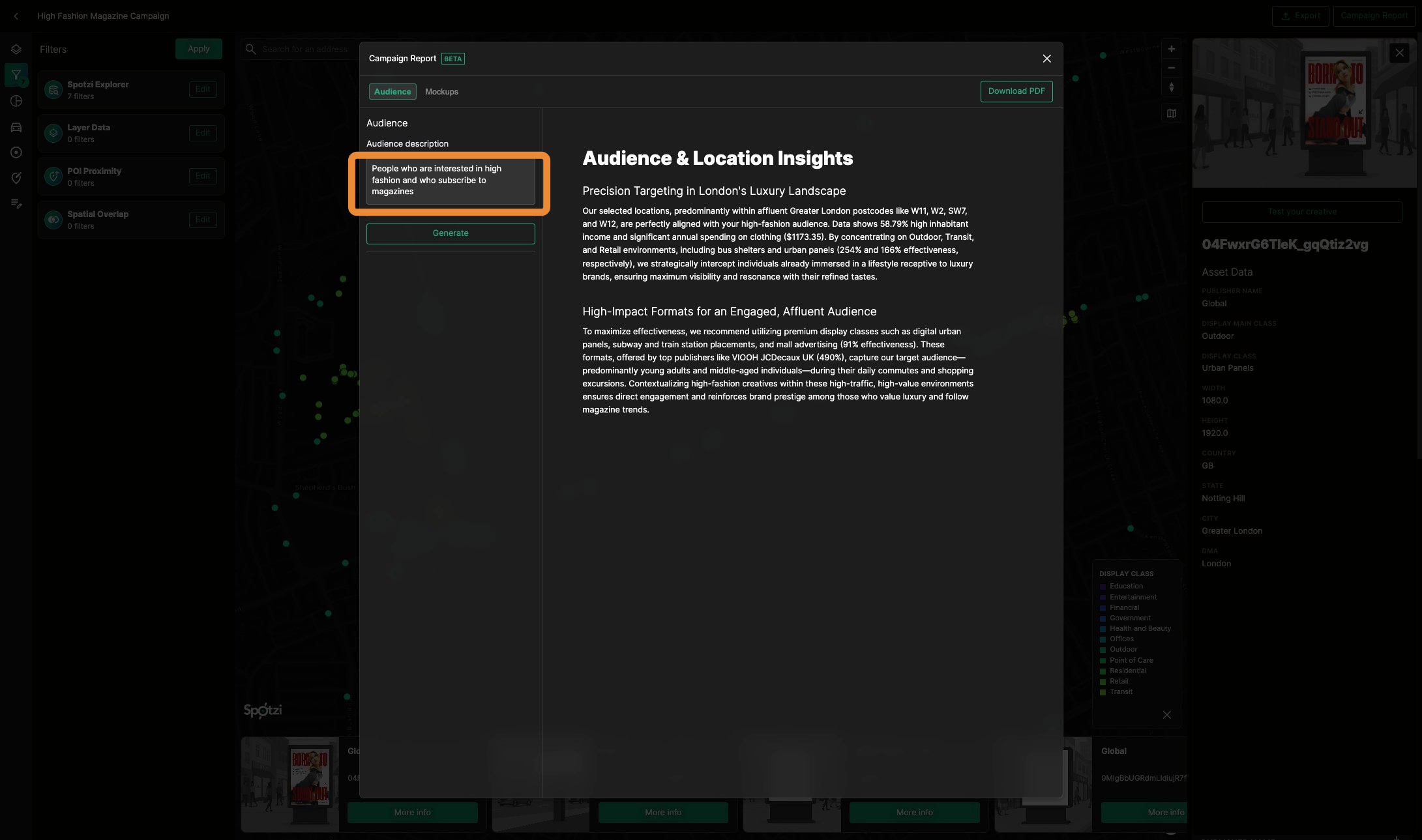
- If desired, enter a new prompt and click "Generate" to create a new audience summary.
- Navigate to the Mockups section of the Campaign Report.
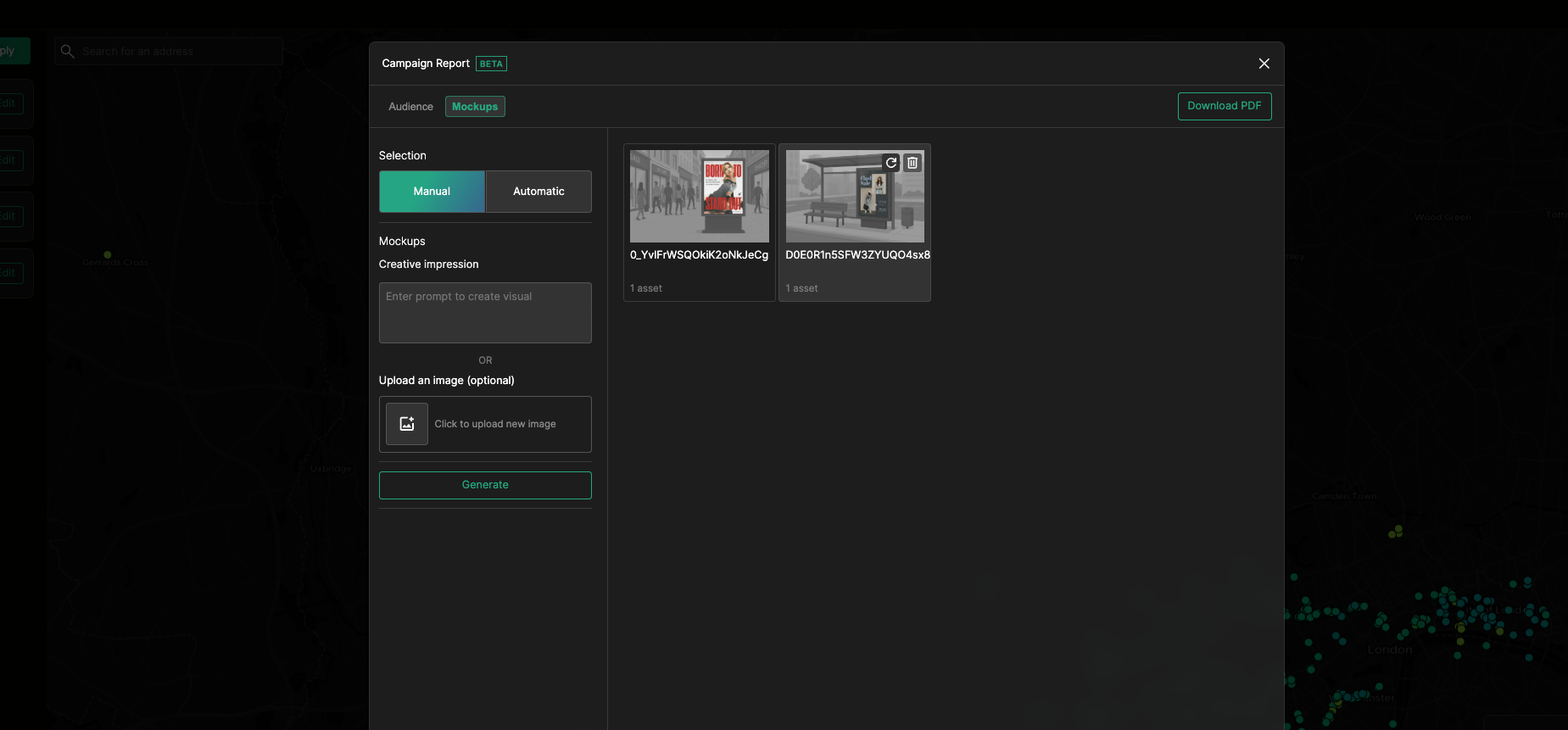
- Open the "Manual" tab to view all mockups that have been individually created and added to the report.
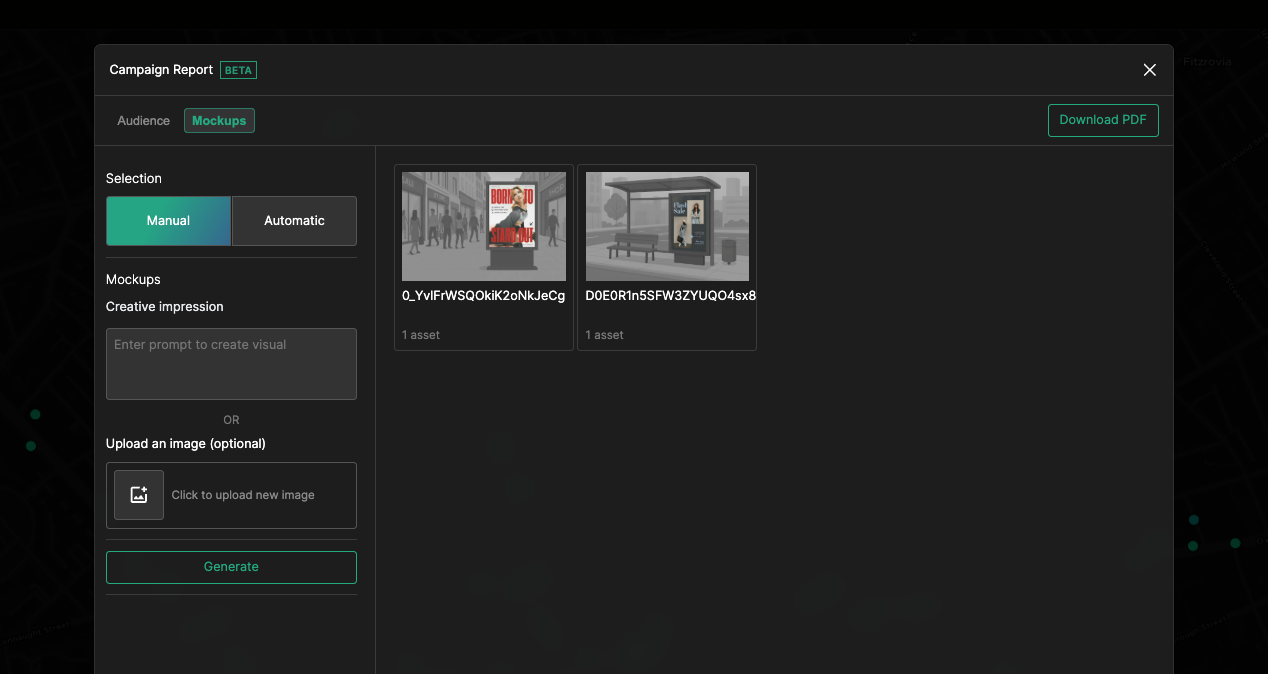
- You may click the trash icon in the top right of a mockup to remove it from the campaign report.
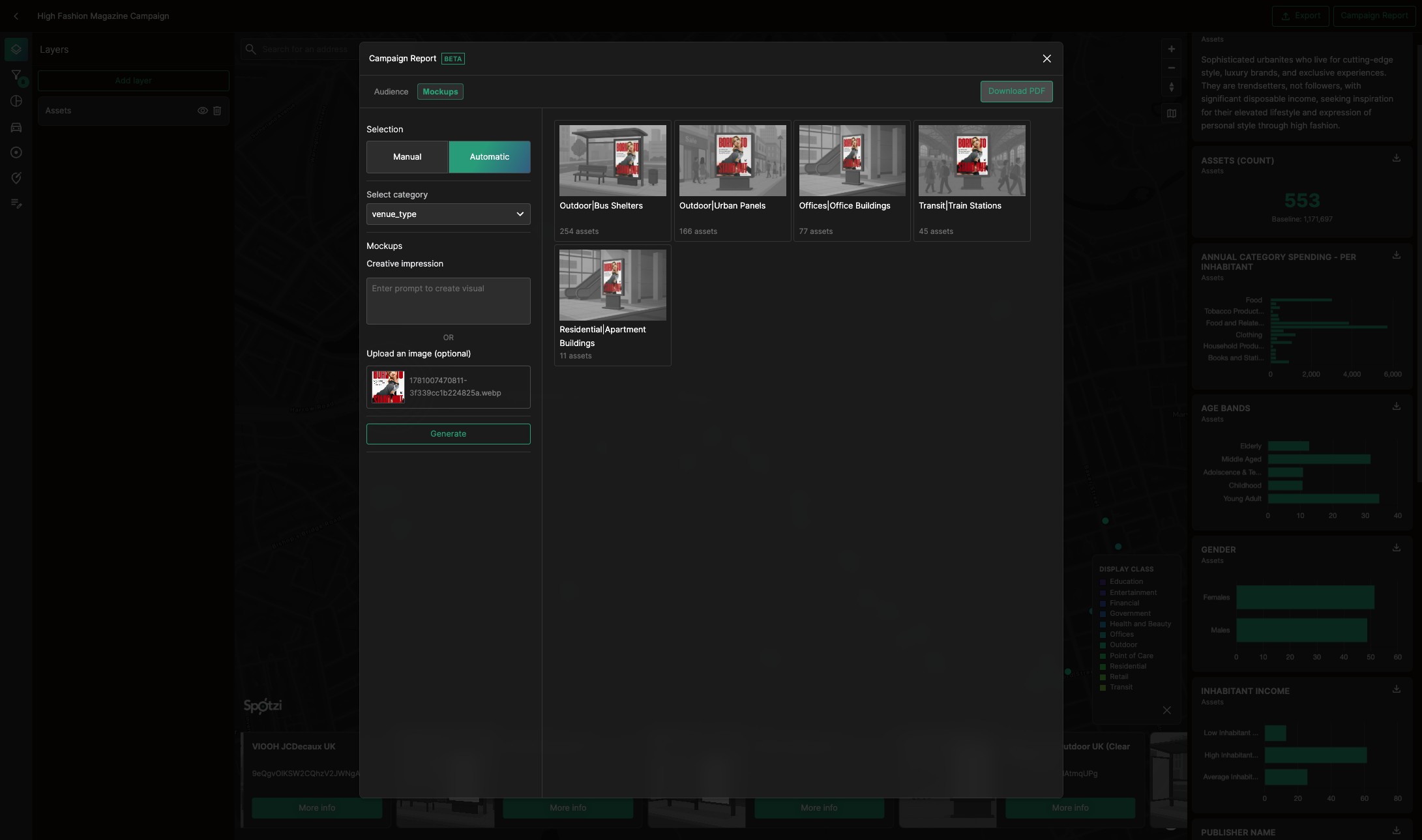
- Open the "Automatic" tab to launch the automatic mockup generator.
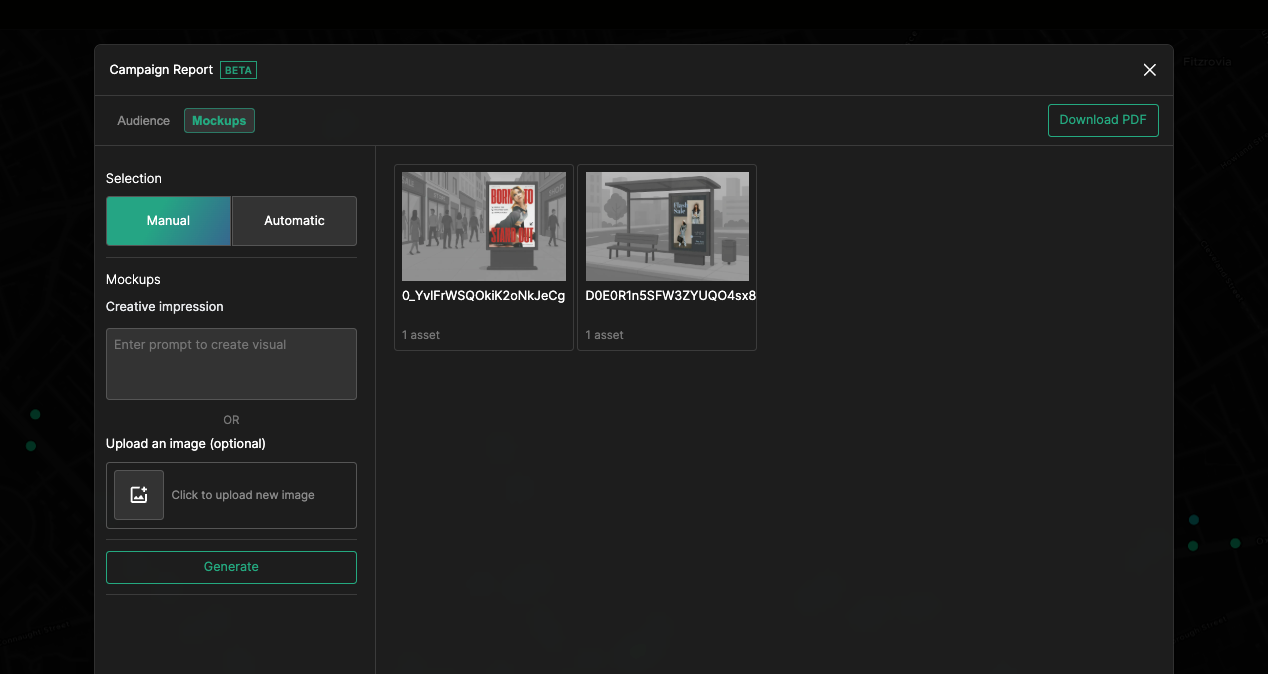
- Use this tool to generate mockups across all representative asset photos simultaneously.
A unique mockup will be created for each selected category, based on the category column selected for your report.
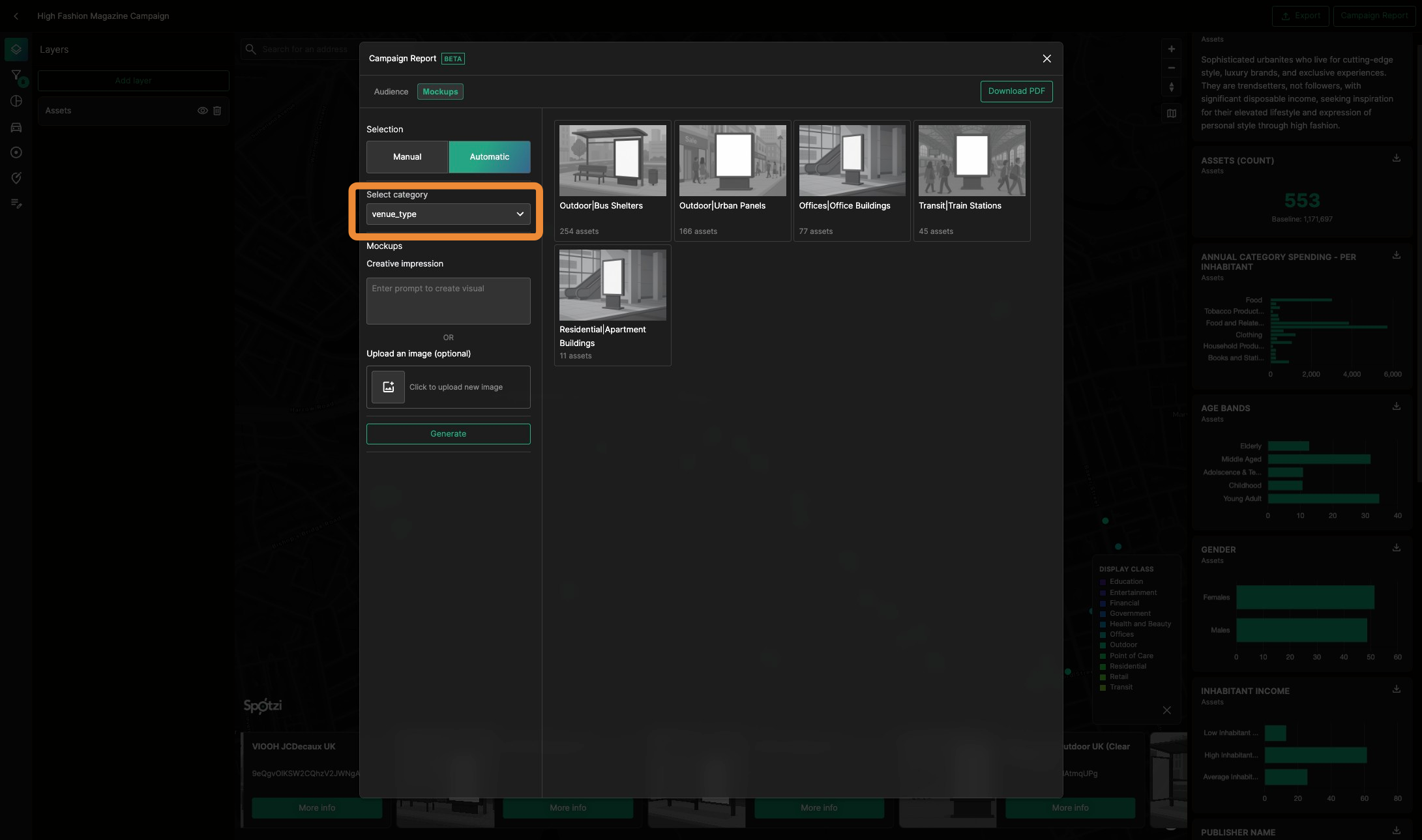
- Upload your creative or enter a prompt for the AI mockup tool.
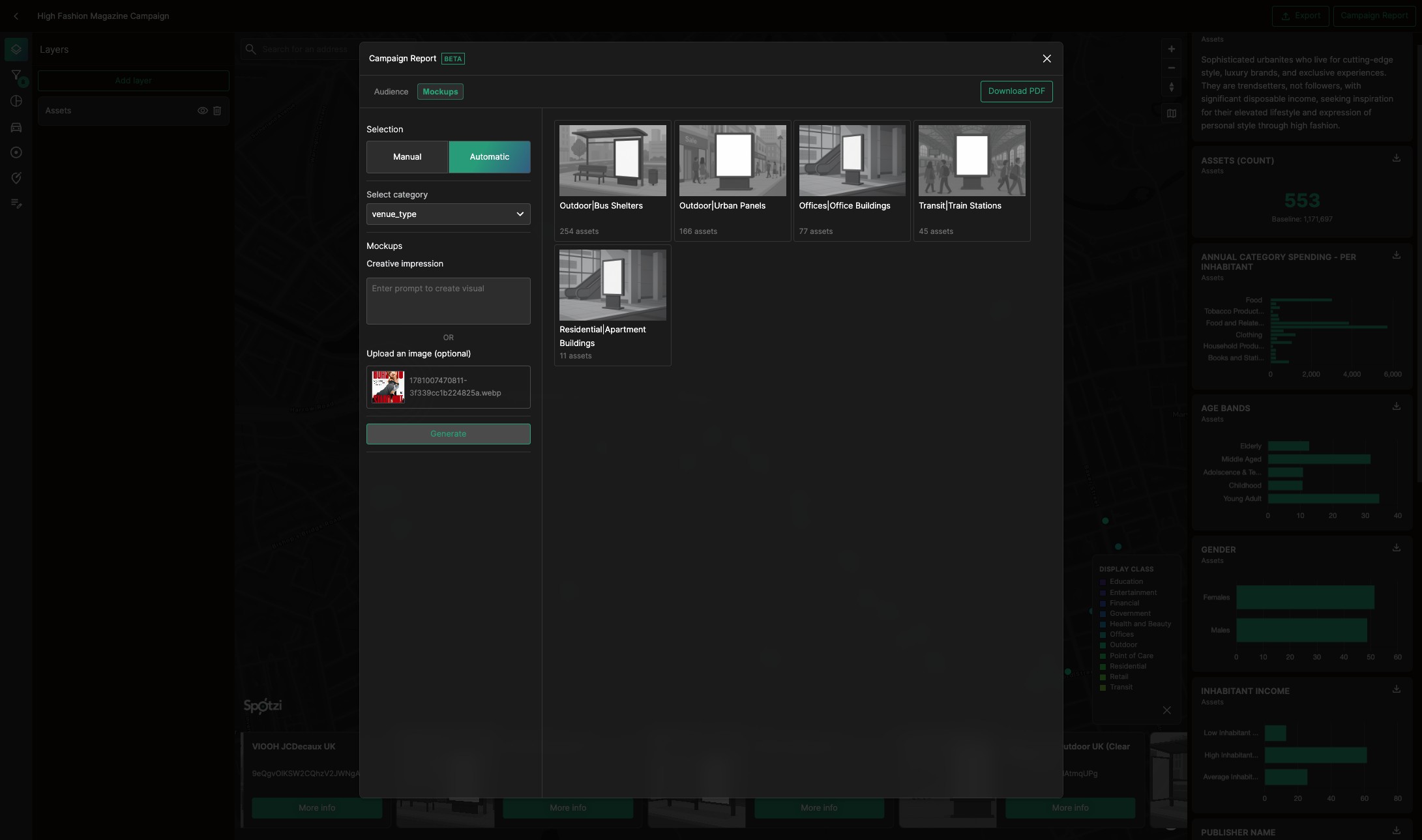
- A new mockup will be created for each of your representative asset photos.
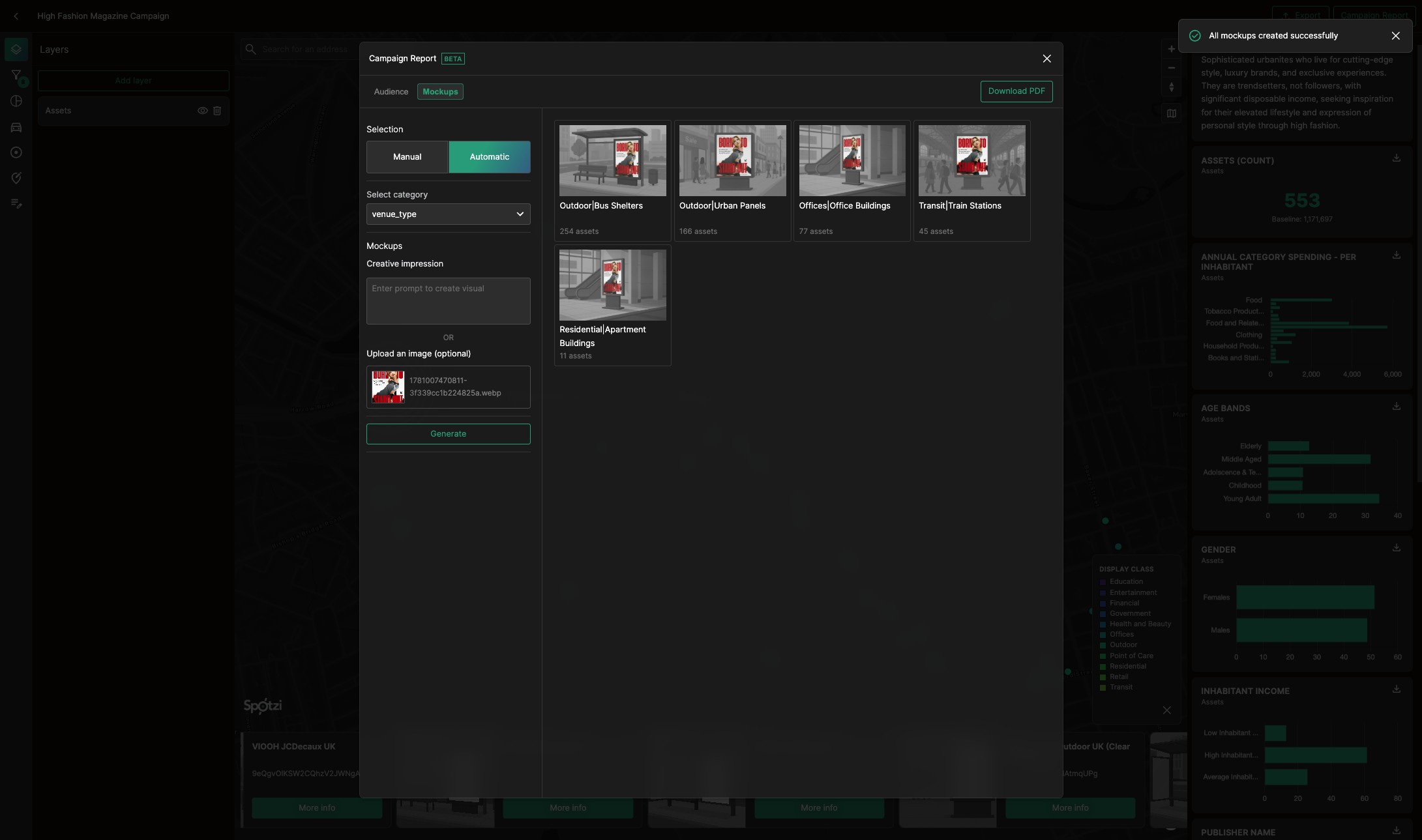
- If you are not satisfied with a particular mockup, use the refresh button in the top-right corner of that photo to regenerate it individually.
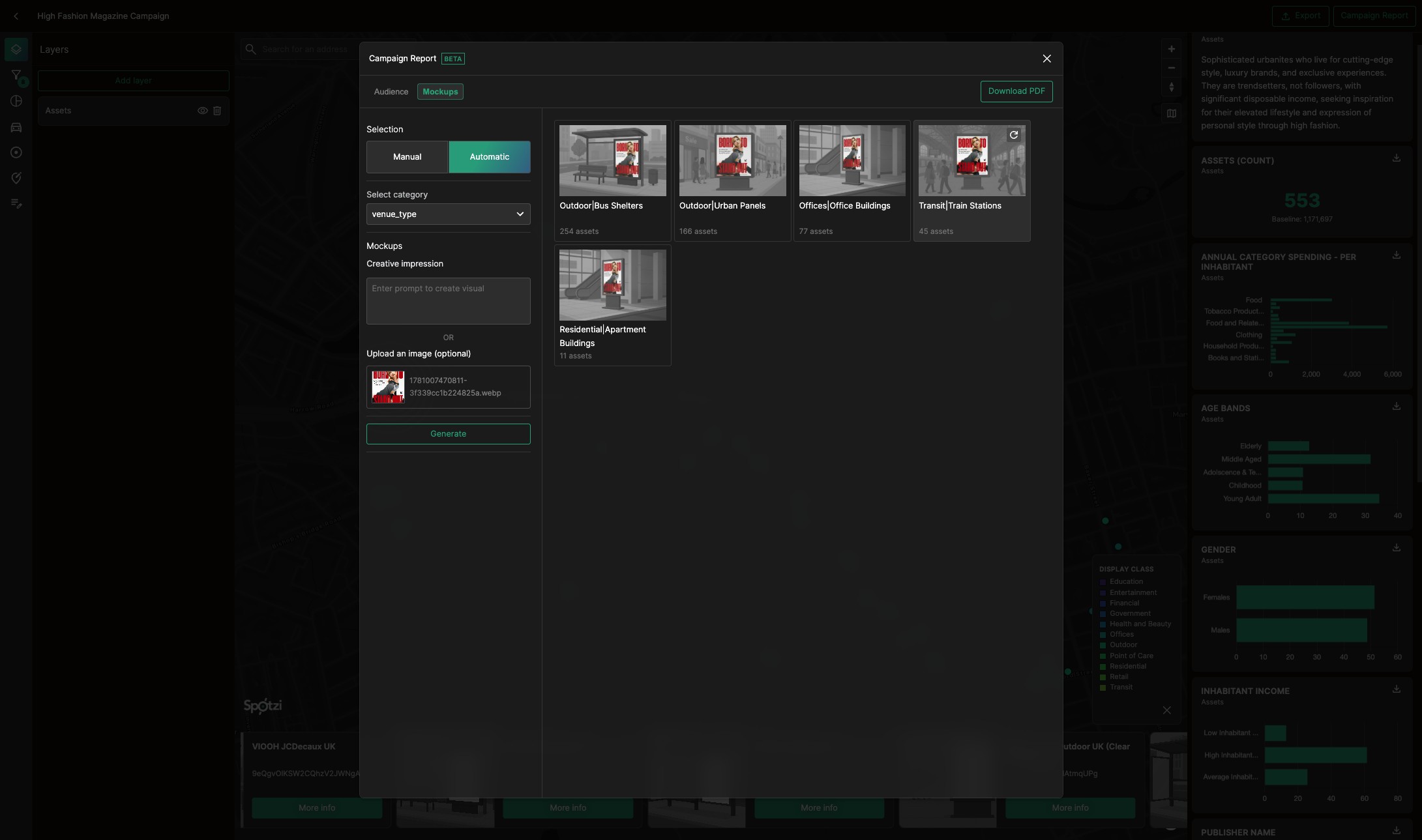
- Review your audience summary and mockups.
Click "Download PDF" when you're happy with your results.
- Spotzi will generate a PDF media kit using the same title as your campaign dashboard.
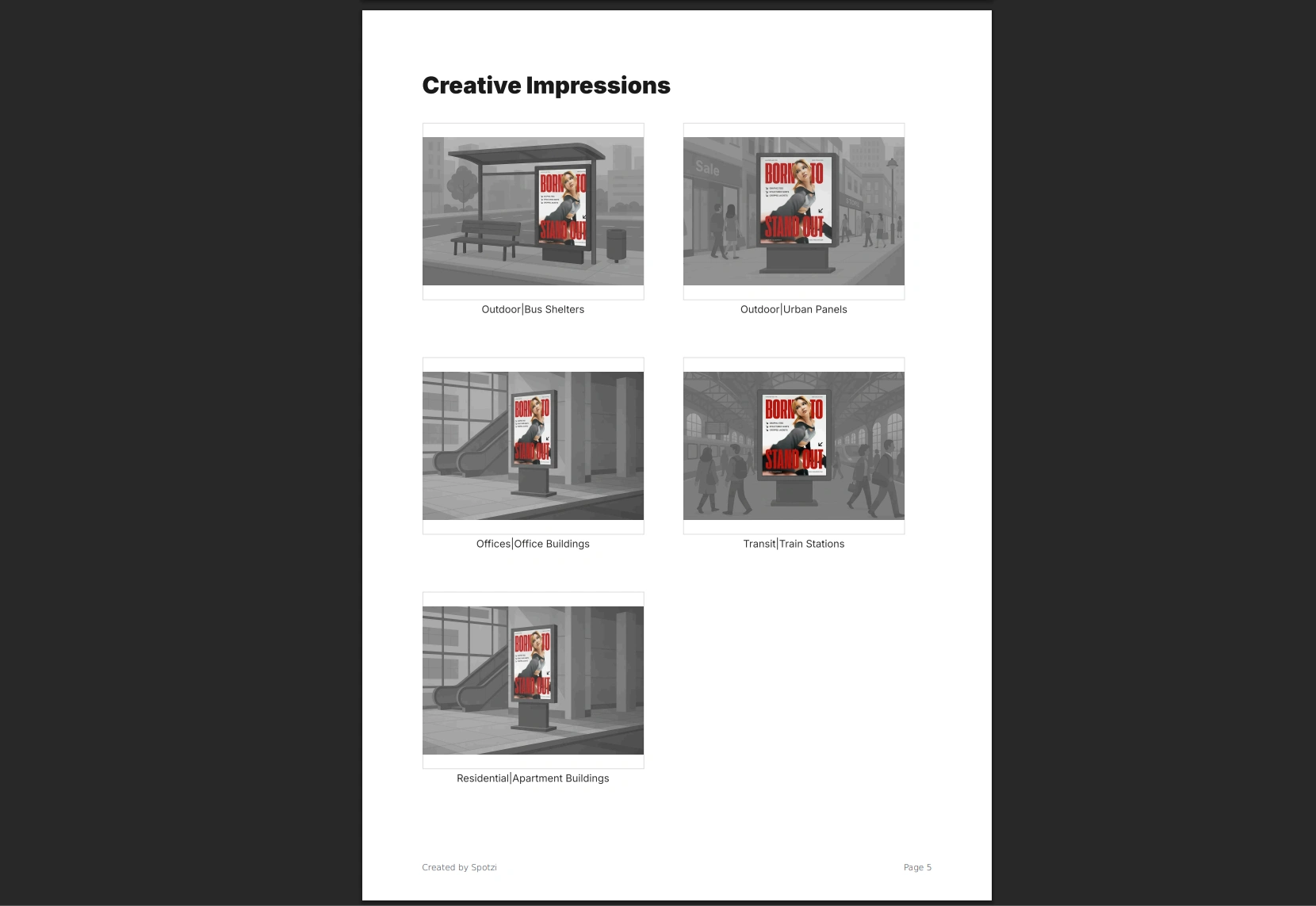
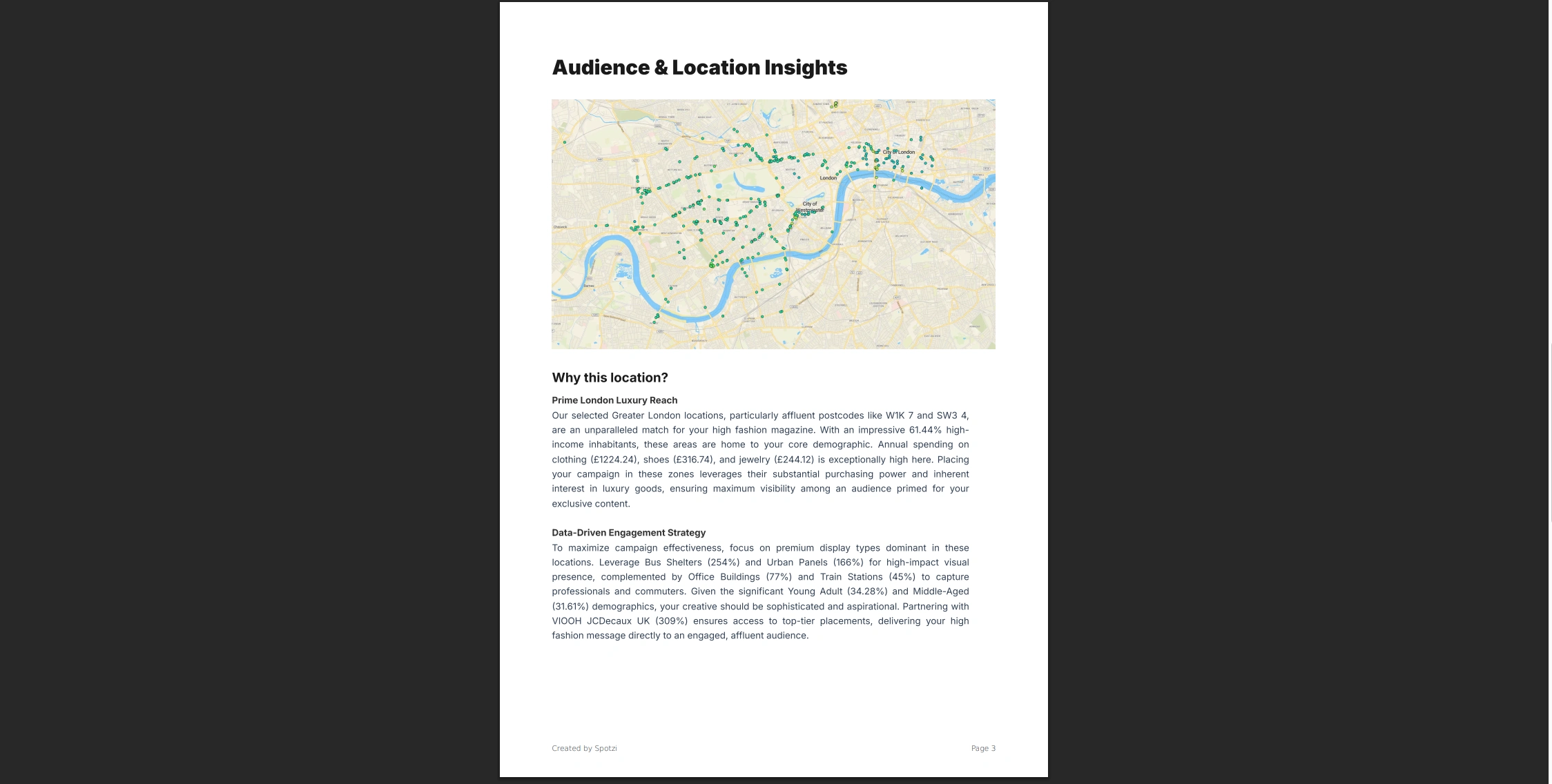
- The PDF includes your audience insights and campaign rationale, as well as a map screenshot displaying your selected campaign assets.
This screenshot changes based on the zoom level and map styling in your campaign dashboard.
- The custom mockups created through the mockup tool will also be featured here.