Made by Remco Dolman with Scribe
Learn how to build and customize free data dashboards found in the Spotzi Explorer catalogue.
Step-by-step
- Navigate to your home page, and click on "Postal Code Select".
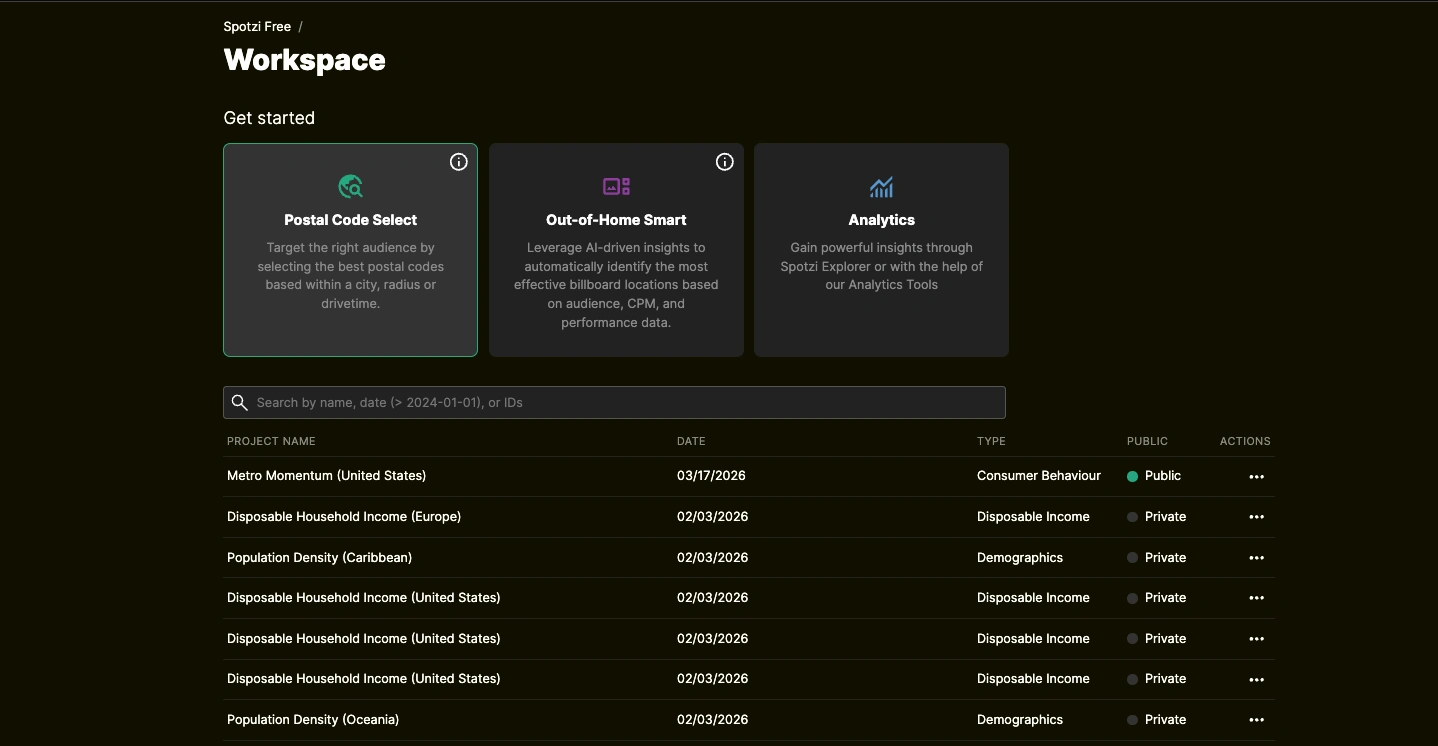
- A list of all postal code datasets available in the Spotzi Explorer catalogue will appear on this page.
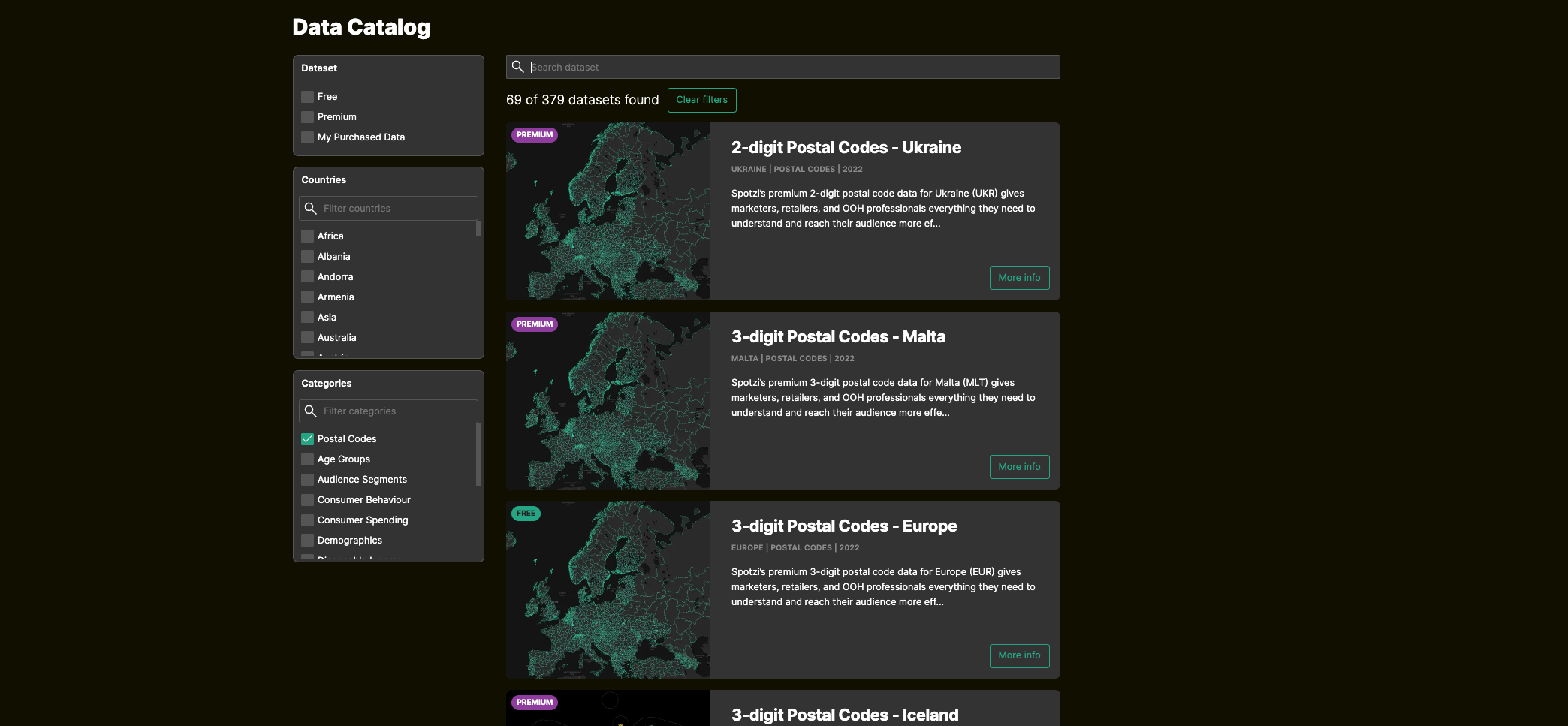
- You can use the dataset filters to view the free postal code datasets available in the Spotzi catalogue.
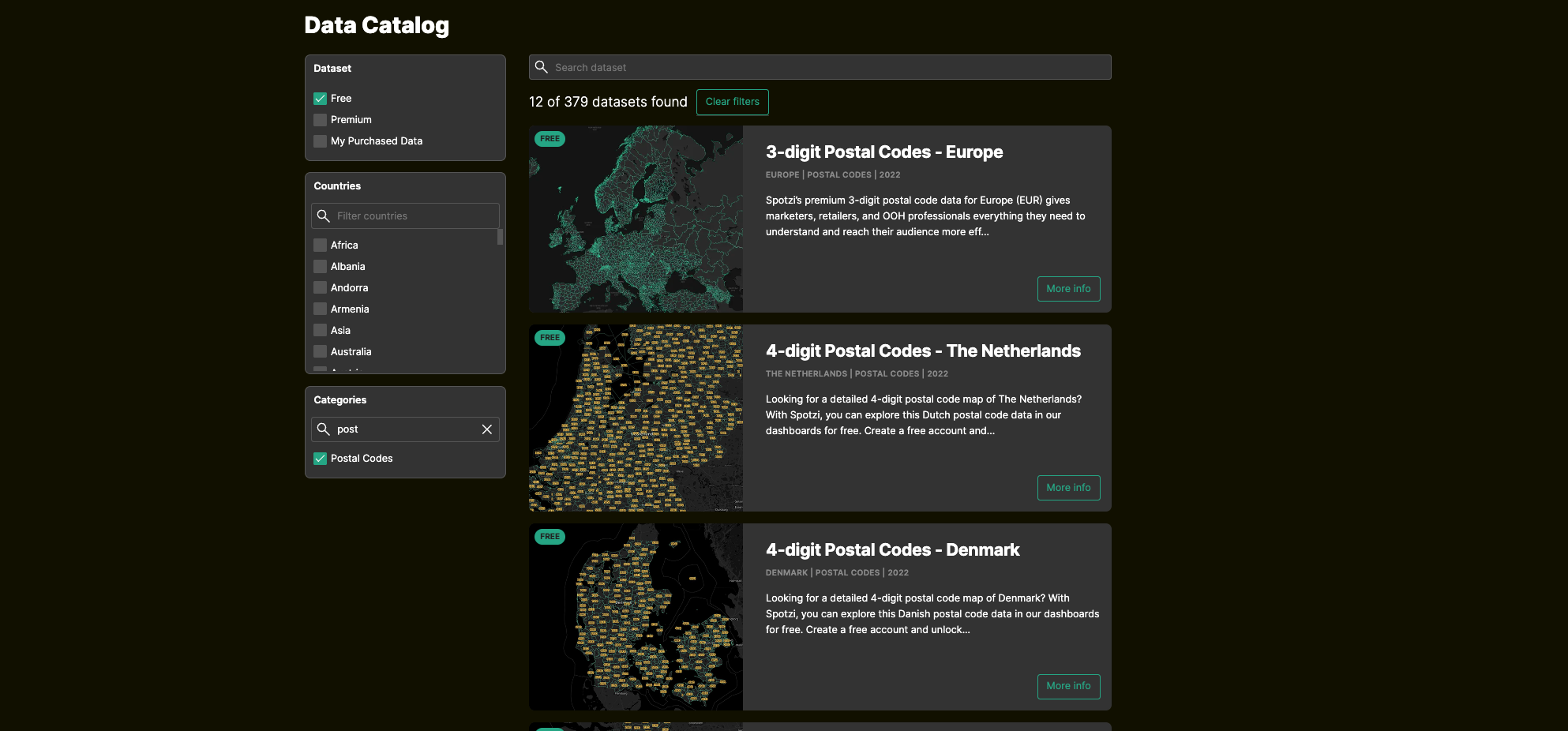
- You may also deselect "Postal Codes" in the categories menu to view a list of other kinds of available datasets.
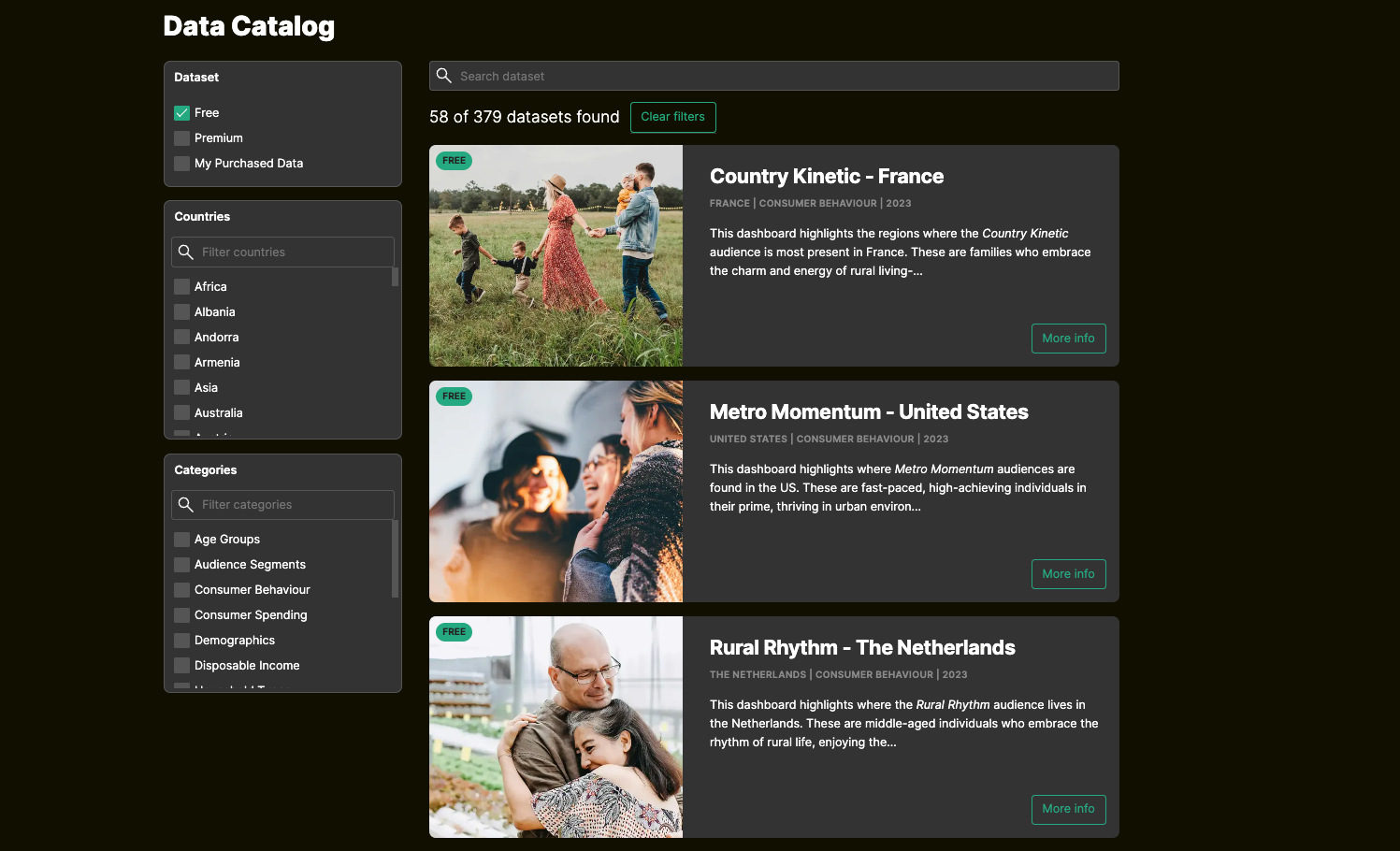
- Select the dataset you would like to create a dashboard from and click "More info".
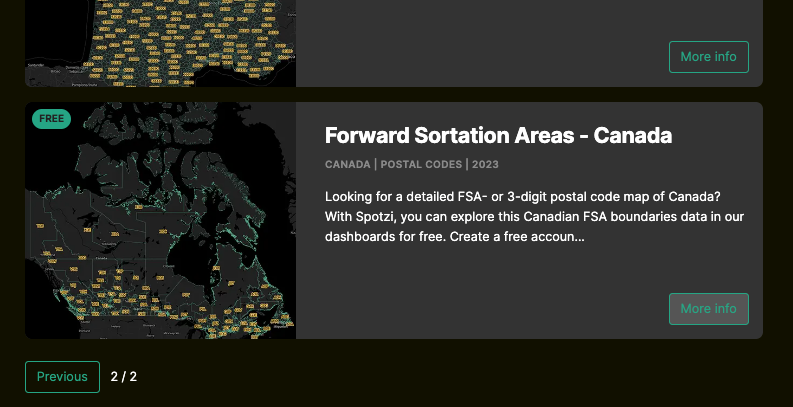
- Click "Add to workspace".
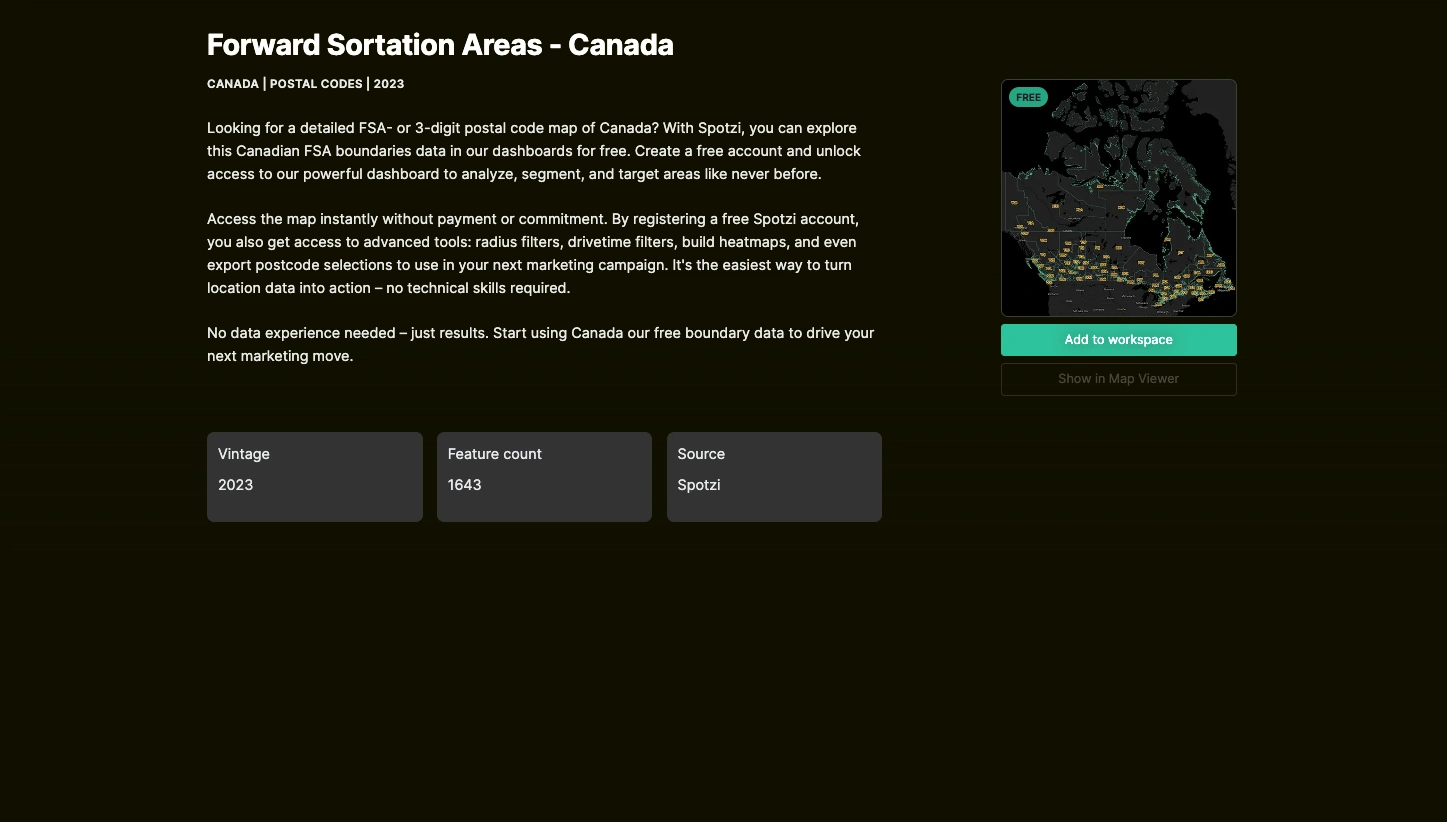
- Give your dashboard a name, or leave the default name as-is.
Click "Create Dashboard".
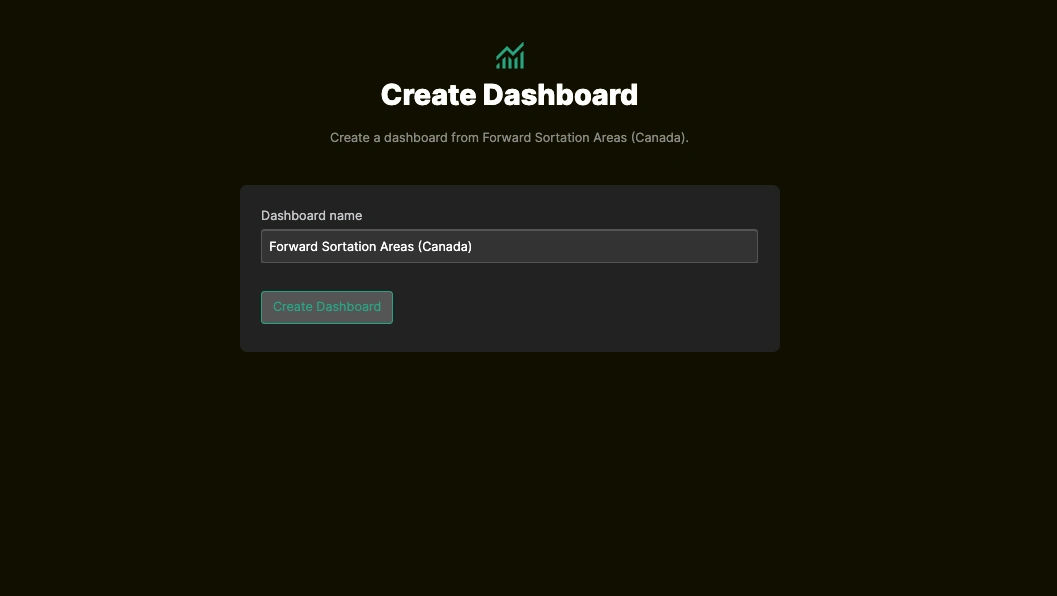
- A dashboard will be created featuring your selected data.
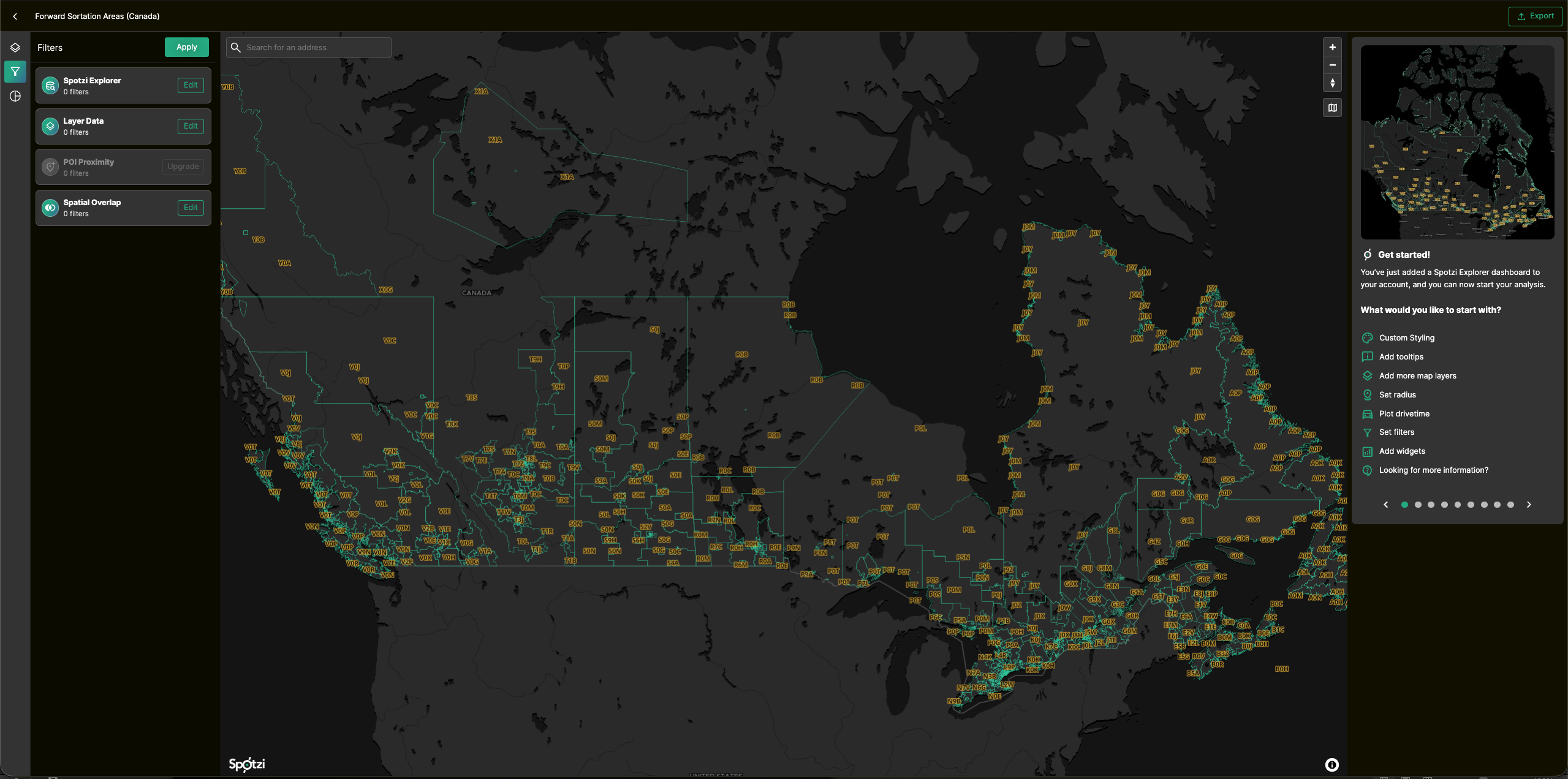
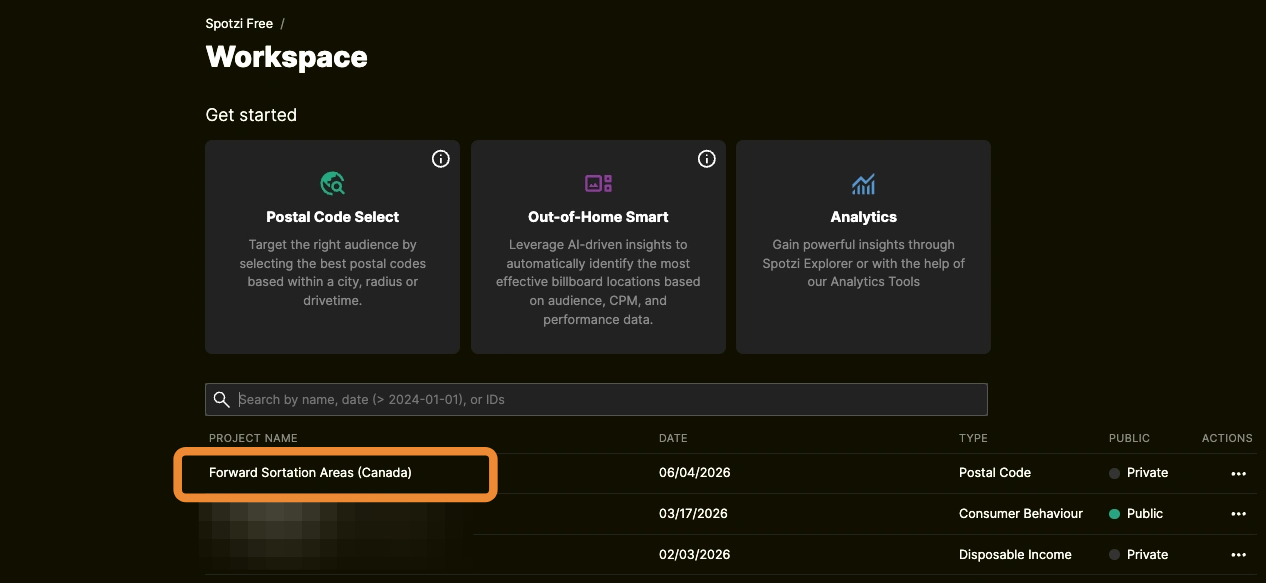
- This dashboard can also be found listed in your workspace.
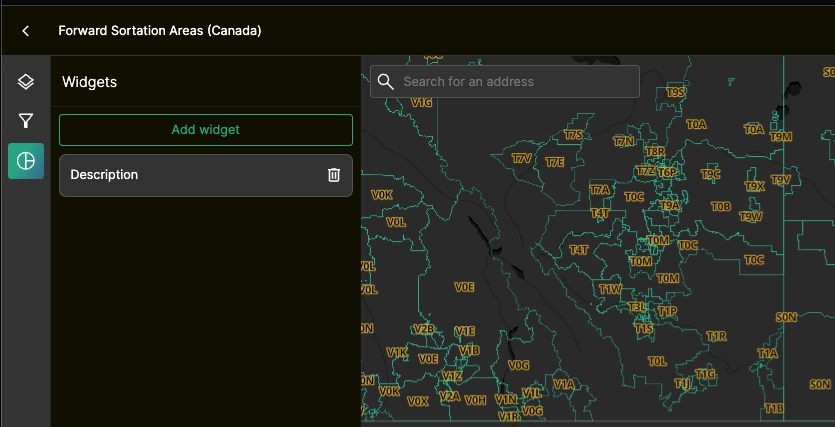
- You can begin adding your own dashboard widgets by navigating to the widget icon on the left.
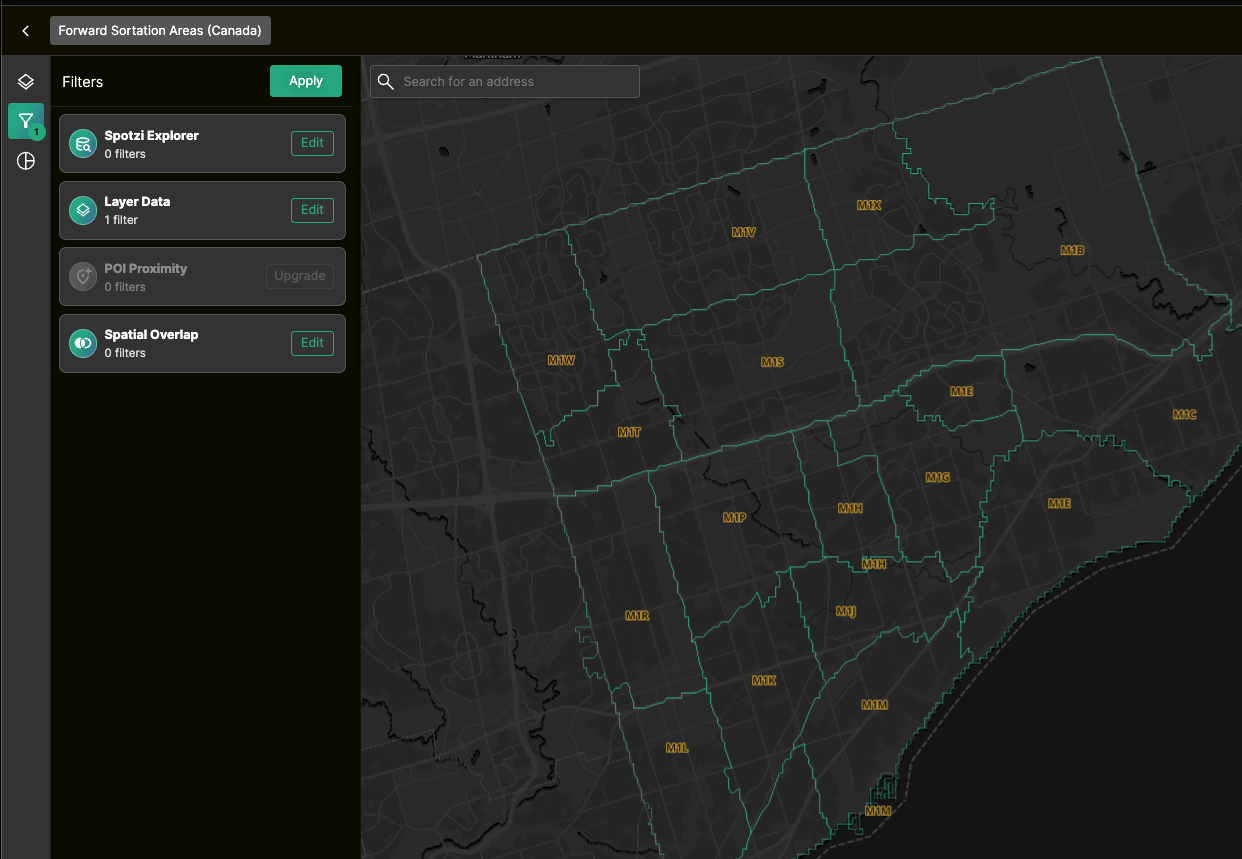
- Use the filter panel on the left to add filters to your dashboard. Your map will change to display only the locations matching your selected filters.
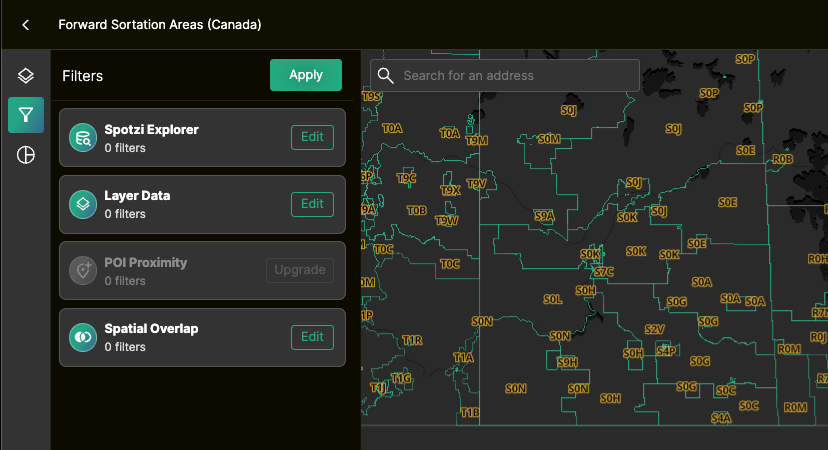
- You may also add a layer of your own uploaded data points or POIs to filter your postal codes based on overlaps with key locations.
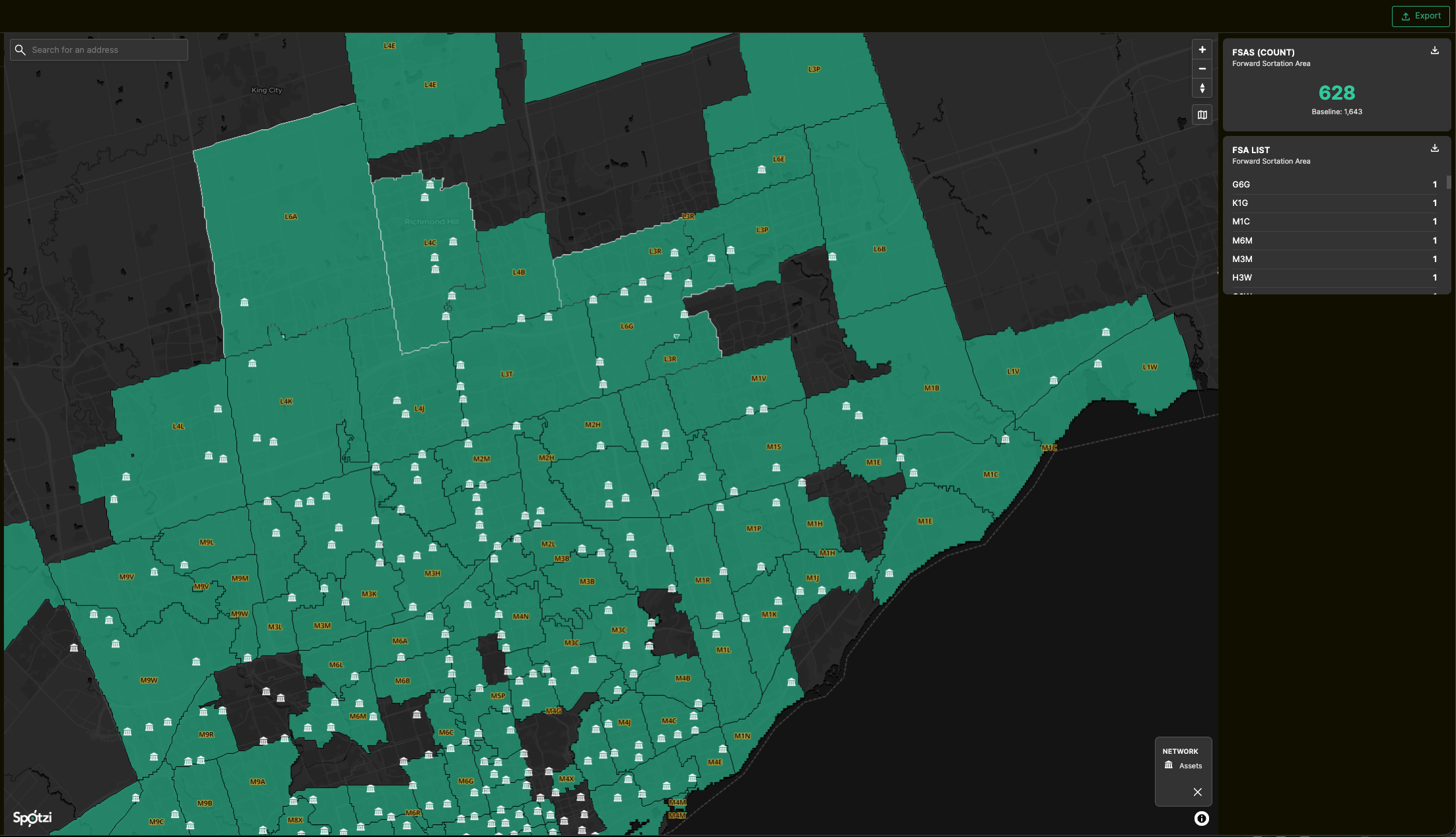
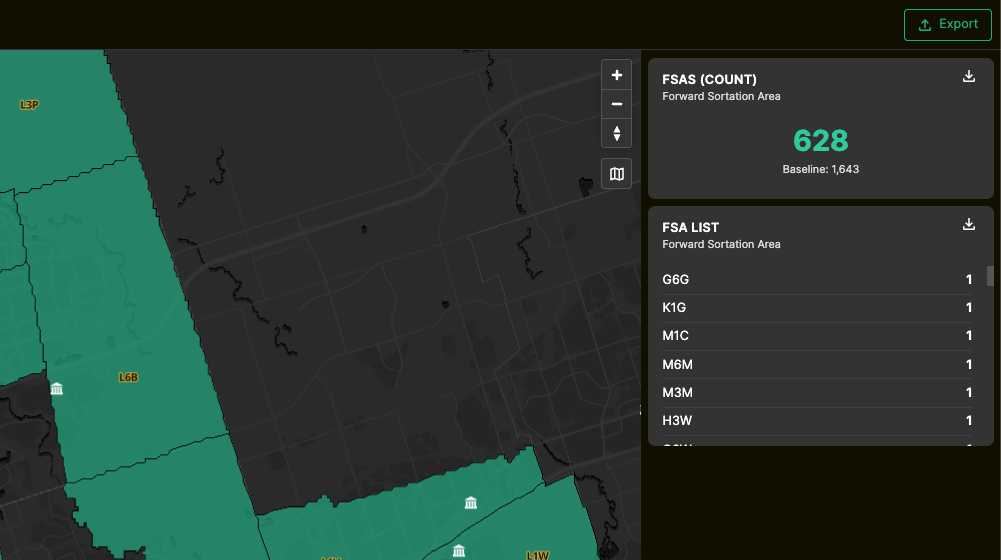
- Click on the "Export" button in the top right corner of your dashboard to export your filtered postal code data.
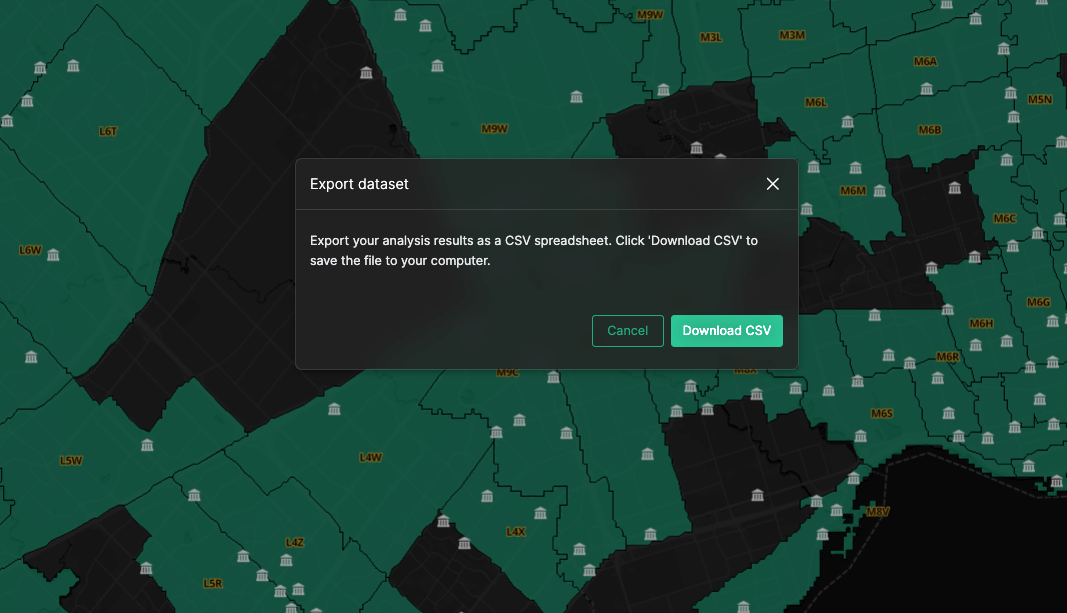
- Click "Download CSV".
A CSV file containing a list of your filtered postal codes will be downloaded.
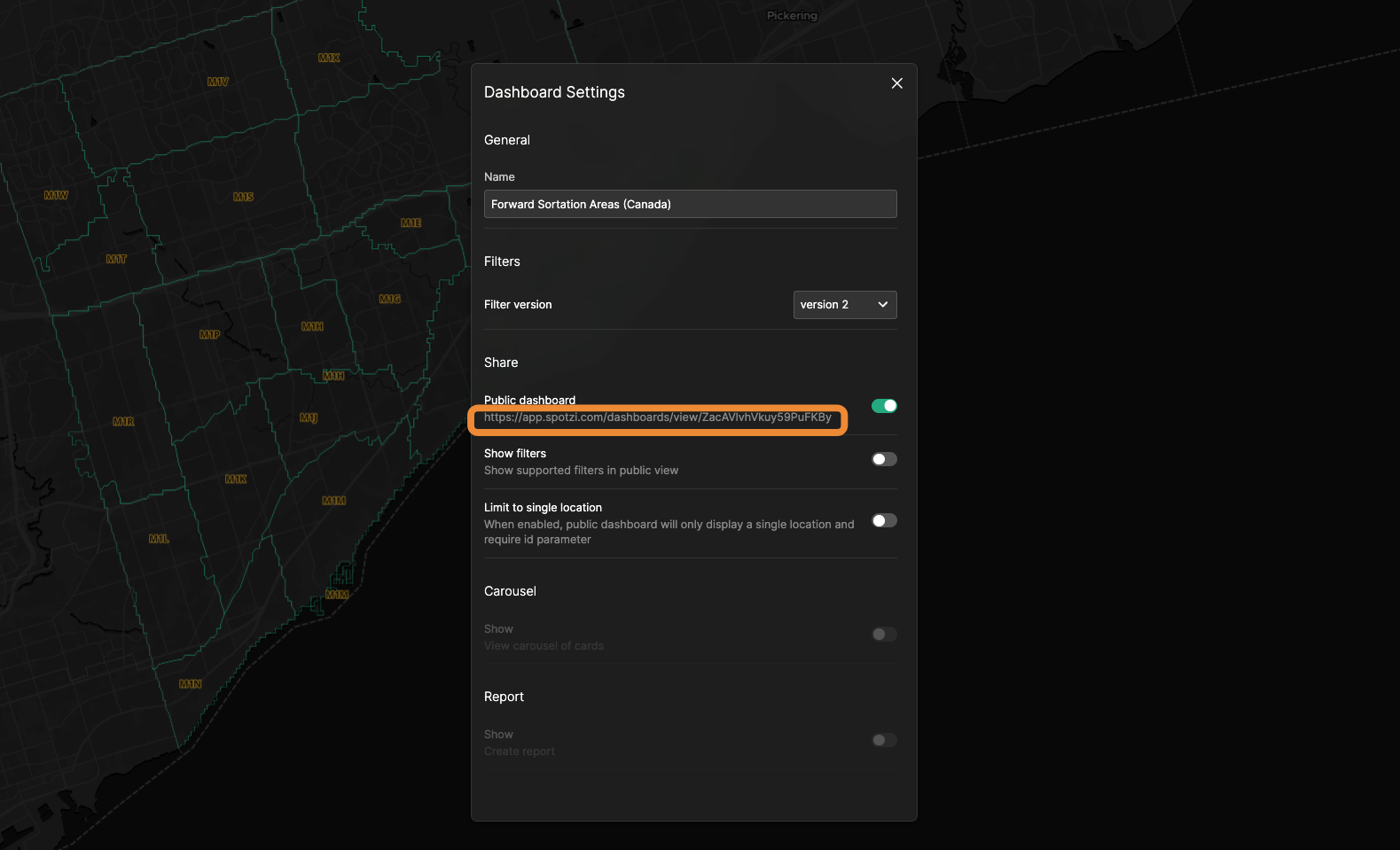
- You can share your filtered or customized dashboard through a publicly accessible link. This enables others to view your dashboard and use it as a reference or presentation tool.
Click the dashboard name to open the dashboard settings.
- Enable "Public Dashboard" under the "Share" section.
A view-only dashboard link will appear. Anyone with this link can view the dashboard in a read-only mode without needing to sign in to a Spotzi account.