Made by Remco Dolman with Scribe
This guide demonstrates how to filter your Spotzi dashboard using custom polygon layers.
By analyzing locations that overlap with your selected geographic areas, you can uncover valuable insights and identify opportunities relevant to your project or campaign.
Step-by-step
- Start by creating a dashboard with the locations you would like to filter.
You may add additional layers to your dashboard in the dashboard's layer options.
Navigate to the "Layers" panel and click "Add layer".
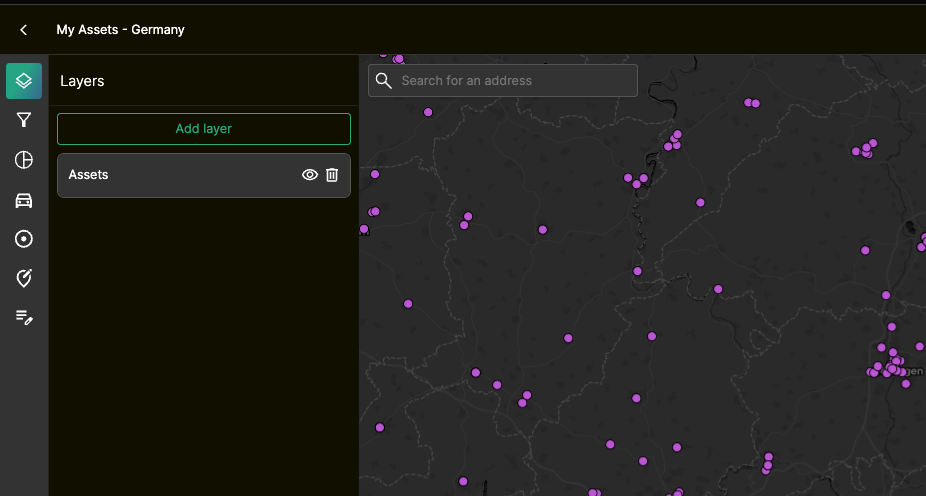
- Layers containing polygons can be used to spatially filter other layers.
Select a dashboard containing your custom polygon(s) from the layer selection window.
Click "Add layer".
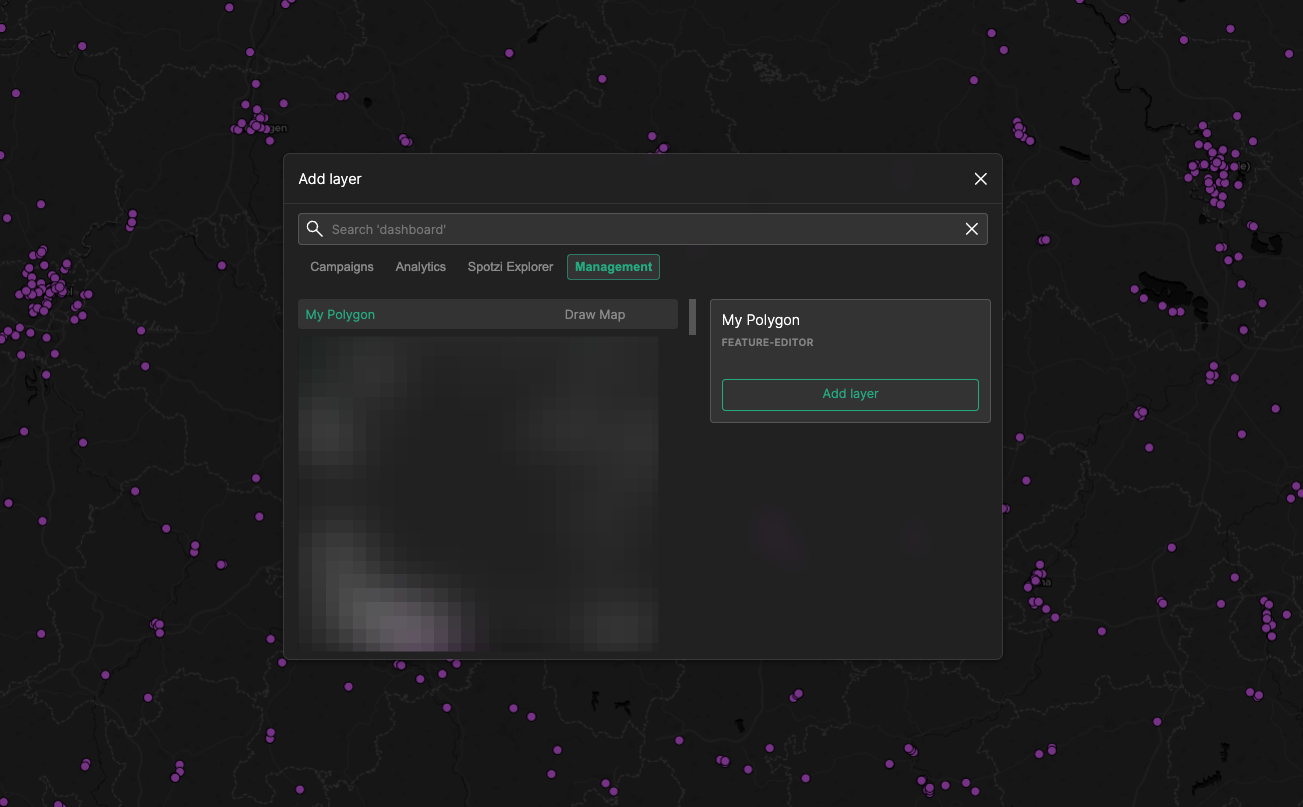
- A new layer featuring the selected polygon(s) will be added to your dashboard.
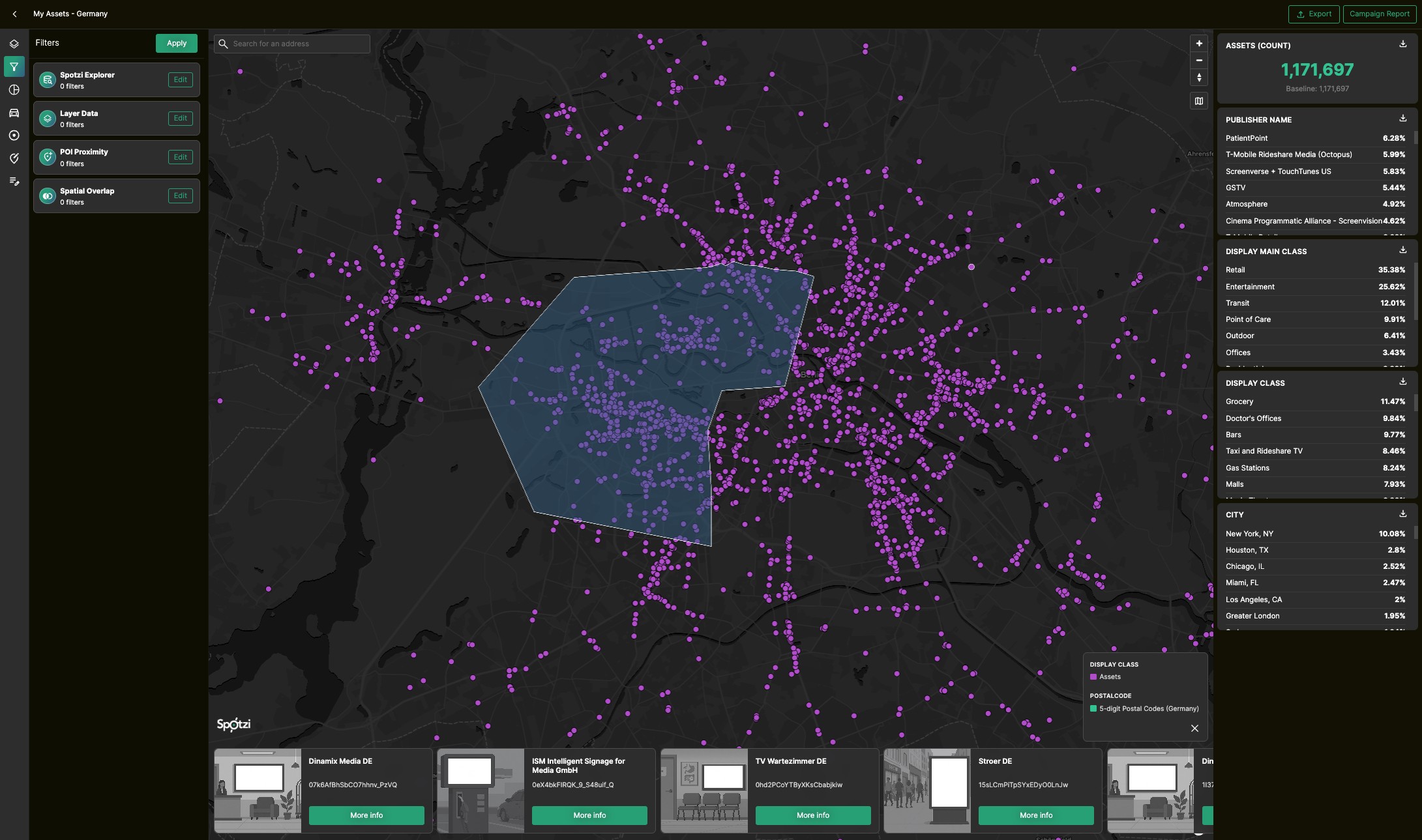
- Navigate to the "Spatial Overlap" filter and click "Edit".
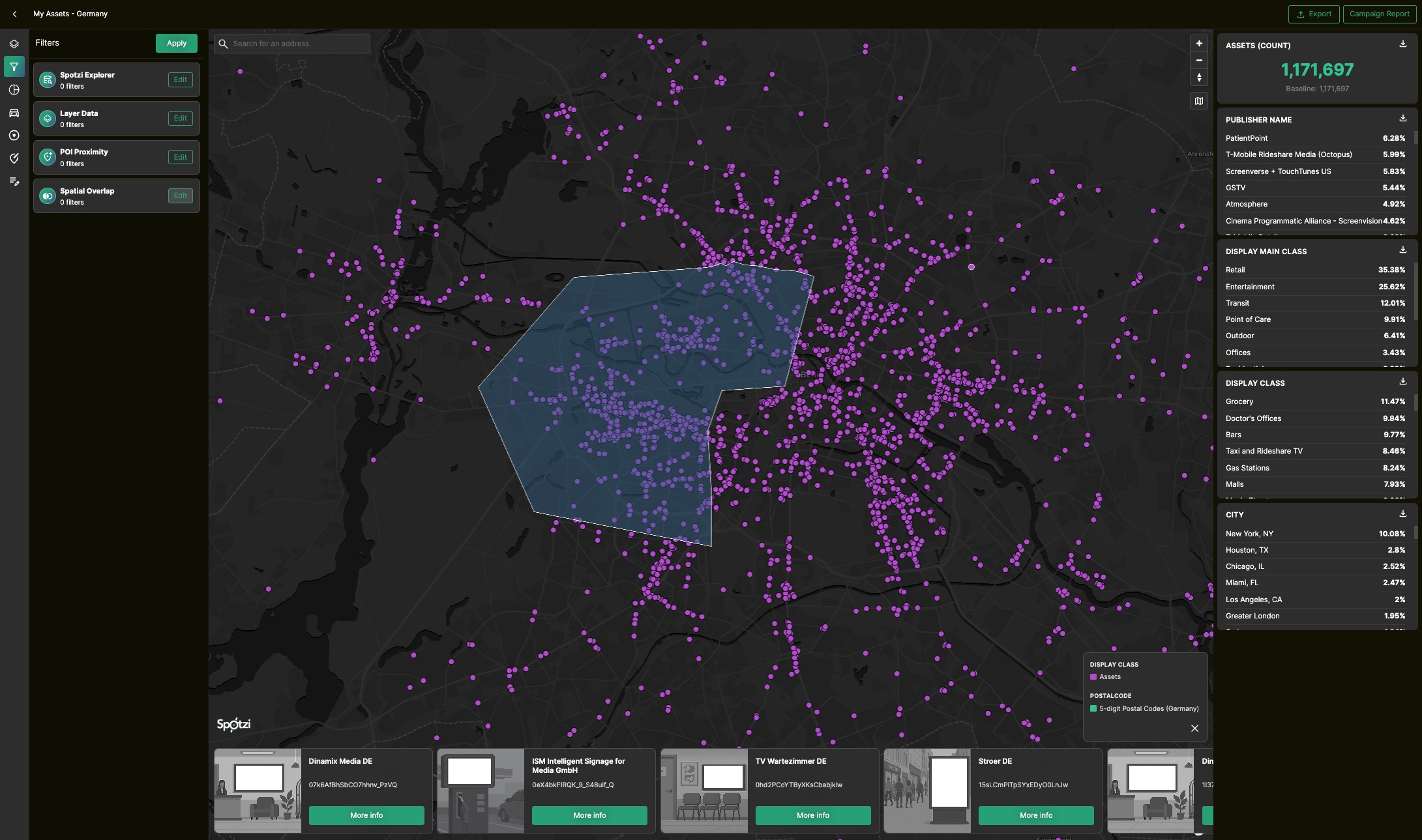
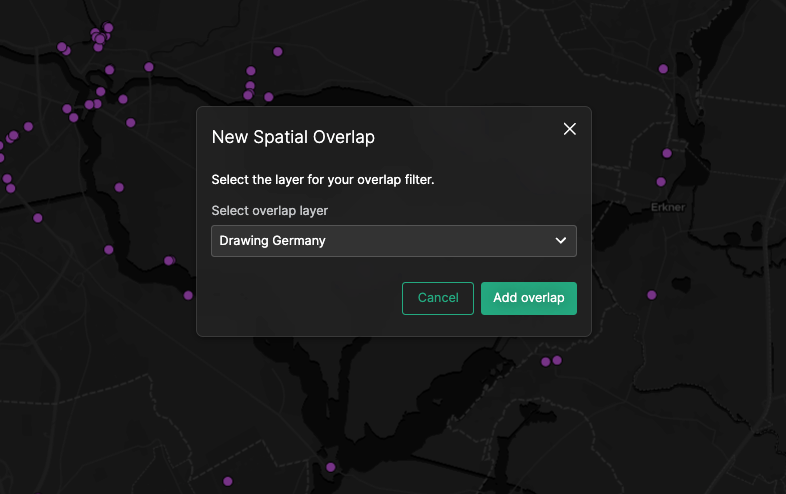
- Click "Add overlap"
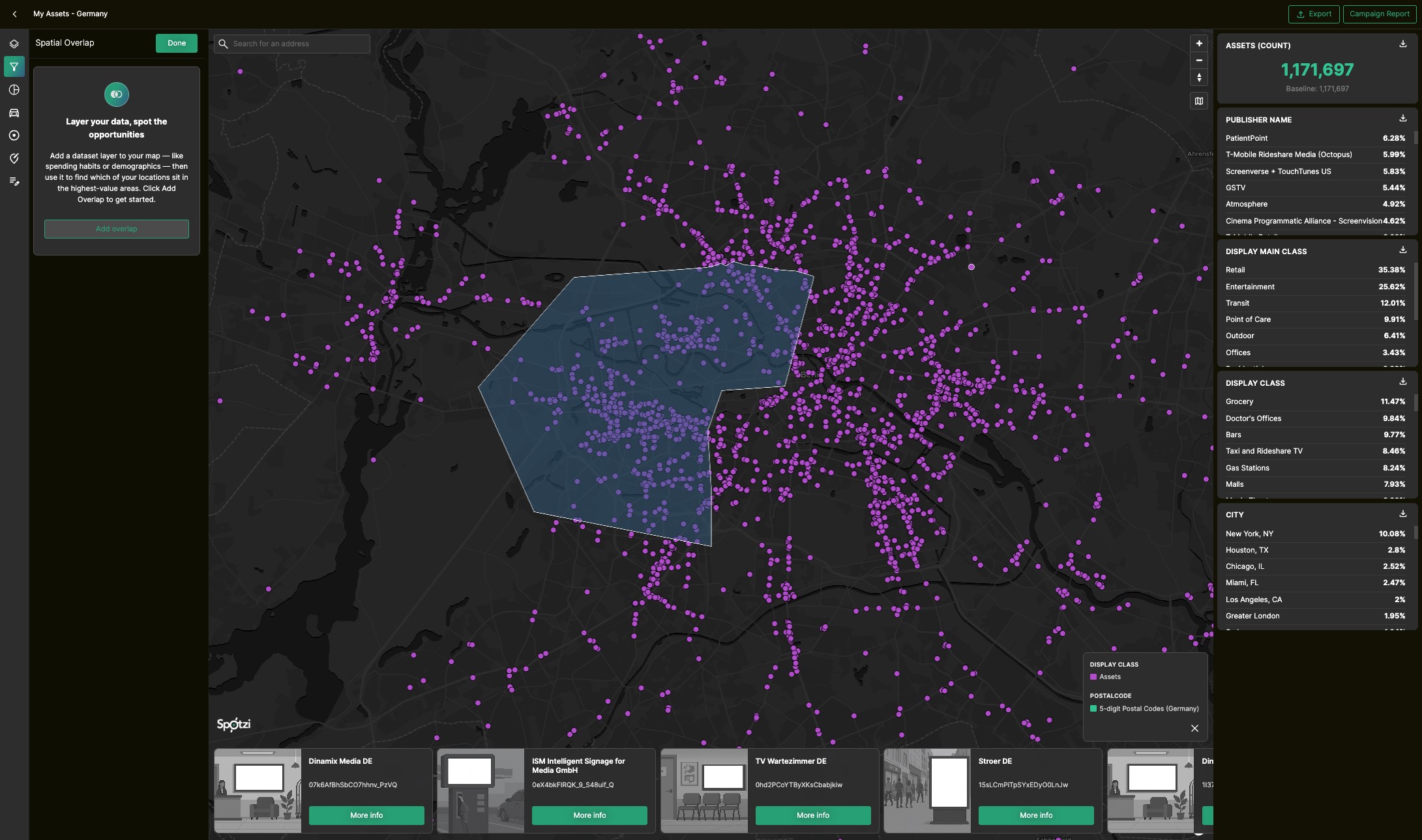
- Select the layer you would like to use as your filter, then click "Add Overlap"
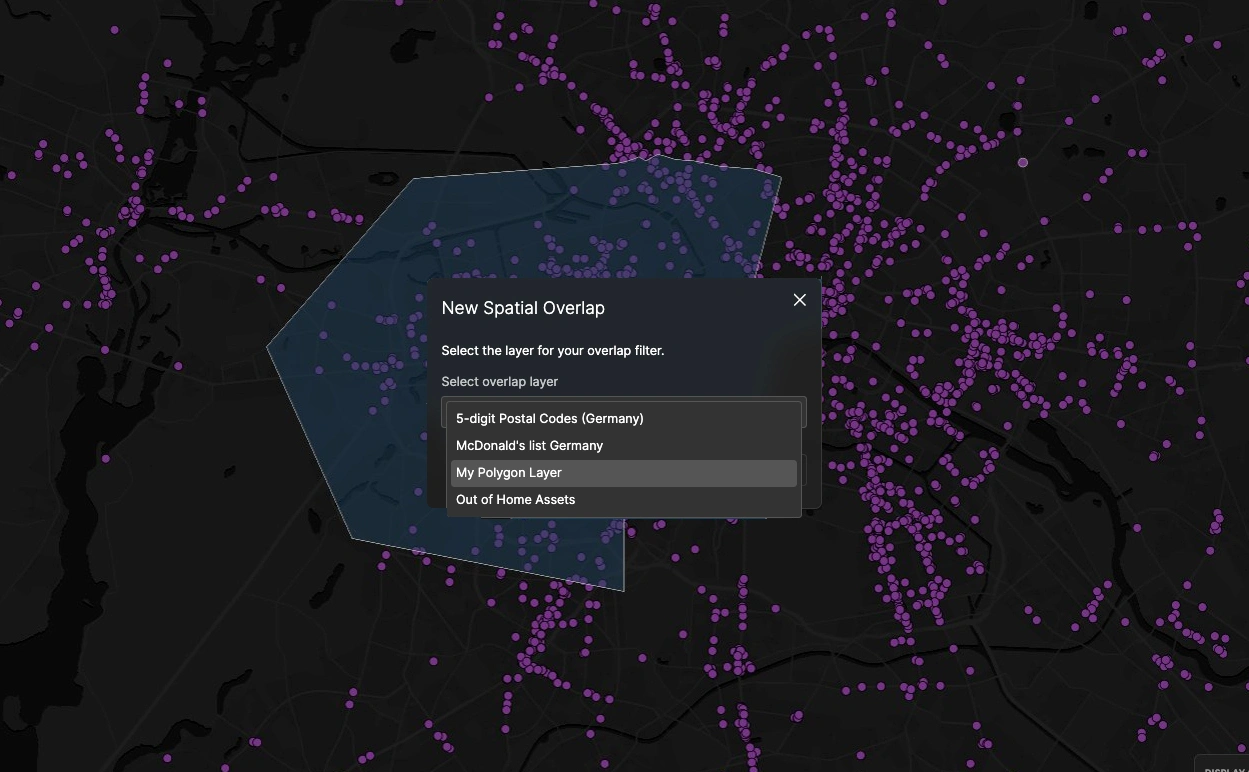
- The "Filtered layer" dropdown allows you to select which layer in your dashboard you would like to filter using the overlapping layer from the previous step.
Select your location layer to filter for locations which overlap with your polygon(s). The rest of your dashboard layers will remain unaffected.
Click "Done".
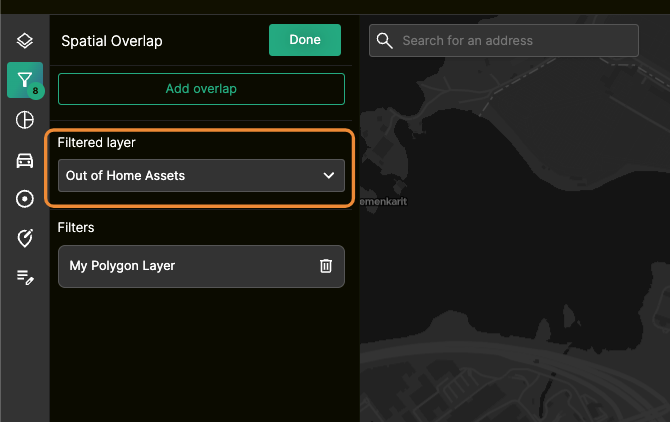
- Click "Apply".
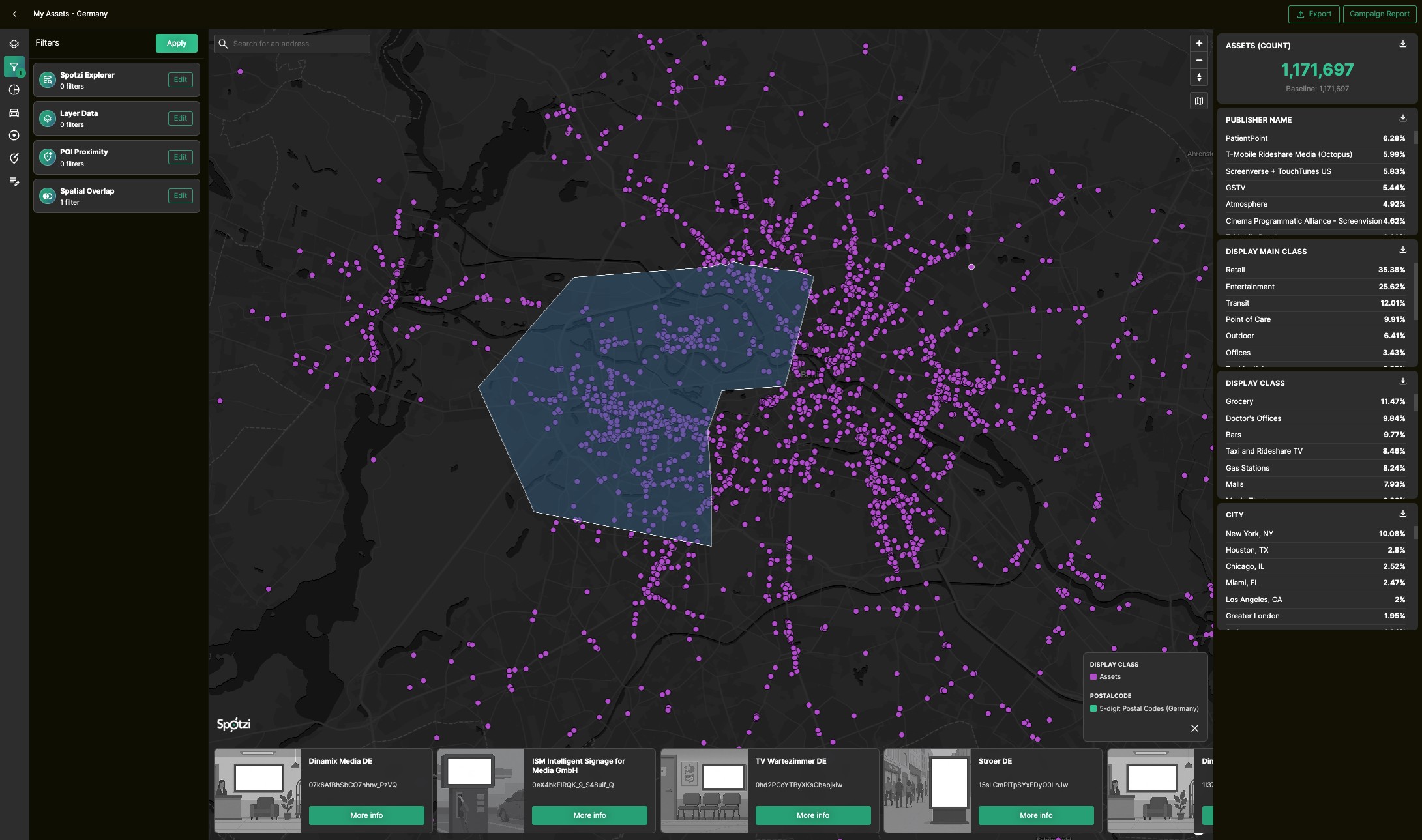
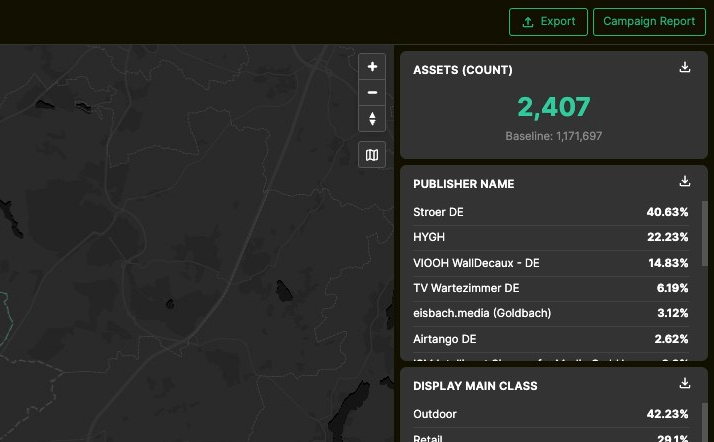
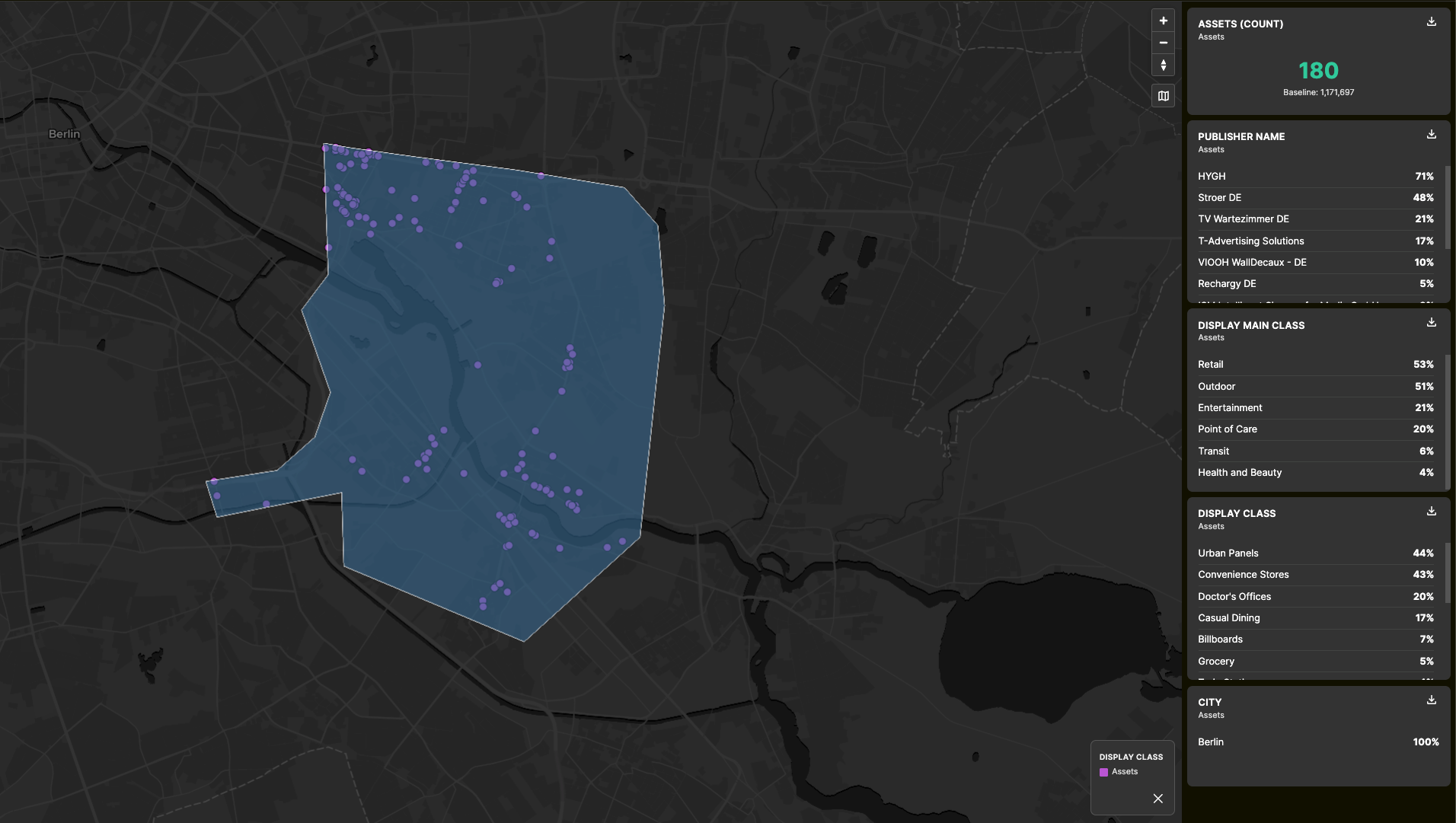
- After applying the spatial overlap filter, only locations in your filtered layer that overlap with your polygon will appear on the map.
Widgets displaying data from the filtered layer will update automatically.
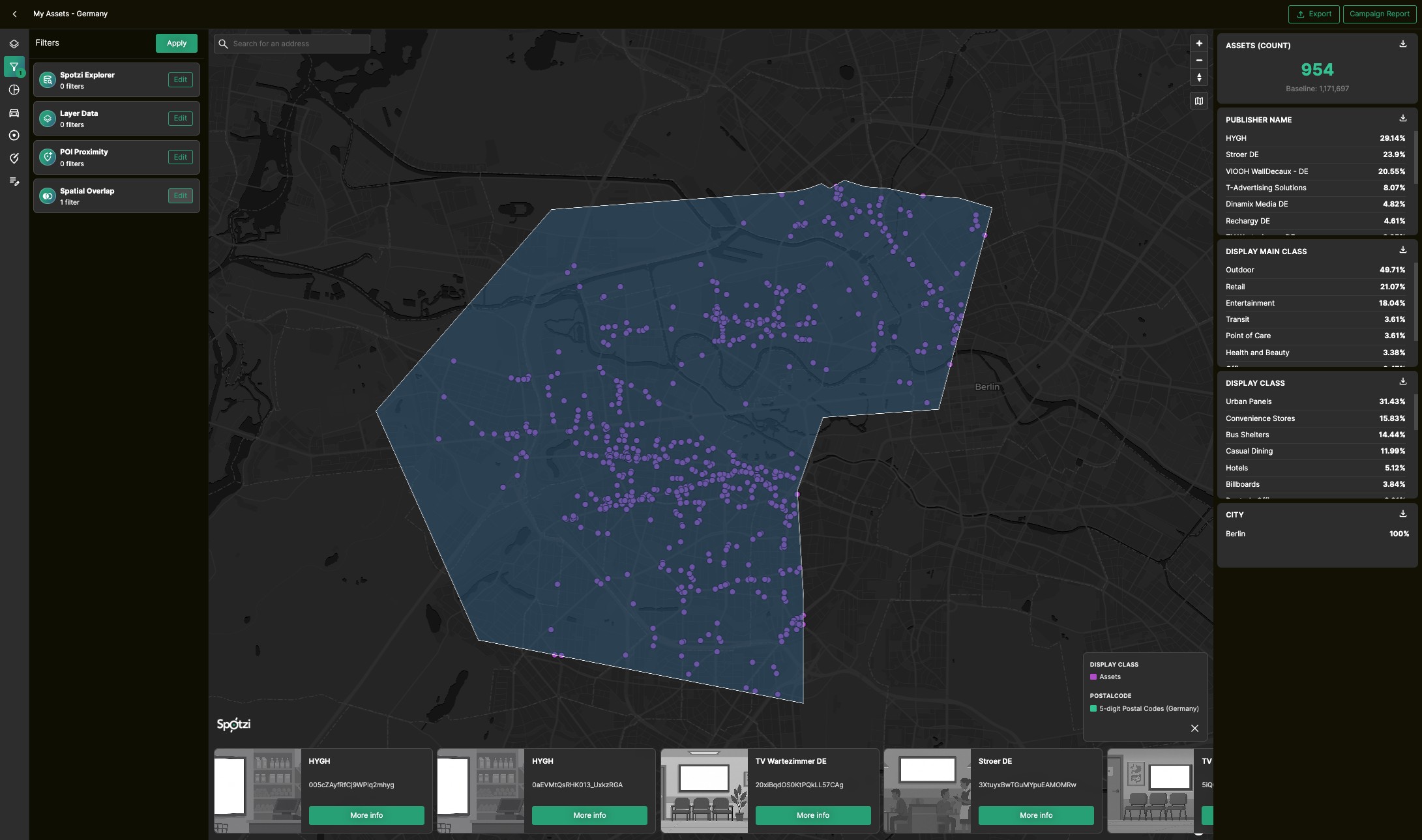
- Removing your spatial filter will return all locations to your map.
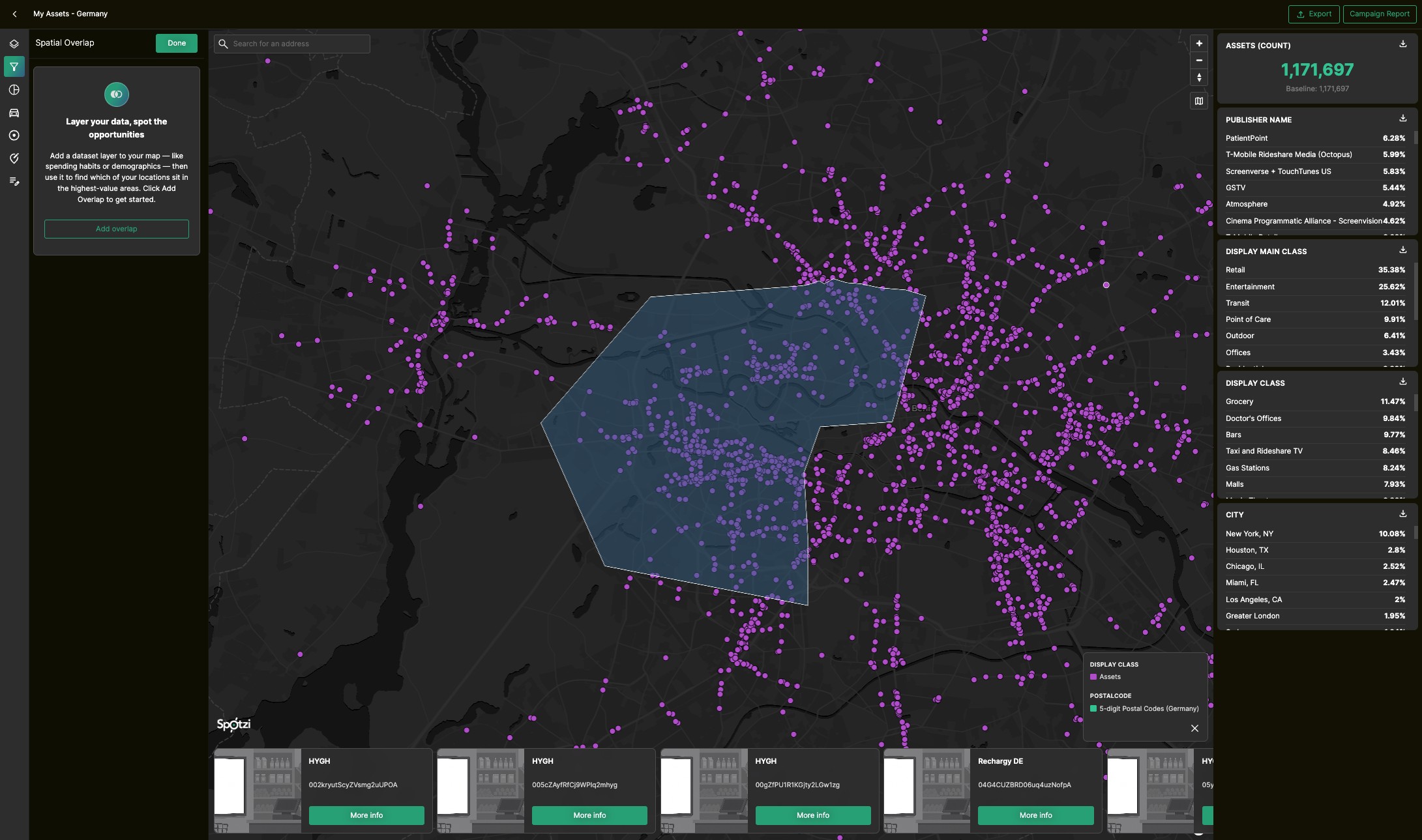
- If your additional layer contains multiple polygons you may combine the Spatial Overlap filter with the Layer Filter.
This will allow you to select the specific polygons you would like to use in your filter.
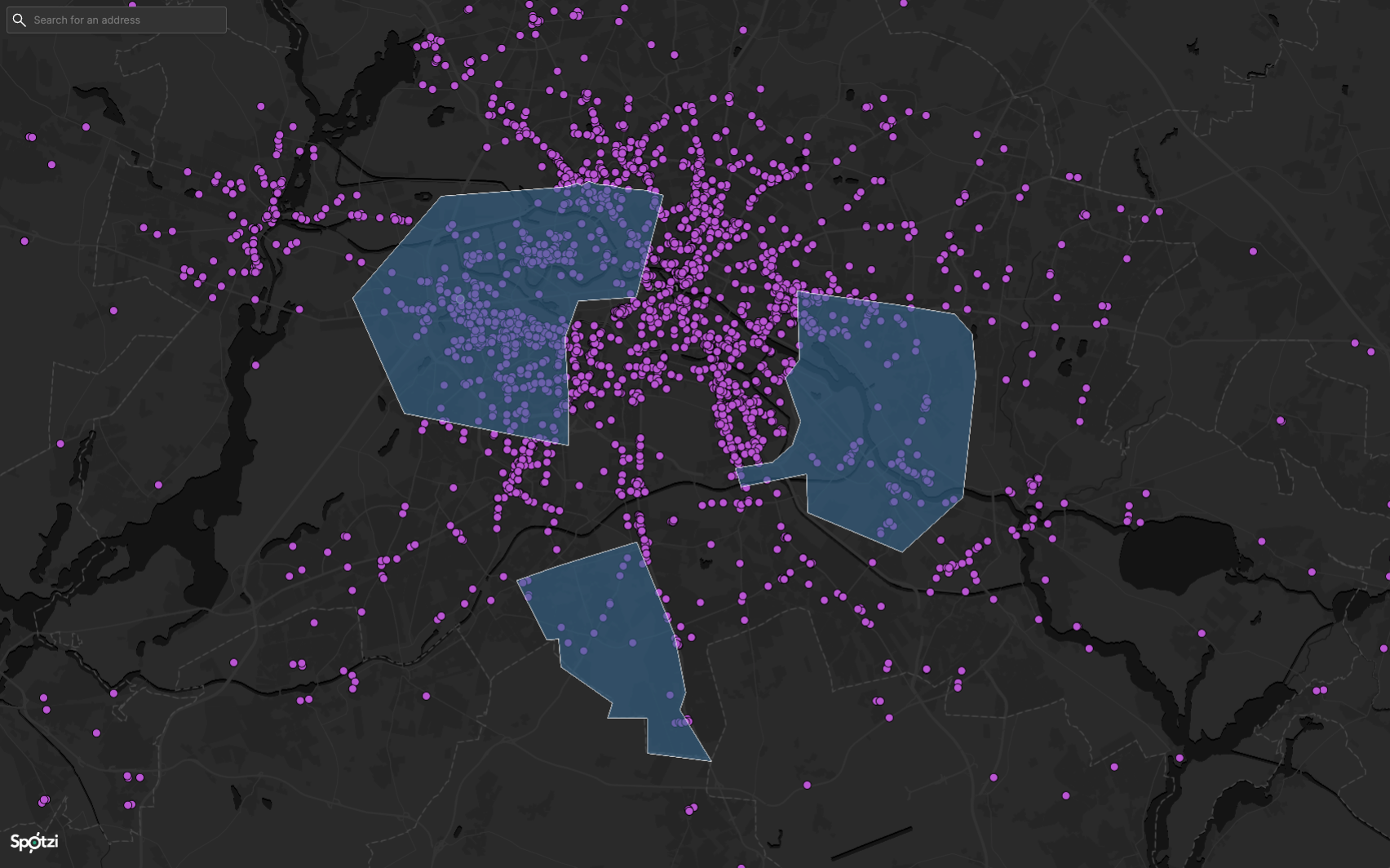
- Navigate to the "Layer Data" filter and click "Edit".
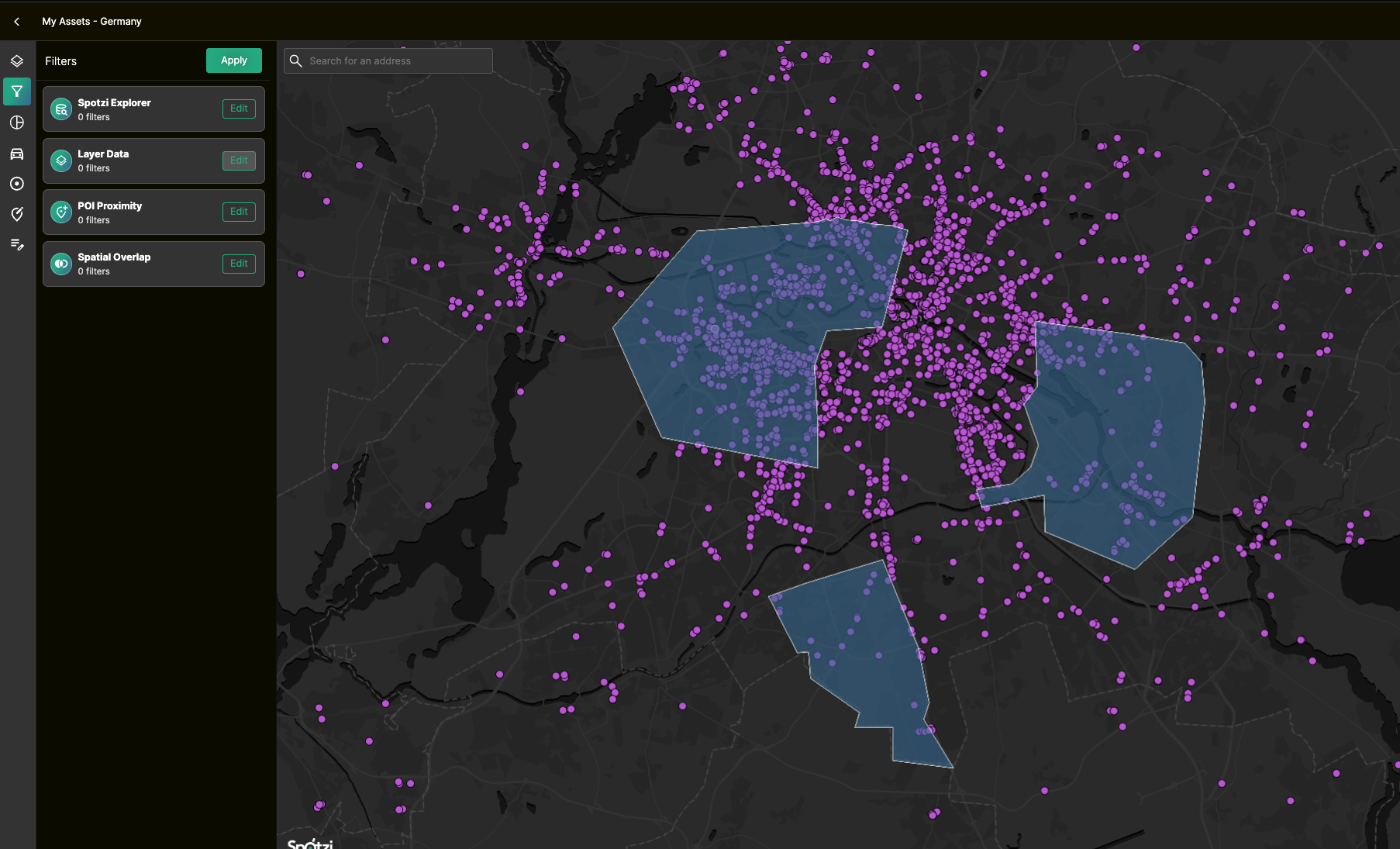
- Click "Add filter".
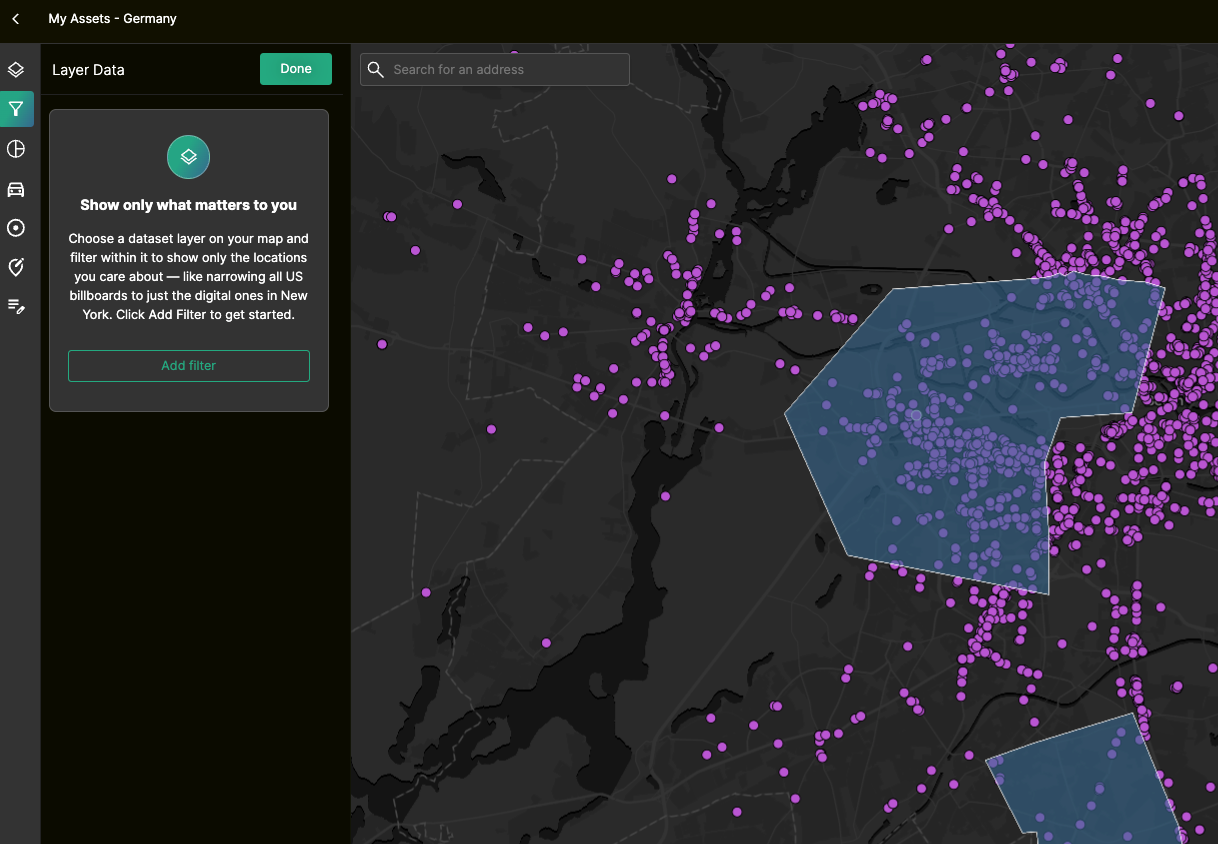
- Click the layer dropdown to select the layer you would like to use as a spatial filter.
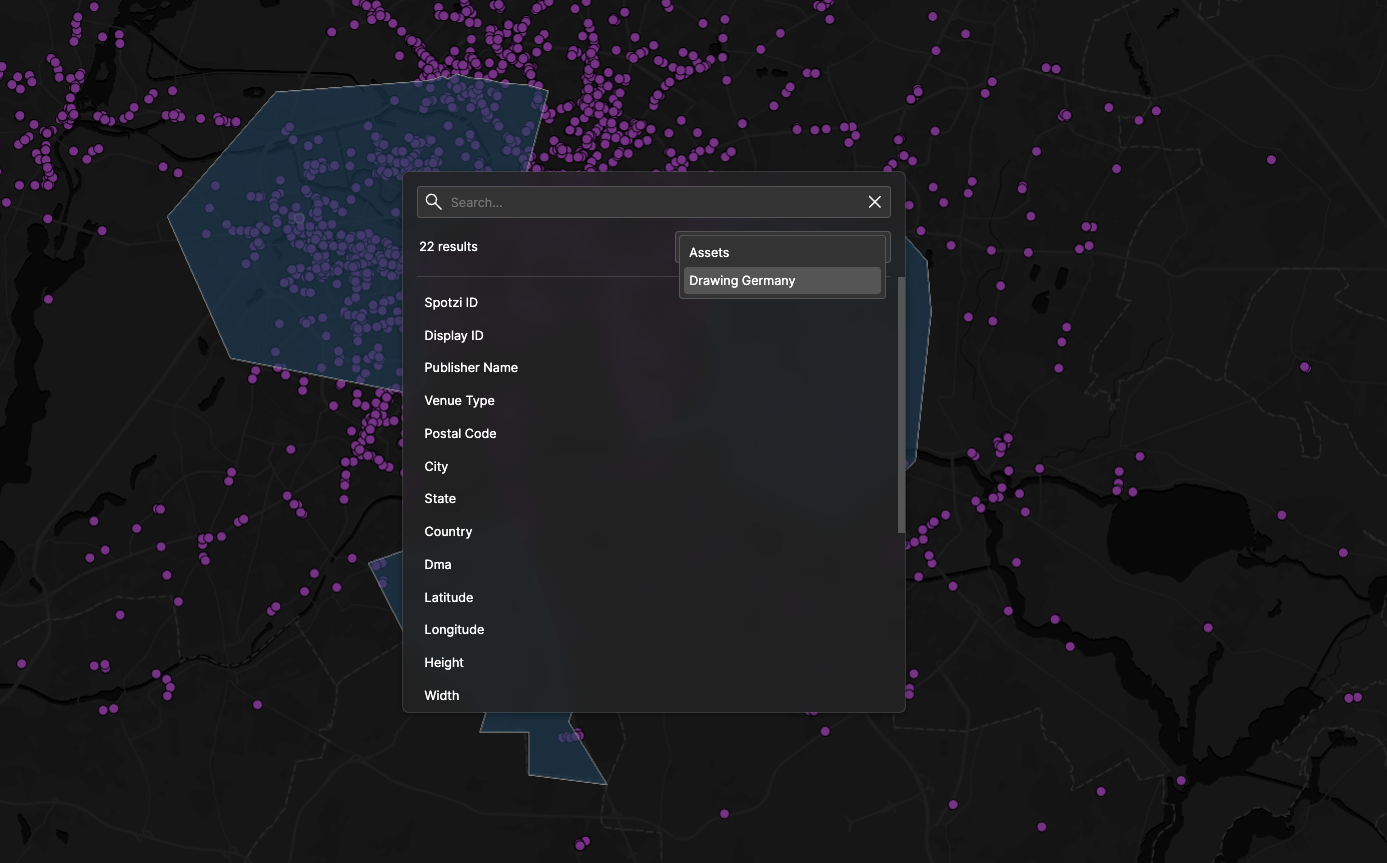
- Select the column you would like to filter this layer by. This will allow you to select only certain polygons from your polygon layer.
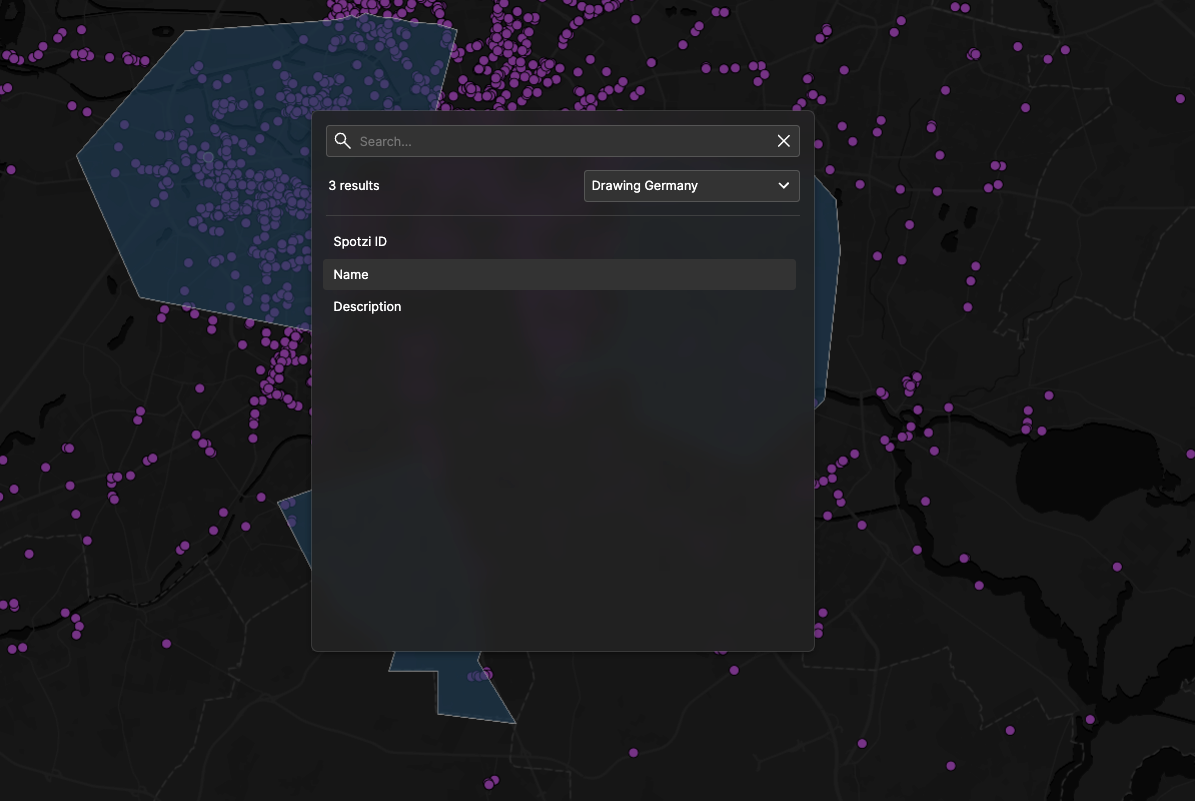
- Use the layer filter to select the polygons you would like to use for your Spatial Overlap filter.
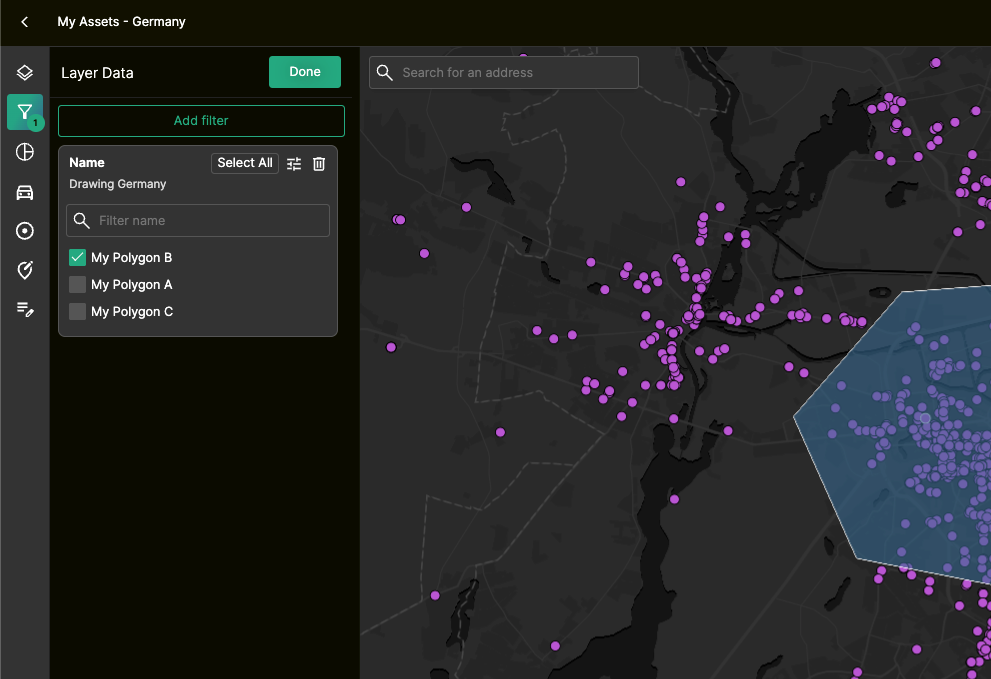
- Click "Done" and "Apply".
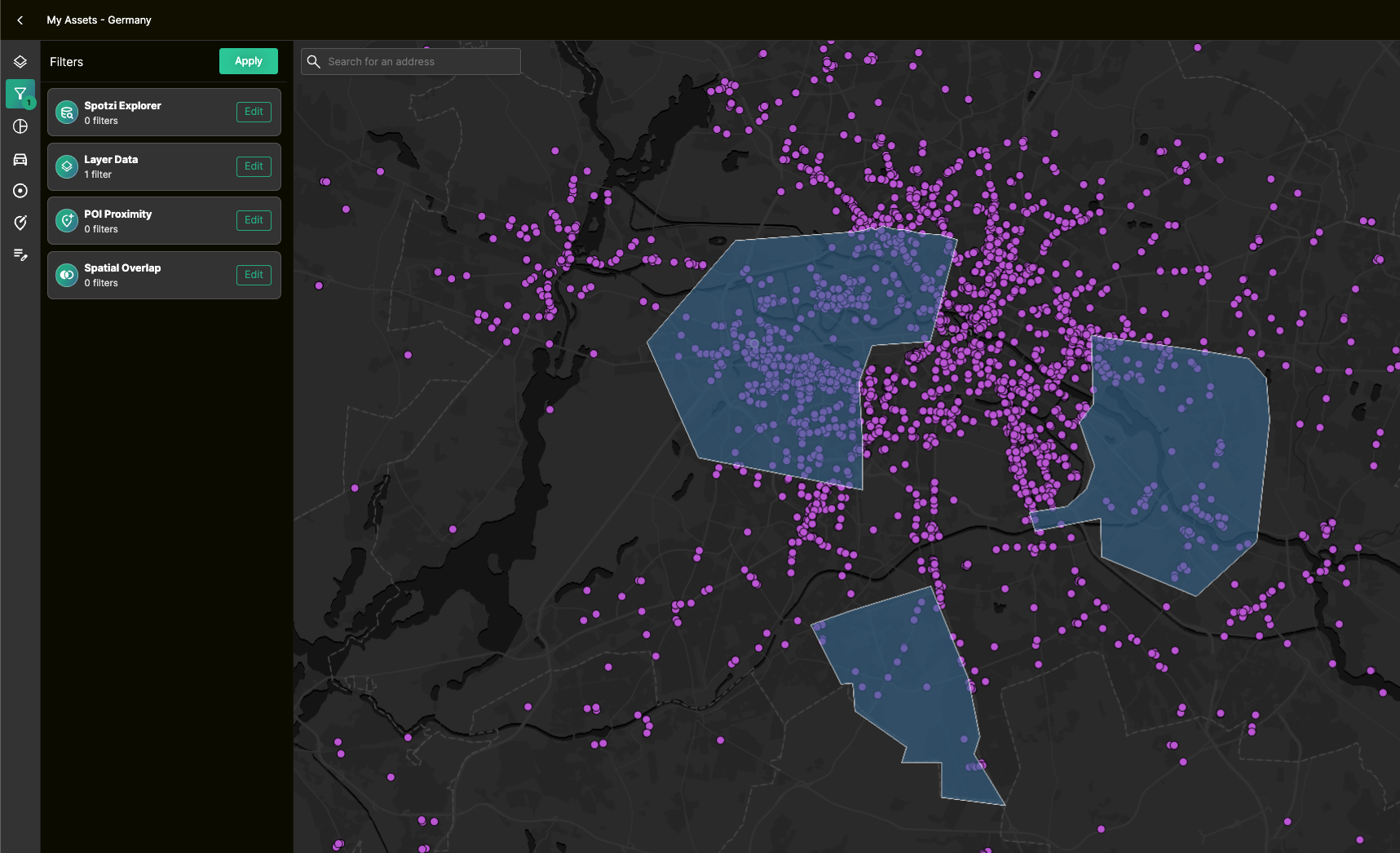
- Your polygon layer will now be filtered, and only the polygons that align with your selected layer filter will appear on the map.
Other layers remain unaffected.
Continue by adding a spatial overlap filter to filter your location layer for only the locations that overlap with our newly filtered polygon layer.
Navigate to the "Spatial Overlap" filter and click "Edit".
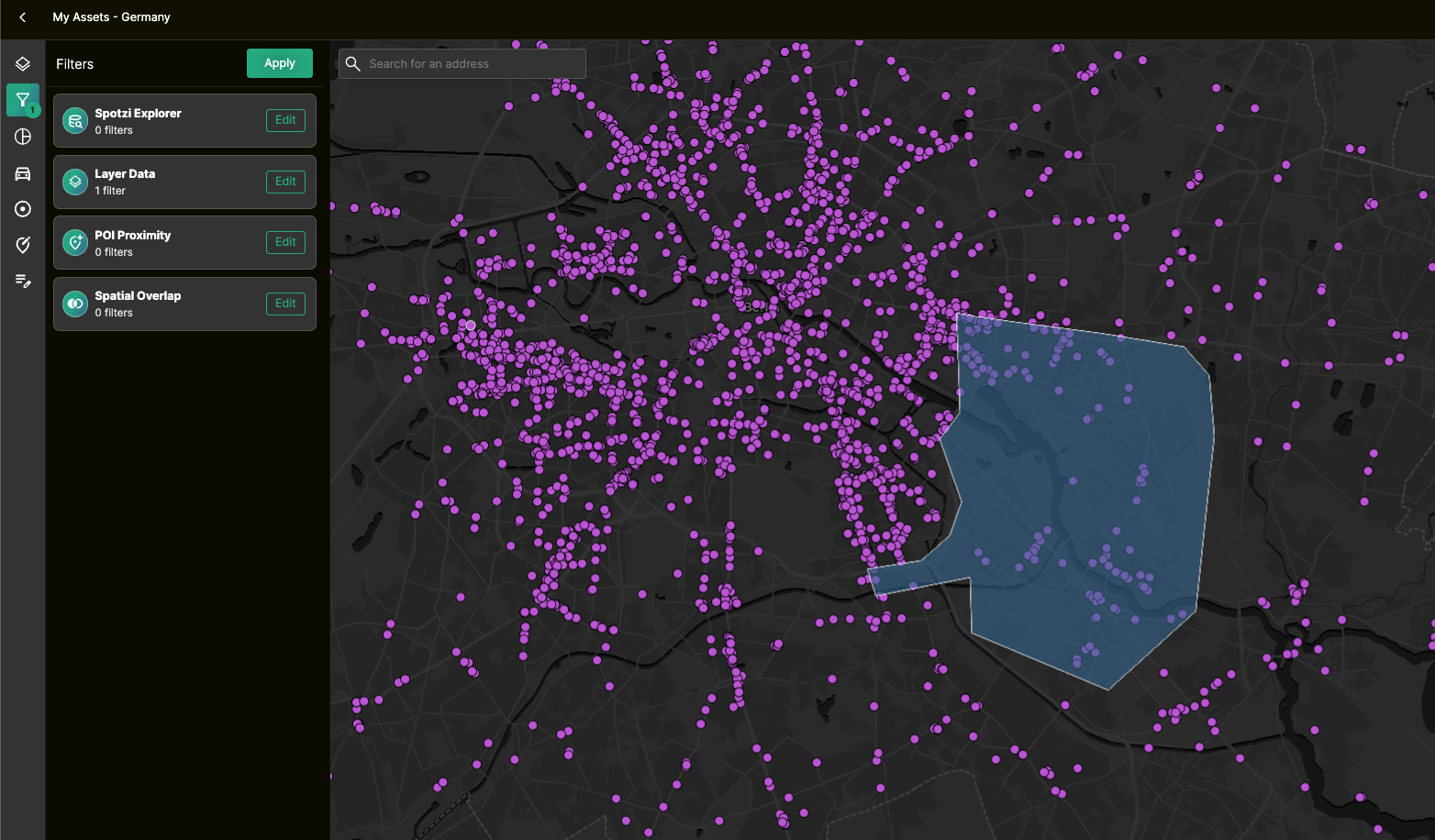
- Choose your filtered polygon layer and click "Add overlap"
- Make sure the layer you'd like to filter via spatial overlap is selected in your "Filtered layer" dropdown.
Click "Done".
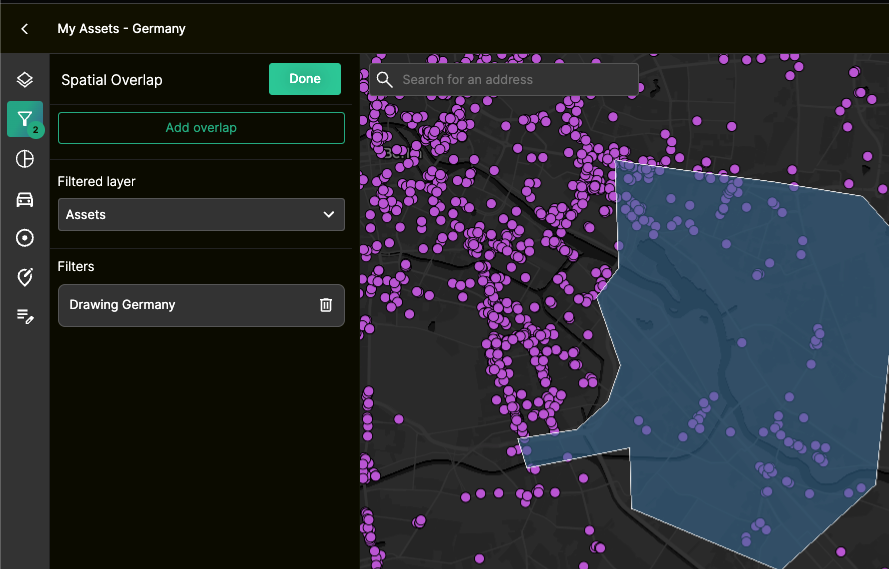
- Click "Apply"
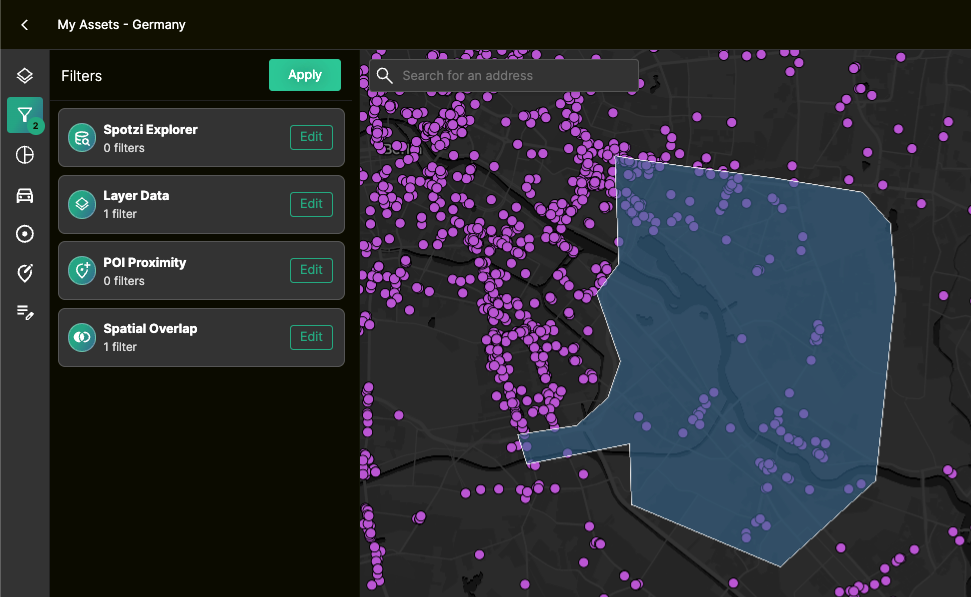
- You will now only see the locations that overlap with the filtered polygons.
- If you'd like to change your layer filter and select new polygons, you can navigate back to the "Layer Data" filter and click "Edit".
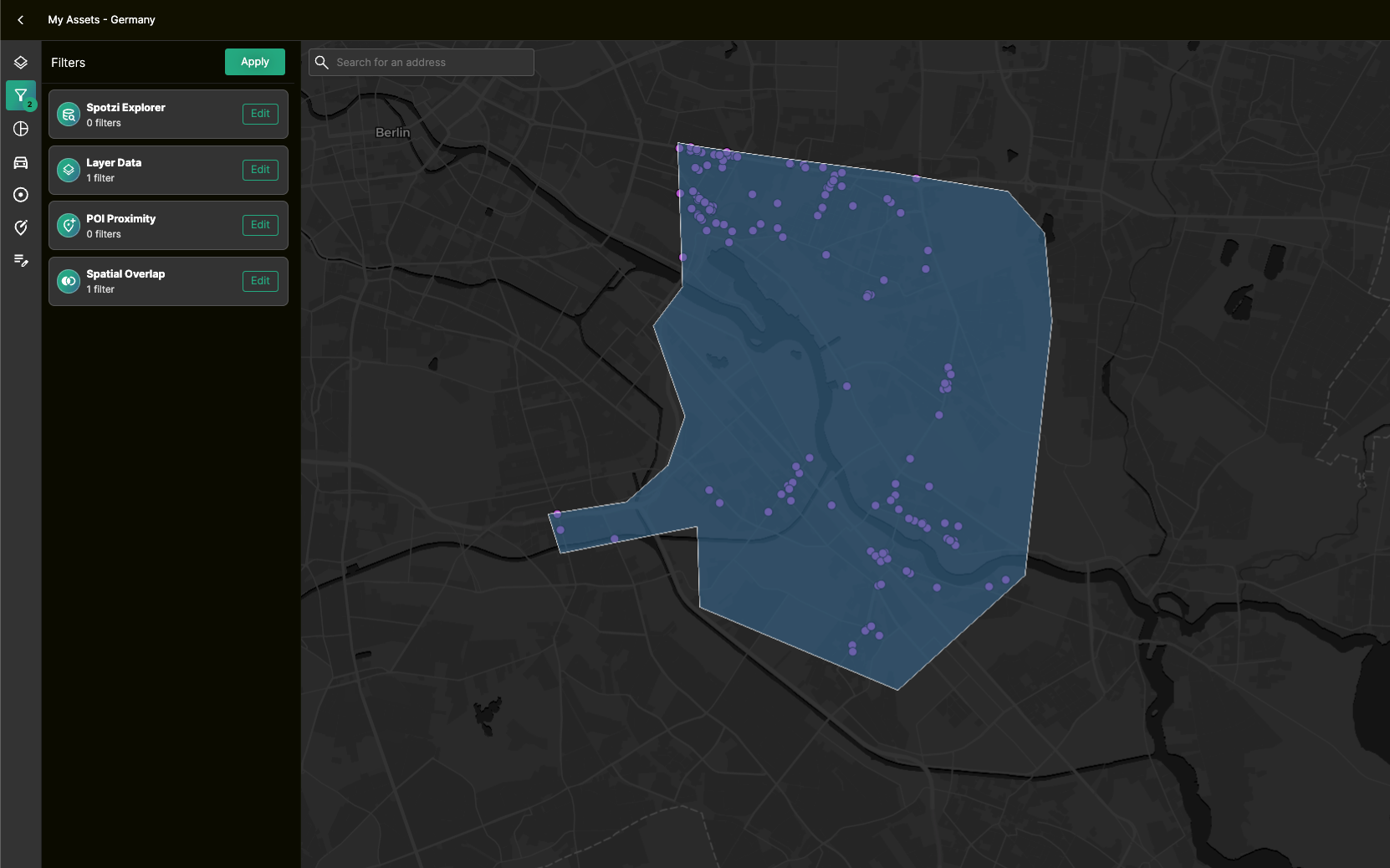
- Choose a new column for filtering, or select new values in your previously added filter column.
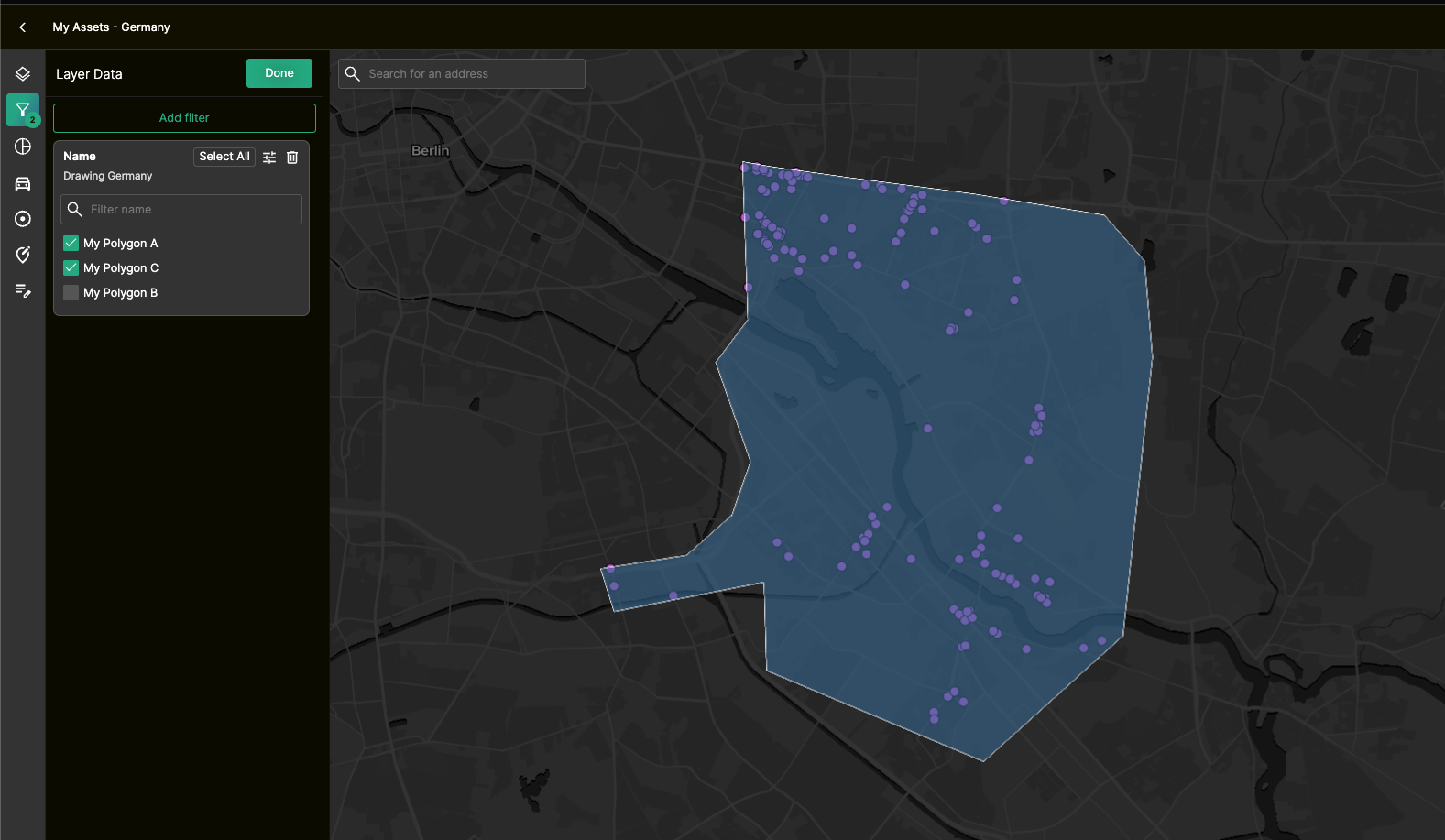
- Click "Done" when you're happy with your new selection.
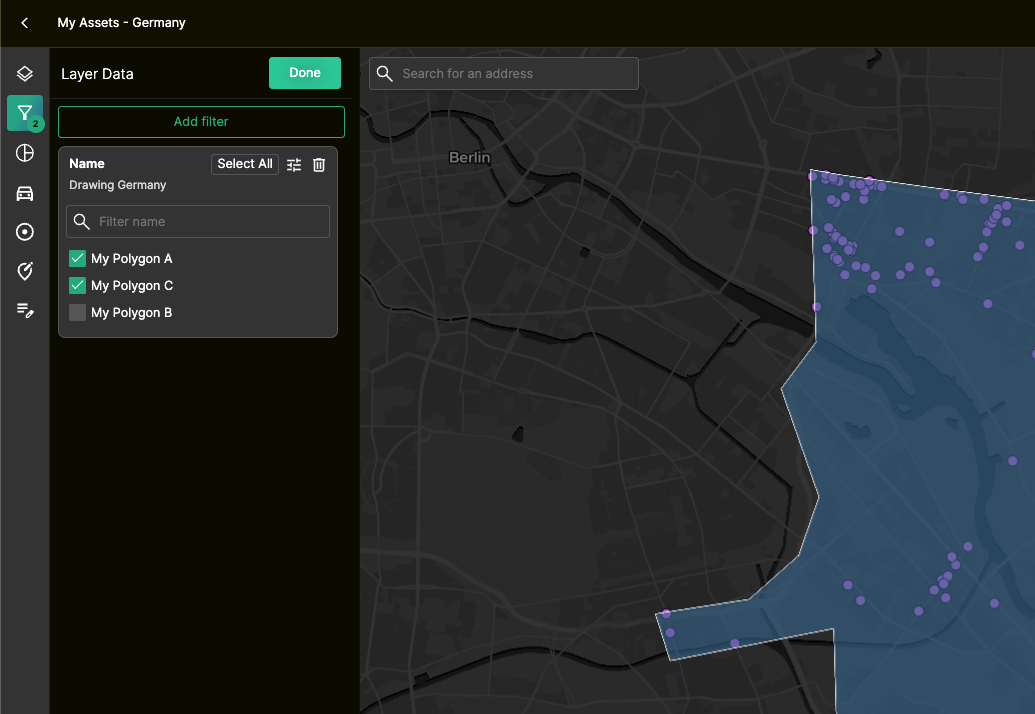
- Your location layer will now update to display the locations that overlap with the new polygons you selected.
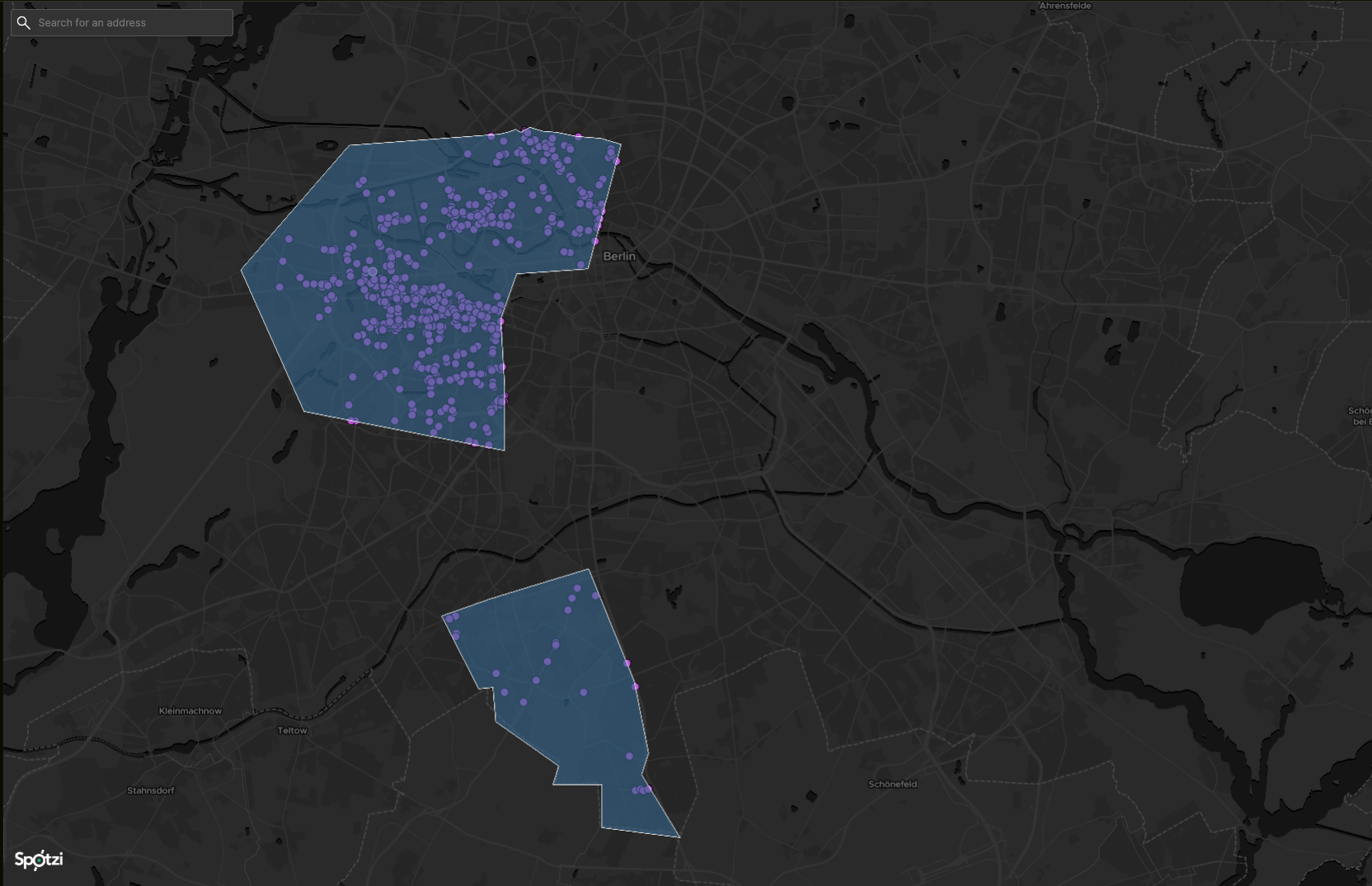
- Click the "Export" button in the top right corner of your dashboard to export your filtered results.