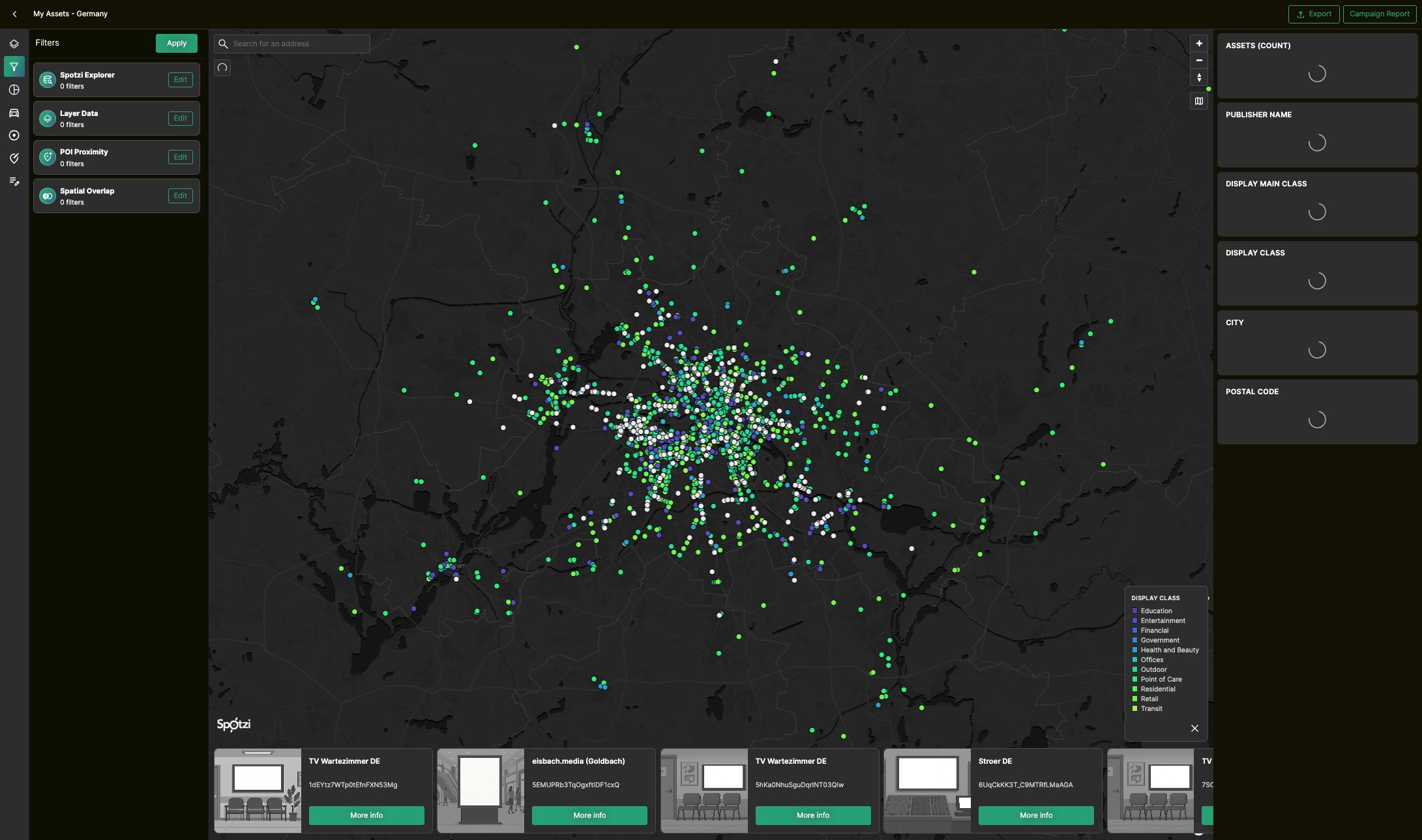
Learn how to refine your dashboard view by applying filters based on your locations' proximity to custom points of interest.
Step-by-step
- Click the funnel icon to open the filters menu.
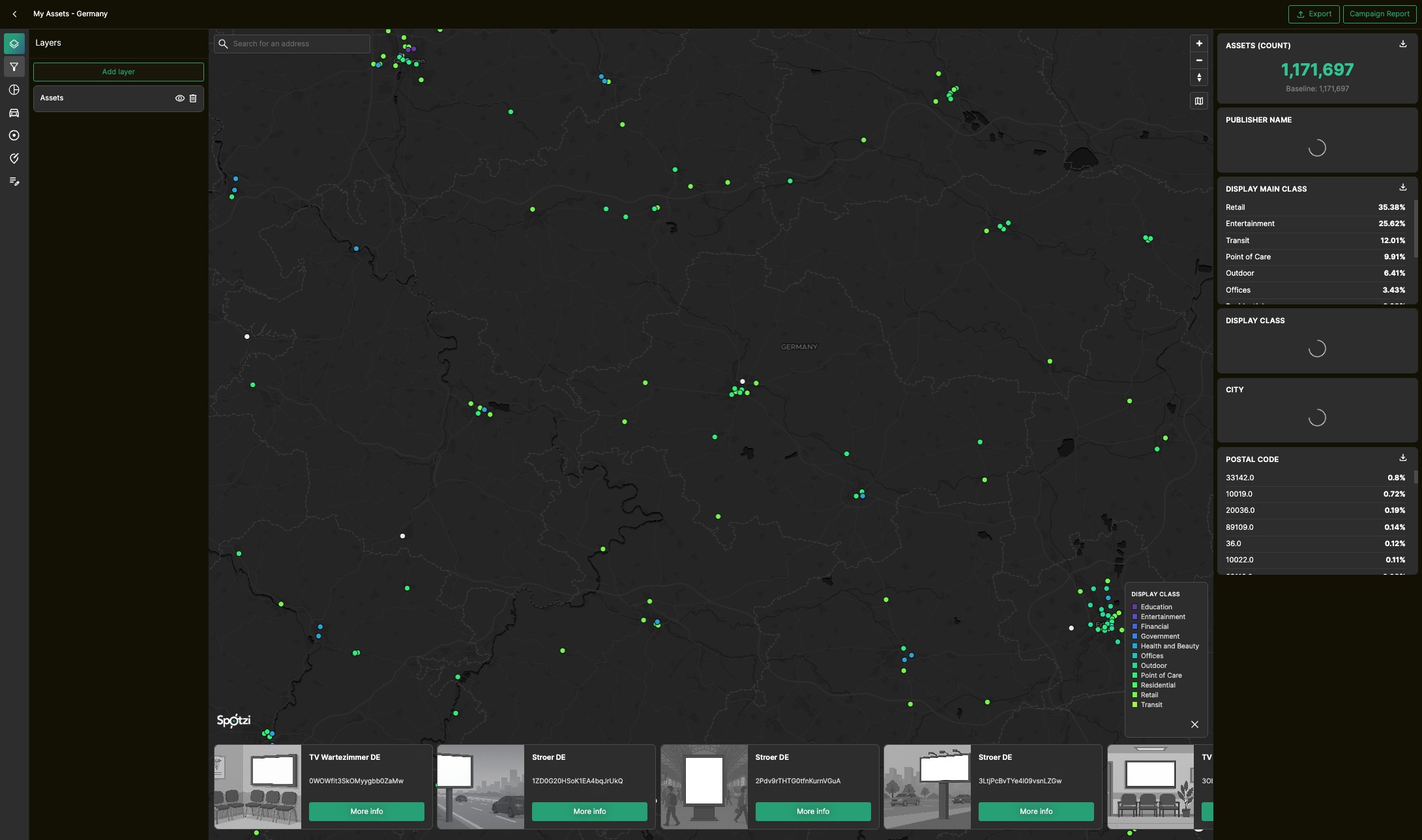 2. Navigate to the POI Proximity filter and click "Edit"
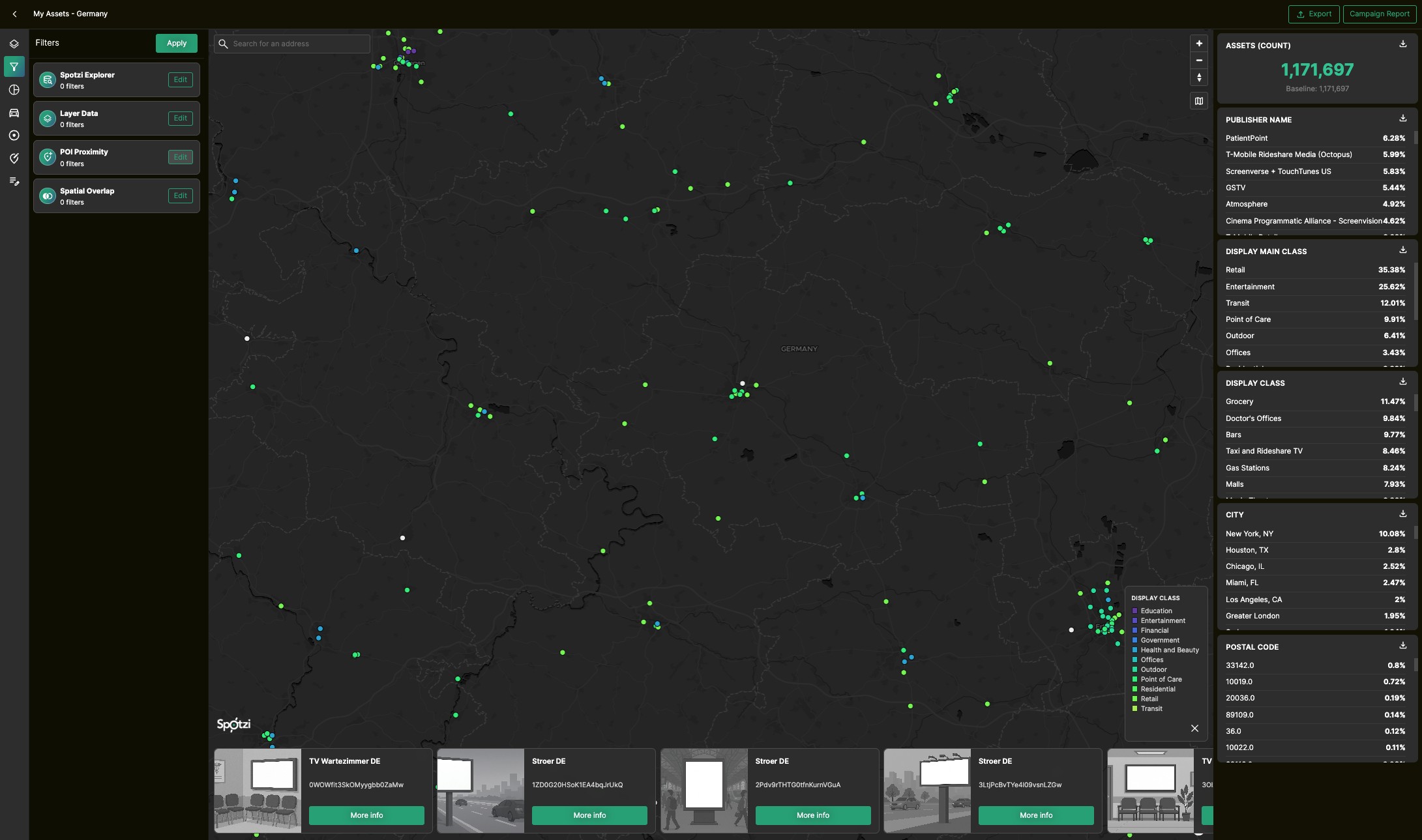 3. Click "Add POI"
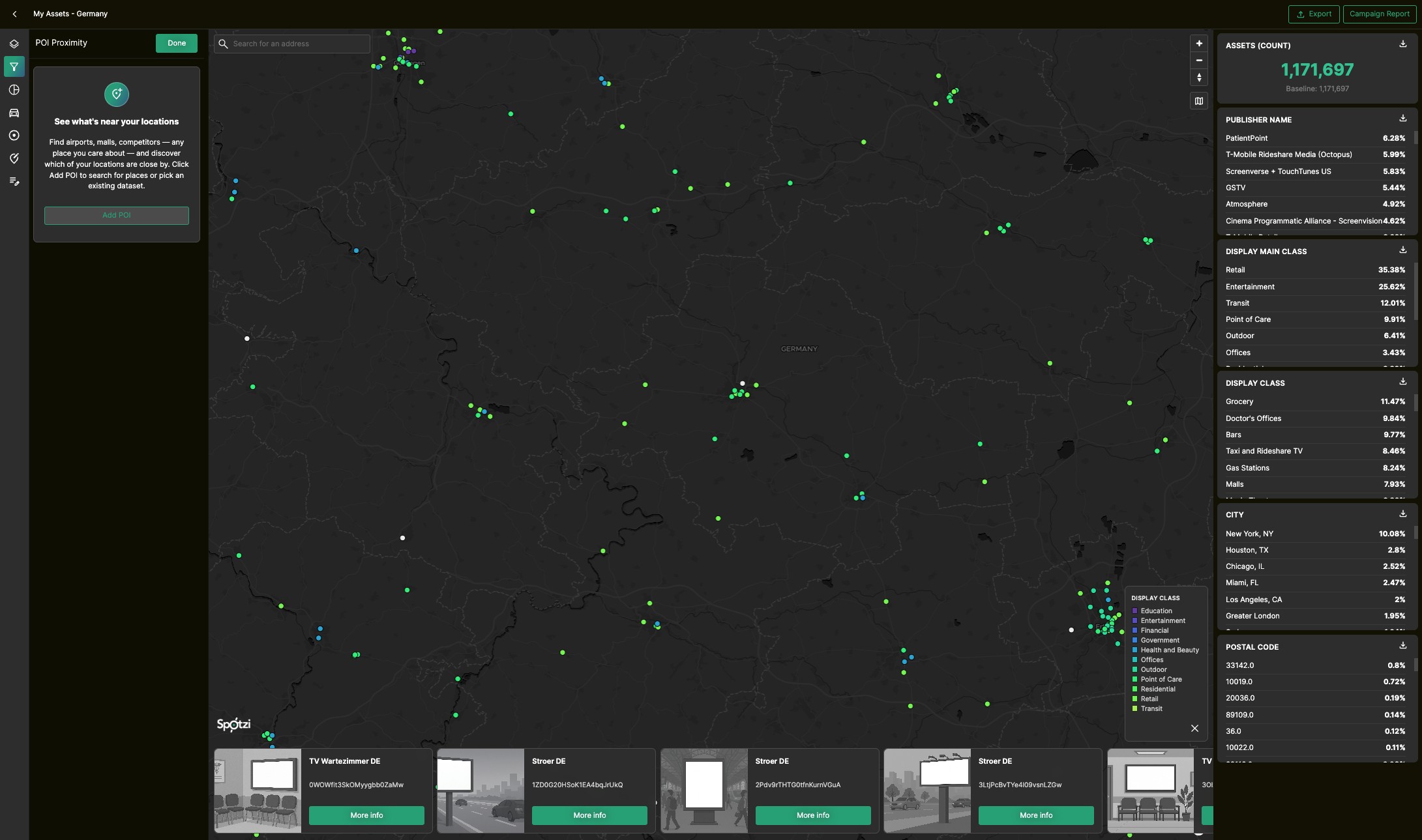 4. Click "Add POI" to create a new custom POI layer. You can also select a previously created POI layer from the list below.
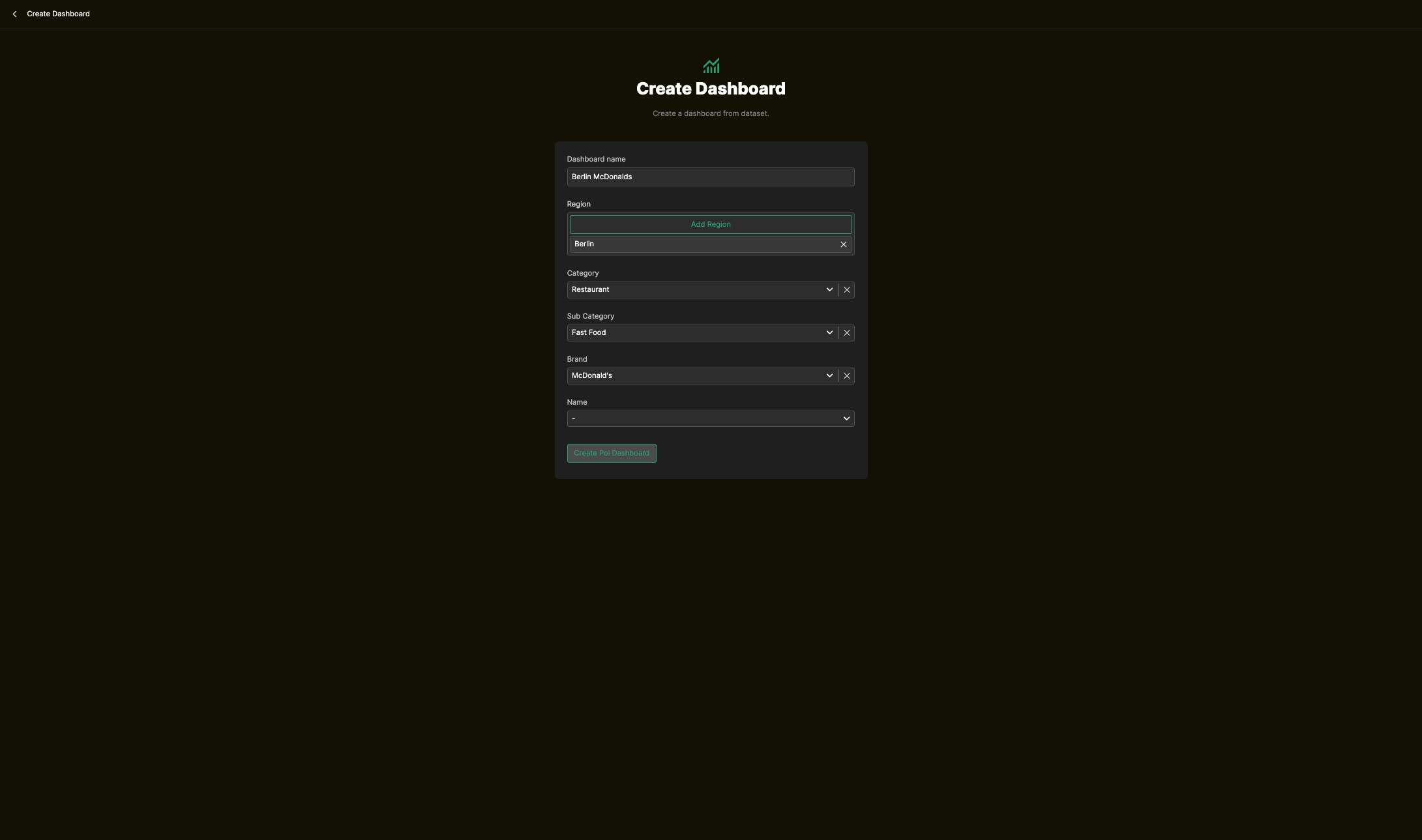
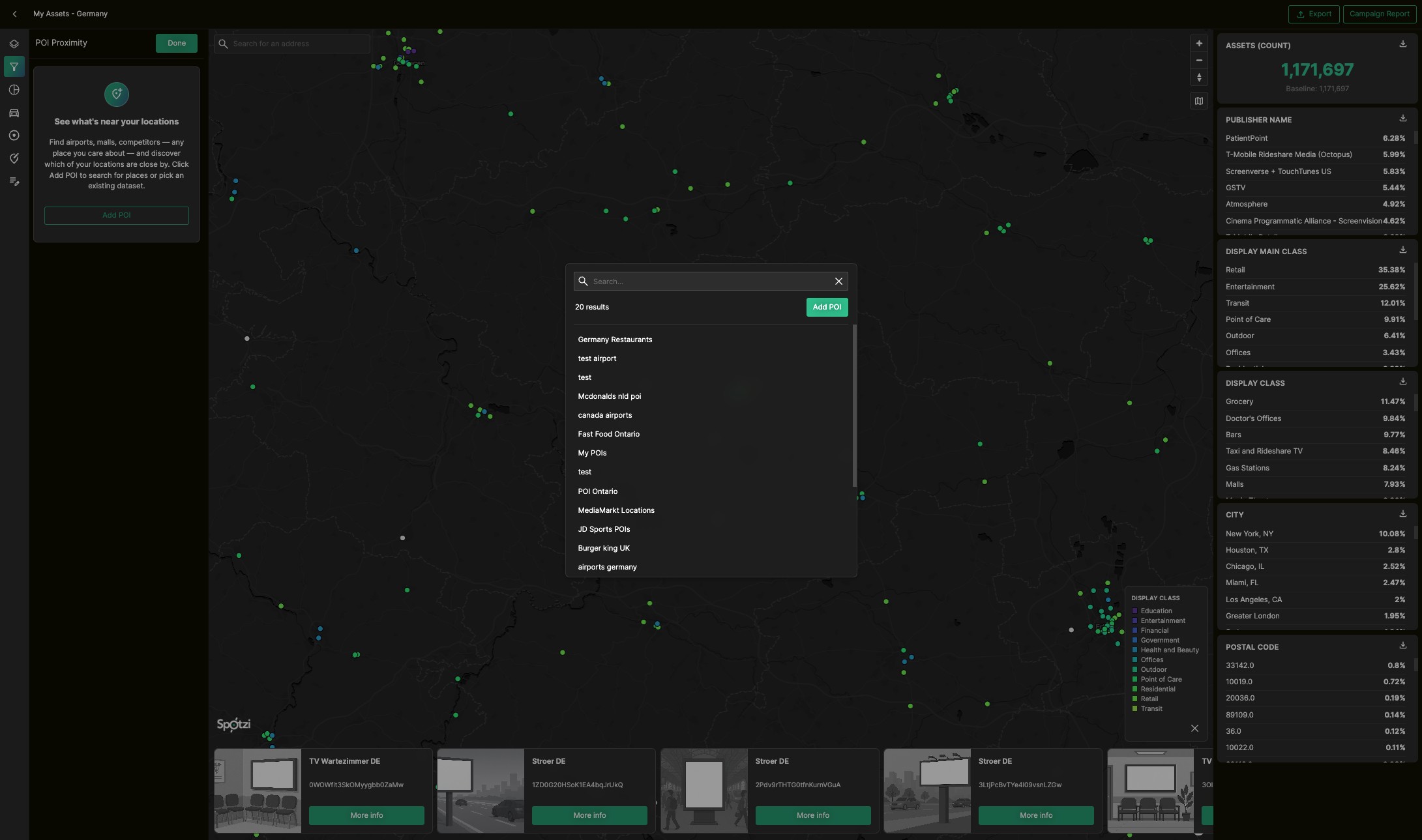 5. You will be prompted to create a new dashboard with the POIs you'd like to use for your proximity filter.
Name your new dashboard, and choose the POIs you'd like to target.
You can start by selecting the specific region(s) you'd like to use for your POI search.
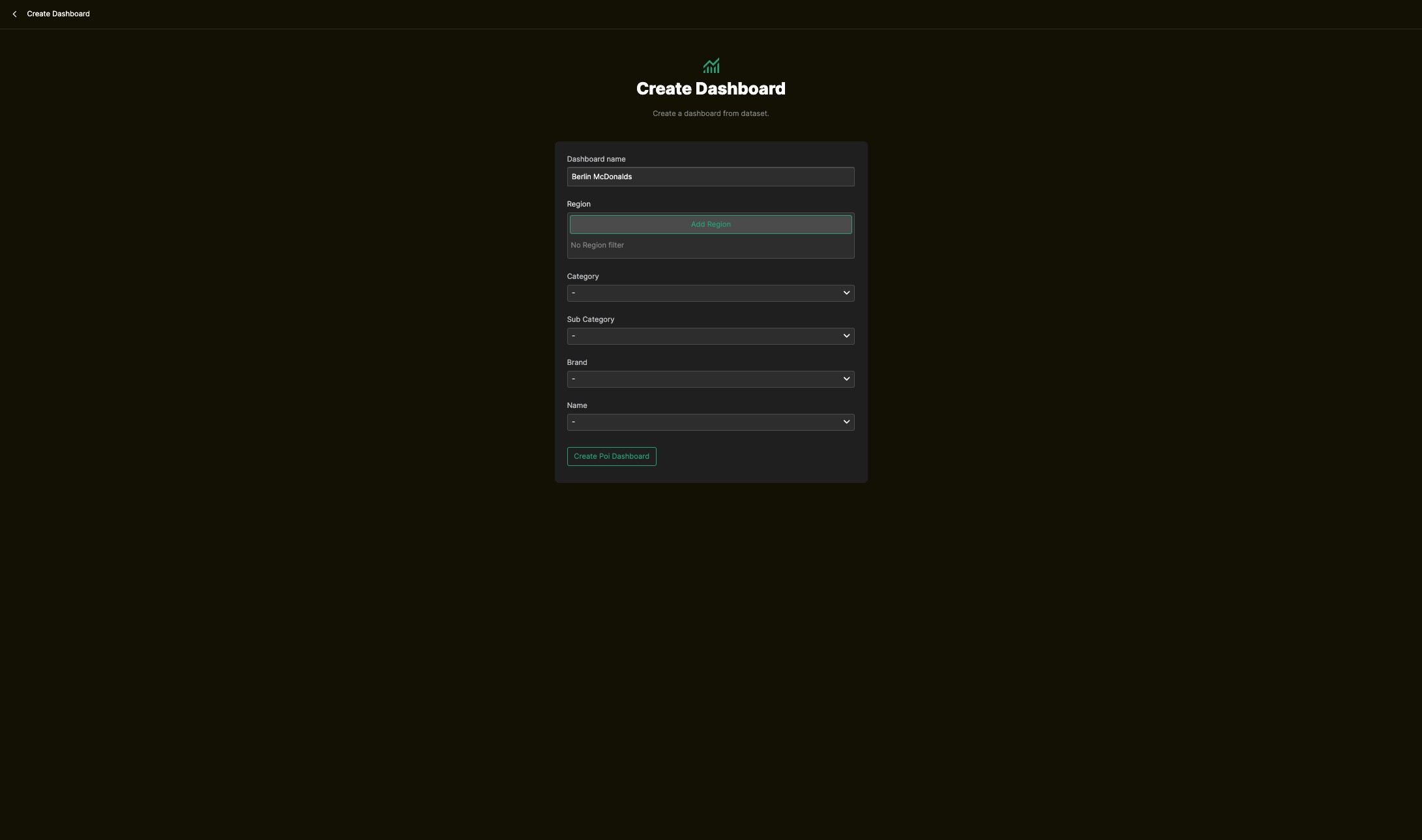 6. Use the search bar to select your region. You can also leave this blank to search within the entire country.
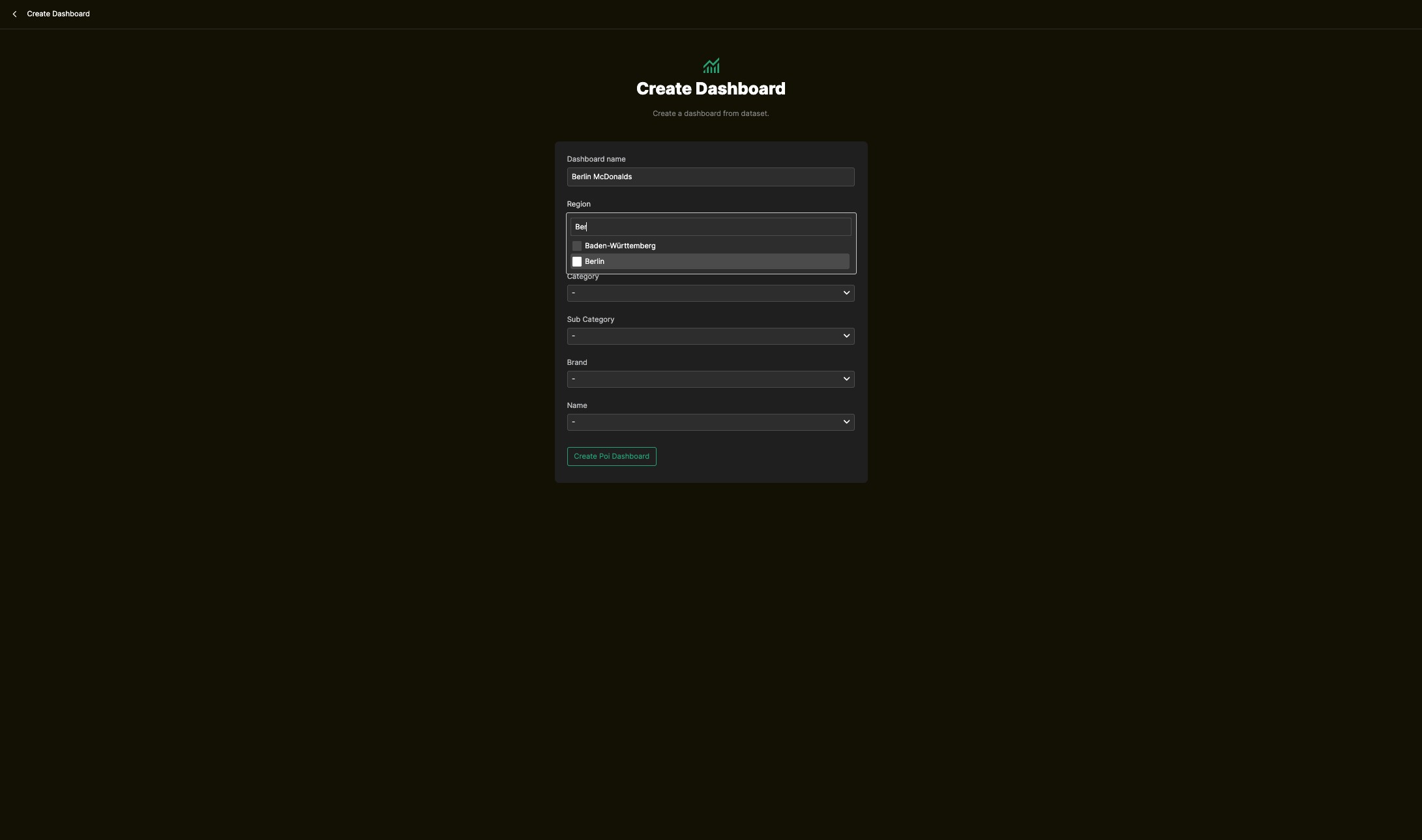 7. Select your preferred POI category. You can either create your POI dashboard after this step, or continue to narrow down your search with the rest of the fields.
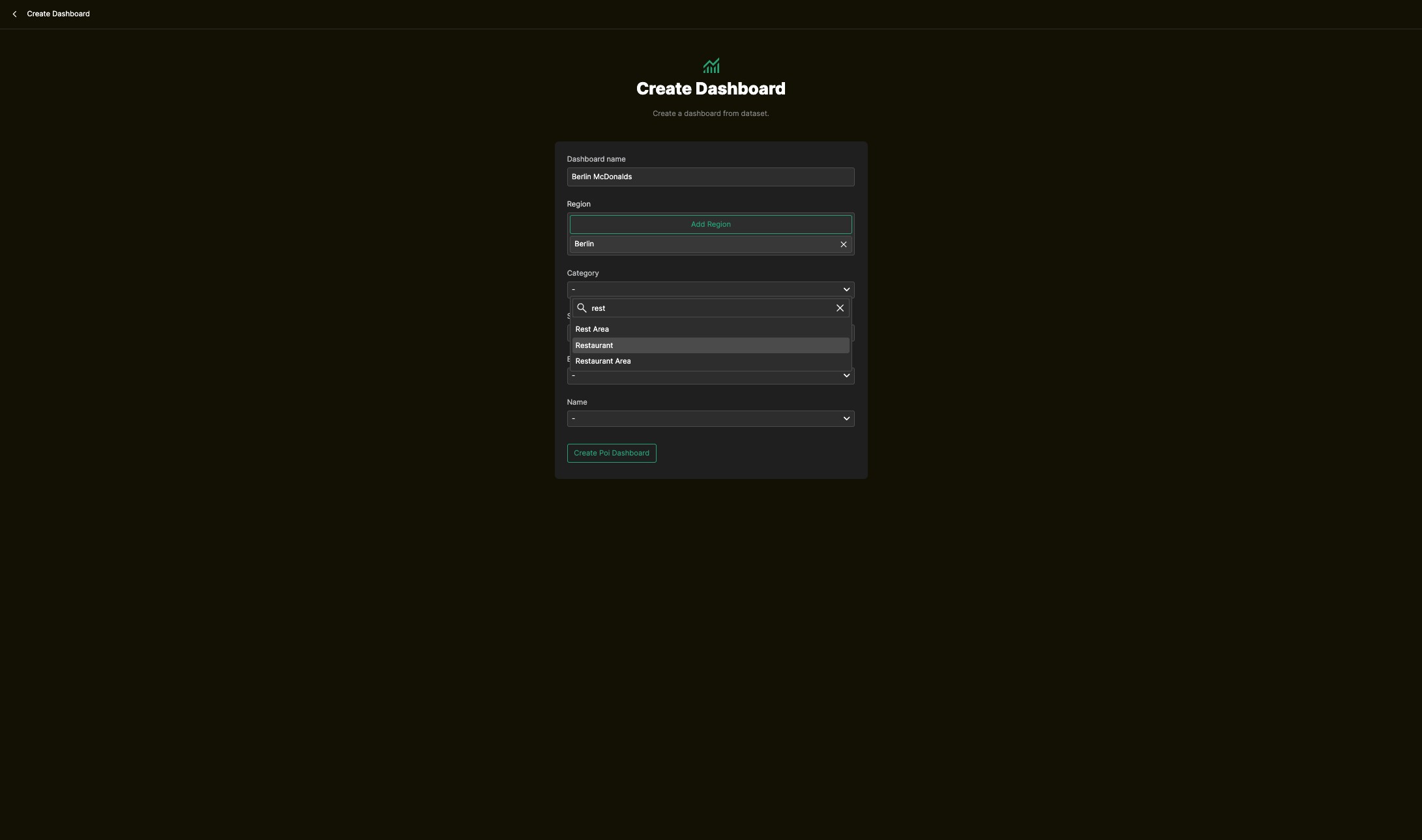 8. Click "Create POI Dashboard" when you're happy with your selection.
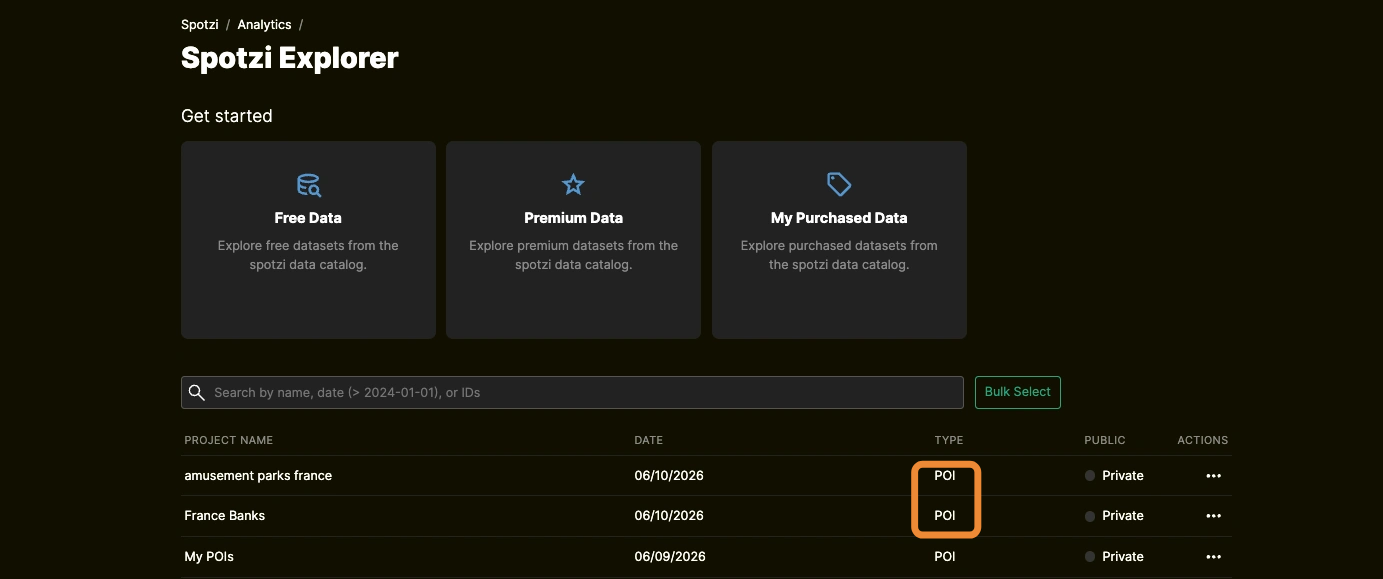
 9. The dashboards containing all of your requested POIs can be found under "Spotzi Explorer" in your workspace.
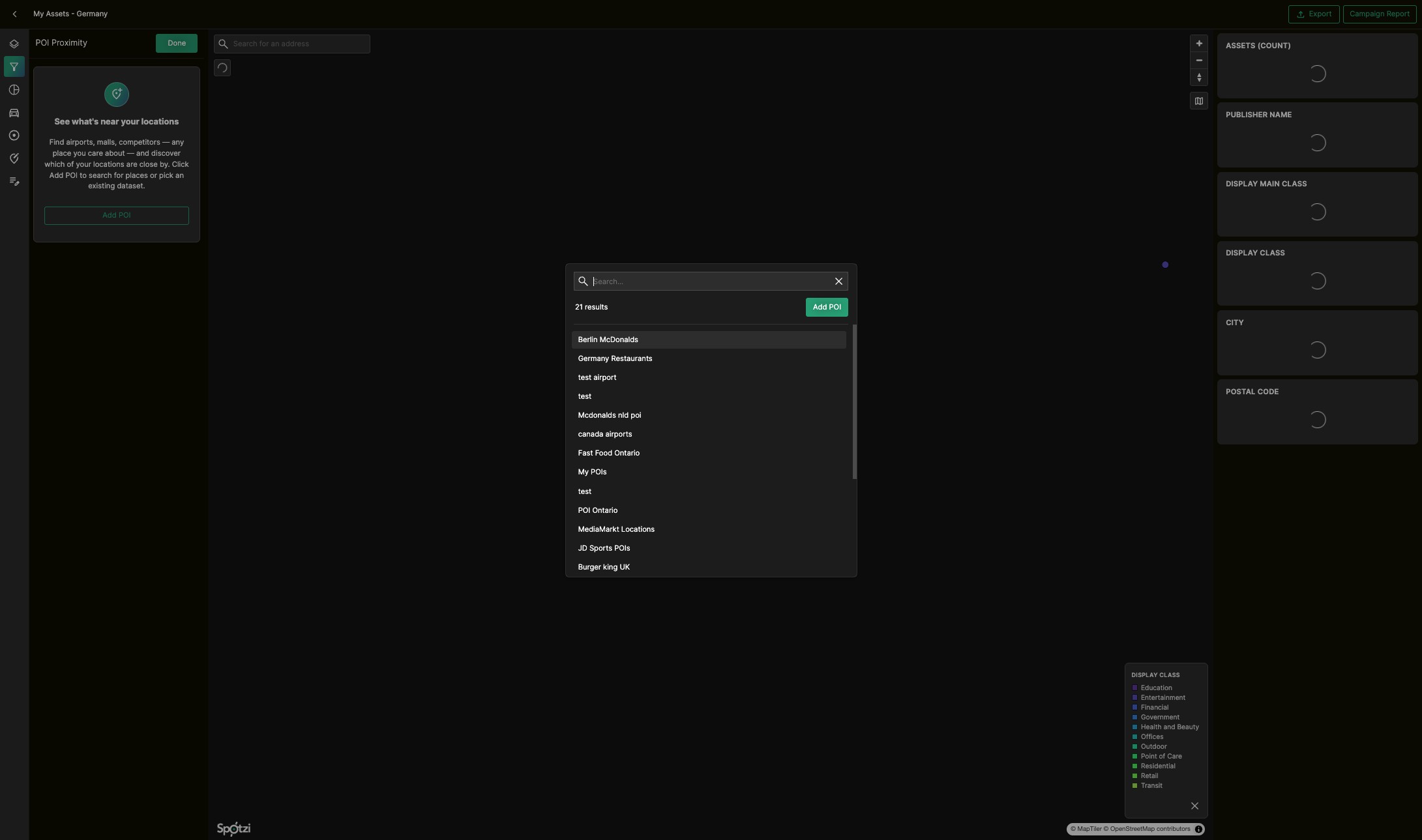
 10. Once your POI dashboard is created you'll be directed back to your original dashboard. You can now select your new POI dashboard from your POI list.
The locations in this dashboard will be used for your POI Proximity filter.
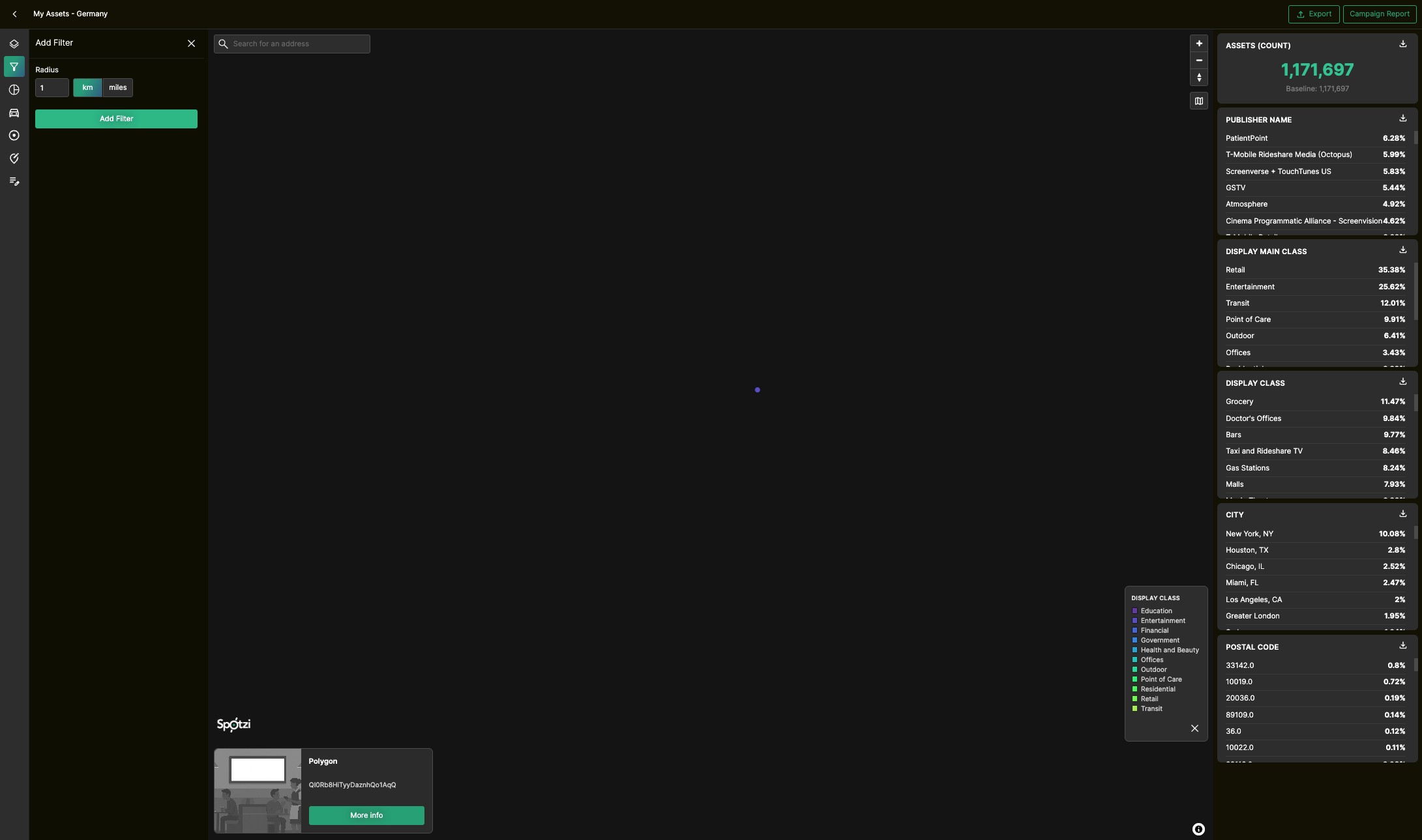
 11. Choose your proximity radius. A buffer with this radius will be created around each of the locations on your POI layer.
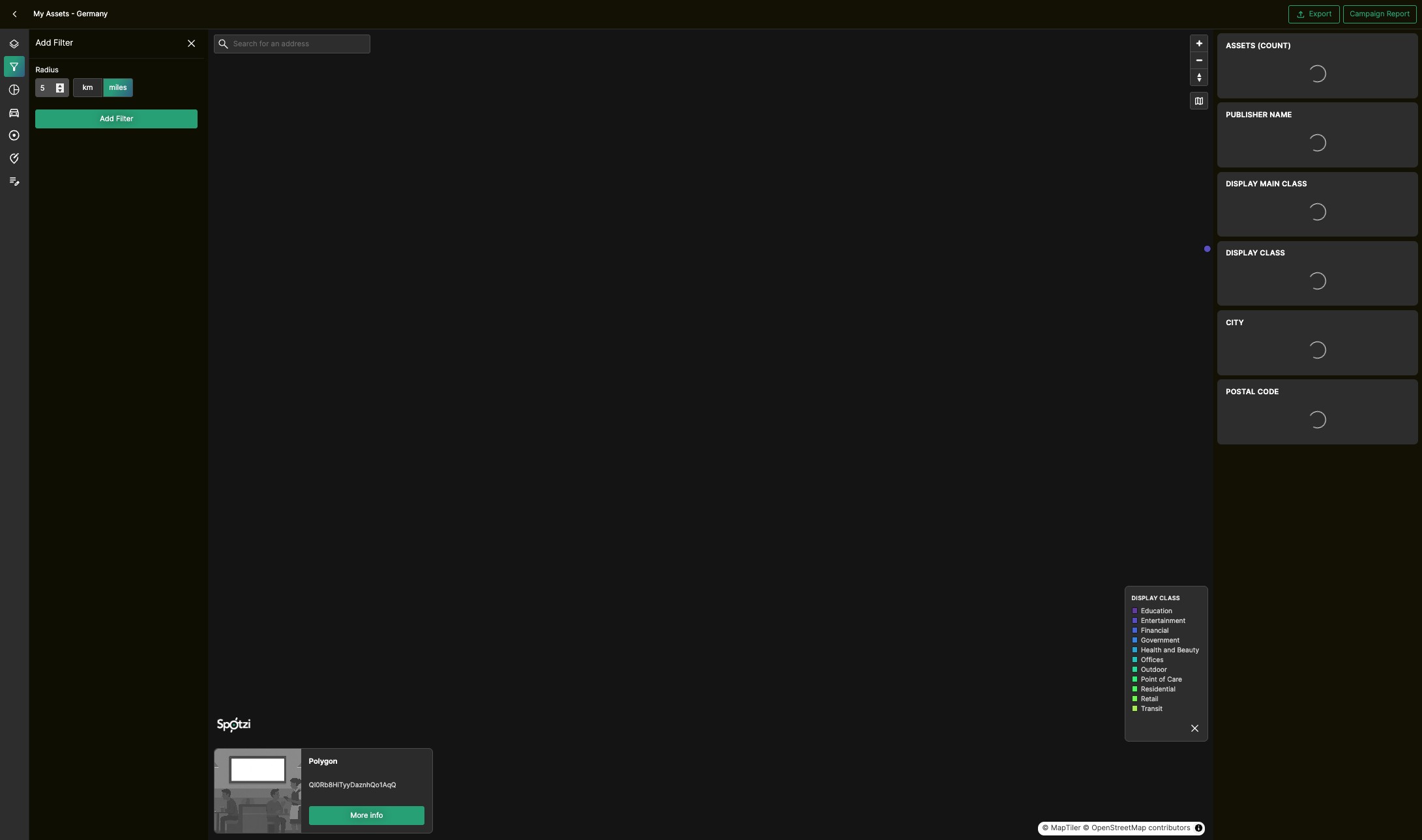 12. Click "Add Filter" when you're happy with your radius selection.
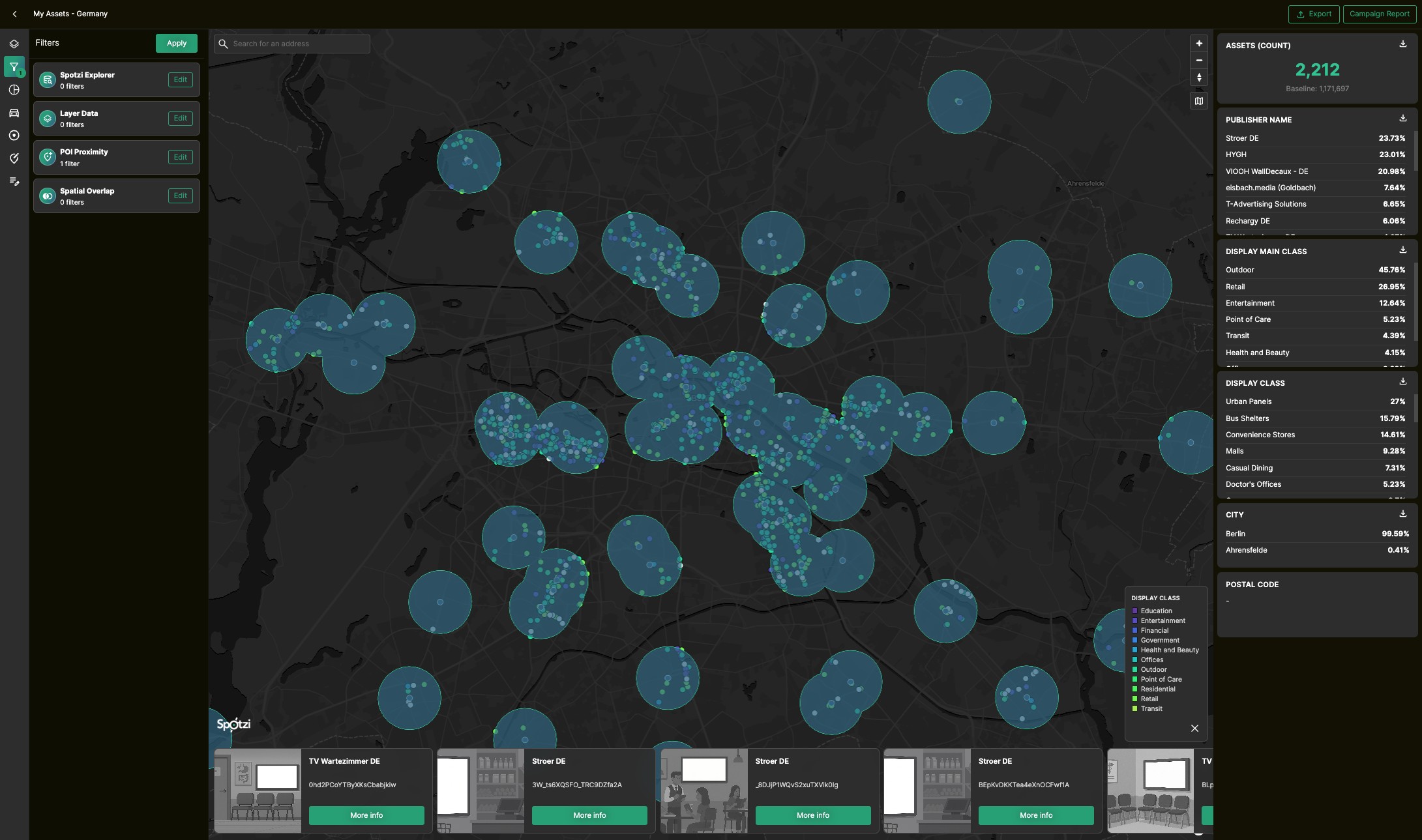
 13. Your dashboard's locations will now be filtered based on their proximity to the locations on your POI layer. Only points within your selected radius buffers will appear on the map, and the dashboard widgets will update accordingly.
You may now click the "Export" button to download a list of your filtered locations, or share this dashboard with a client or colleague.
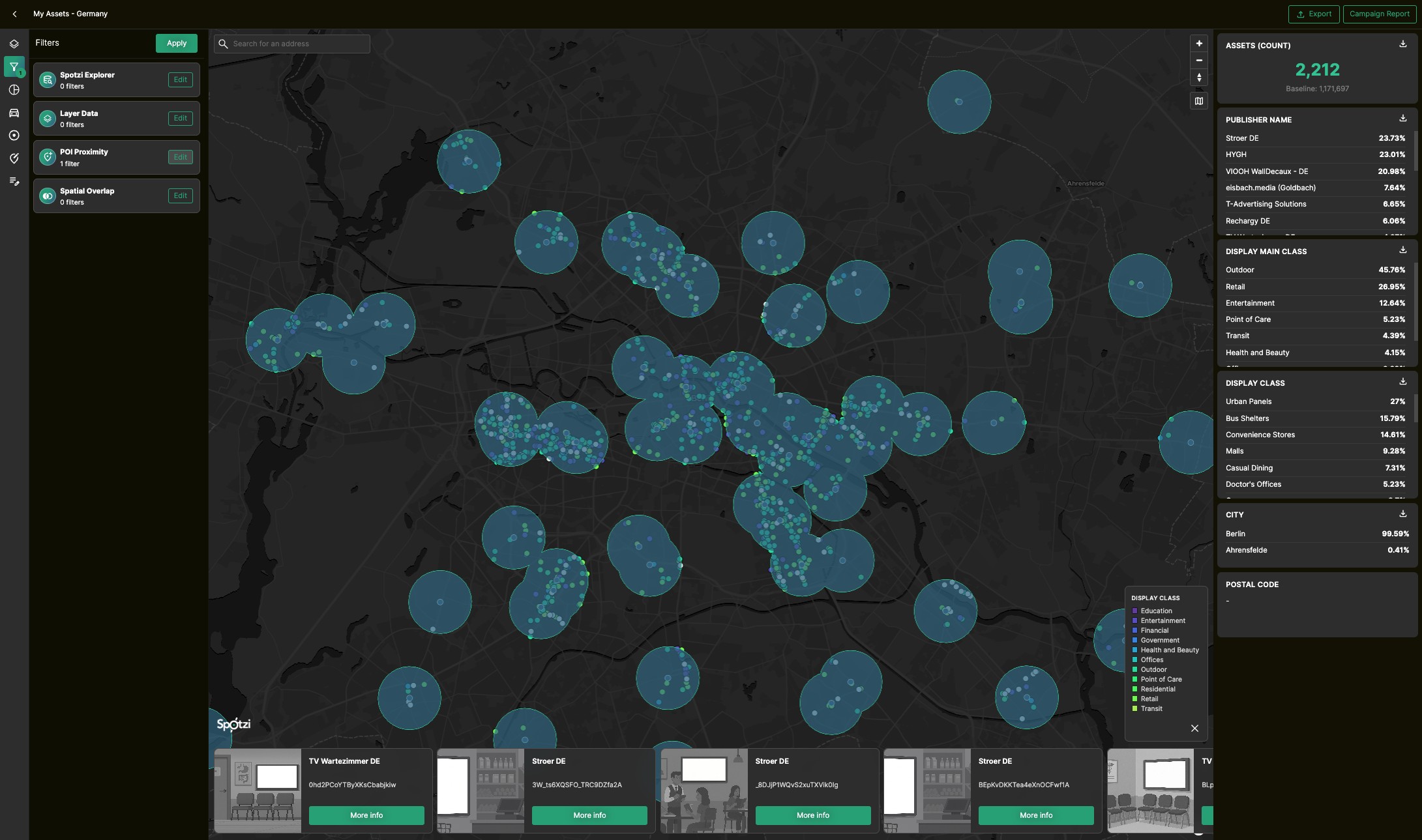
 14. To remove your POI Proximity filter, click "Edit"
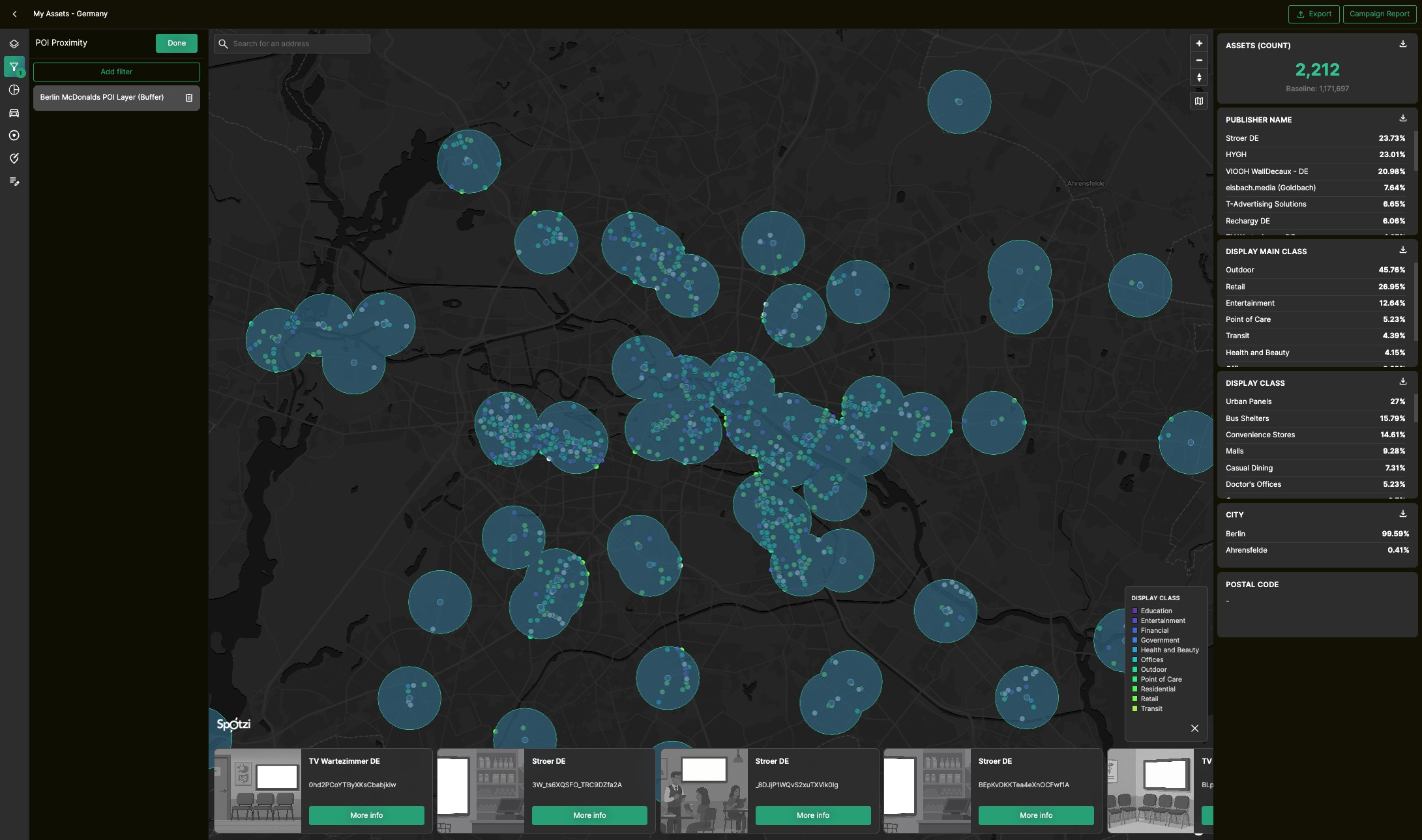
 15. Click the trash icon to remove the filter.
 16. Click "Done"
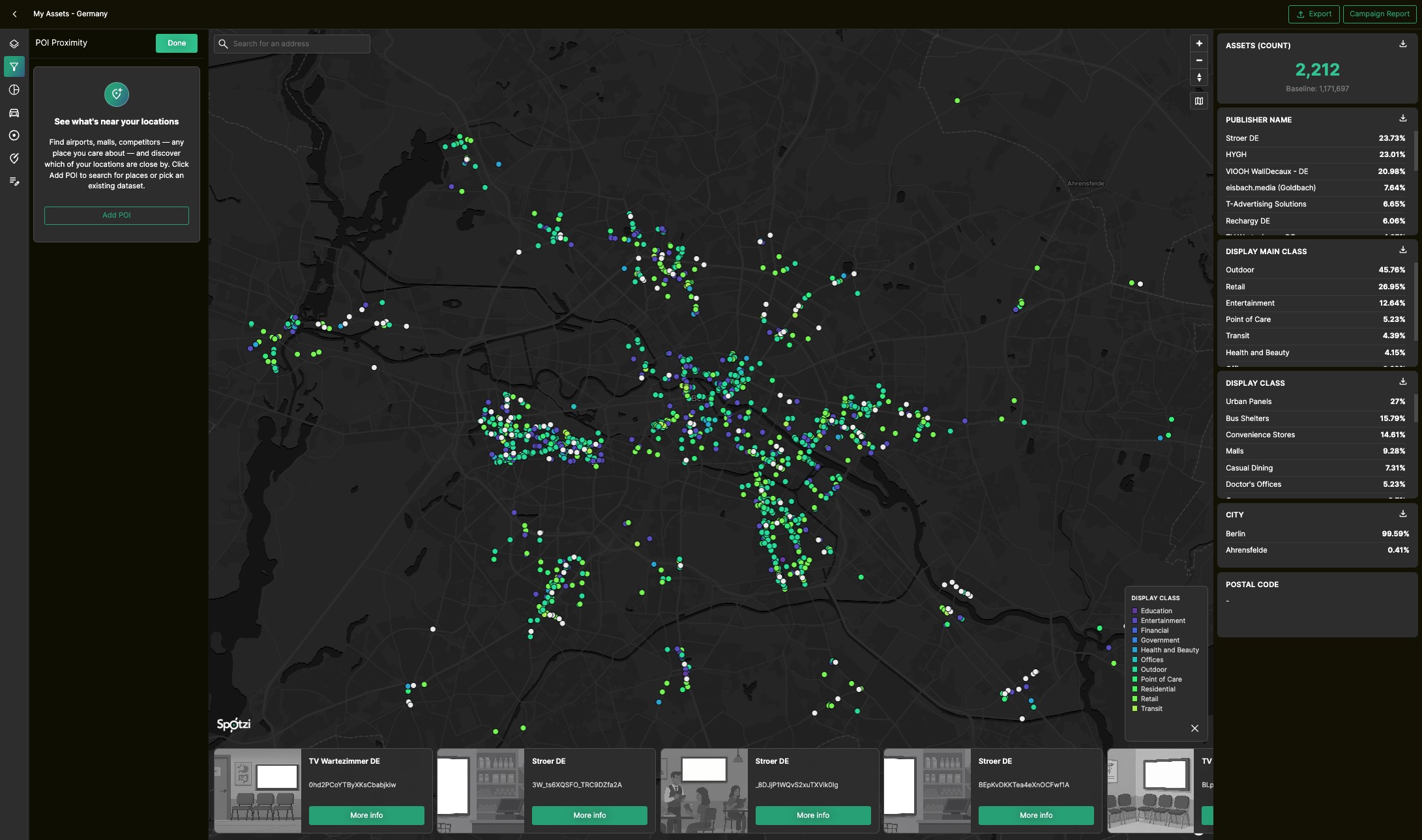 17. The rest of your locations will now re-appear on your map.