The Spotzi Customer Portal gives you a central place to monitor your campaign, communicate with our team, share files and track the progress of your campaign activities. Below is an overview of the different sections and the information available to you.
1. Campaign Overview
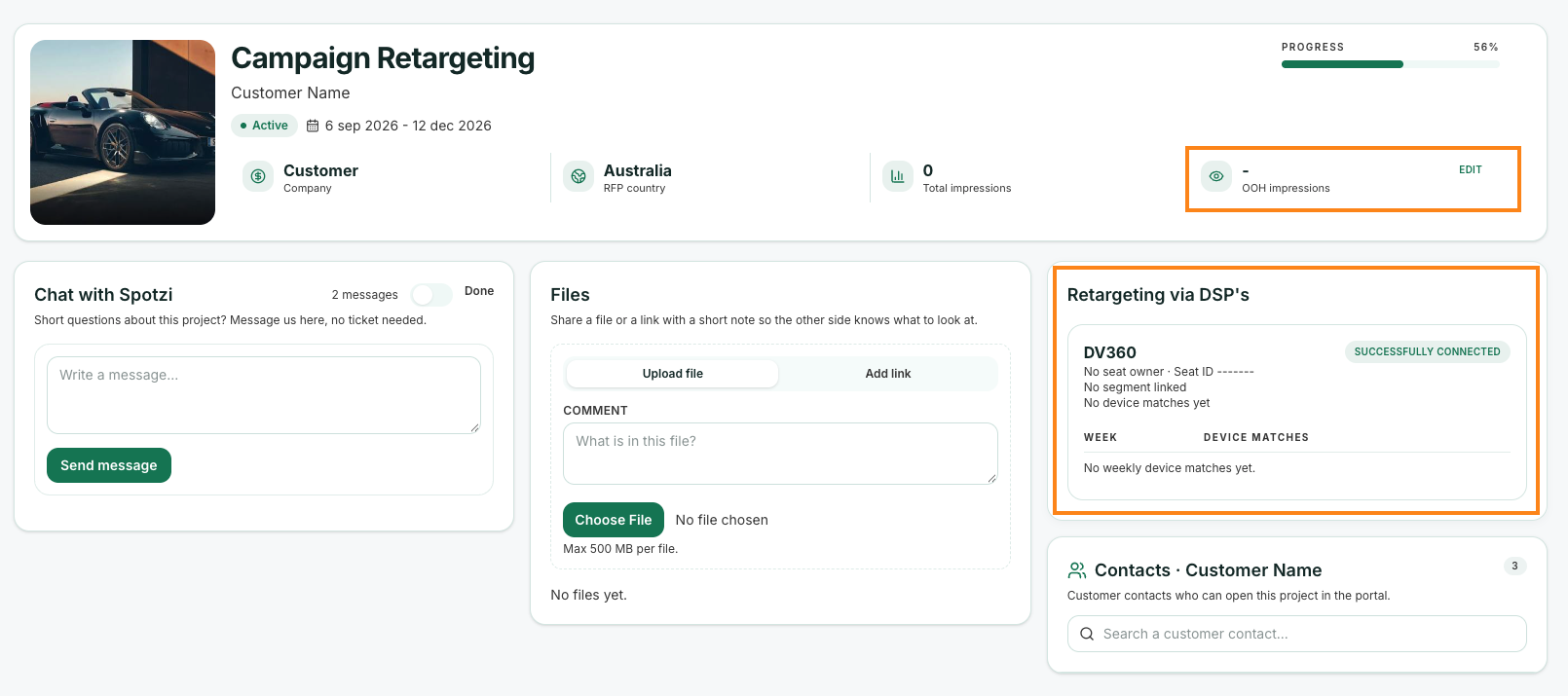
At the top of the project dashboard, you will find the main details of your campaign like campaign name, start and end date of your campaign and a progress bar. The progress bar is a visual indication of the project's progress and is your shows your project duration plus 3 weeks for reporting purpases.
Reporting Final OOH Impressions
The OOH Impressions field allows you to report the final number of Out-of-Home (OOH) impressions delivered during your campaign.
Once your campaign has finished, you can:
- Click Edit next to the OOH Impressions field.
- Enter the final number of OOH impressions delivered.
- Save your updated information.
This information is important for Spotzi to complete the campaign reporting. Please make sure to report the final delivered impressions once they are available from your media or campaign delivery partner.
2. Chat with Spotzi
The Chat with Spotzi section allows you to communicate directly with our team within the project. You can use this section for asking short questions about your campaign or share additional updates. Simply type your message and click Send message. There is no need to create a separate support ticket for short project-related questions. Our team will receive a notification.
You can also mark the conversation as Done when no further communication is required.
3. Files and Documents
The Files section allows you to share campaign-related documents and links with Spotzi. You can upload files or share external links, together with a short description. Examples of files you may want to share are adlogs and creatives.
To share a file:
- Select Upload file.
- Choose the file from your computer.
- Add a comment explaining what the file contains.
- Submit your file.
The maximum file size is 500 MB per file. Alternatively, select Add link to share an external URL. All shared files remain accessible within the project dashboard.
4. Retargeting via DSPs
This section provides visibility into the programmatic activation of your campaign through connected Demand-Side Platforms (DSPs).
For example, you may see a connection to platforms such as DV360.
The dashboard provides the following information:
Connection Status: Shows whether the DSP integration has been successfully connected. Sometimes you or a customer needs to accept our DSP integration. This will also be shown like this:
<img src="https://assets.macaly-user-data.dev/app-file-blobs/an27s5y1bjug2b5me2wnggv7.png" alt="Screenshot 2026 11 11 at 12.04.02" width="223" height="60" />Seat Owner / Seat ID: Displays the DSP seat information associated with the activation, when available.
Segment Linked: Indicates whether the relevant audience segment has been linked to the DSP.
Segment Name: Indicates the name of the custom segment in the DSP
Segment ID: Indicates the ID of the custom segment in the DSP
Device Matches:Shows whether devices from the Spotzi audience have been matched within the connected DSP.
Weekly Device Matches:
Where available, this table displays the number of matched devices per week. This gives you visibility into the audience activation process and helps you understand whether the audience is successfully reaching the connected advertising platform. Please note that a successful DSP connection does not necessarily mean that the audience has already been fully matched or activated. Device matching information becomes available as the activation progresses.
5. Contacts
The Contacts section shows the customer contacts who have access to the project portal. These contacts can log in to view the campaign dashboard, follow project updates and access shared files. This makes it easier for everyone involved in the campaign to work from the same information.
The Spotzi Customer Portal is designed to make campaign collaboration more transparent, efficient and straightforward — from audience activation to final campaign measurement.